Team development
The Development screen gives coaches one profile per trainer, with coaching entries, delivery results, learner feedback and peer observations.
Your words may differ. Each workspace can choose its own words: a class might be a cohort, program or group, a learner a participant, trainee or new hire, a session a module or lesson. These guides use the default words. The steps are the same whatever your workspace calls them. Change your workspace's words
Development is where you coach the trainers themselves. Every trainer in your workspace has a development profile. It holds your coaching notes and reviews, how their classes are going, what learners say about them, and what colleagues saw when they sat in on a session.
Trainers without that permission never see the Development screen or anyone else's profile. They see their own profile under My Development instead (see My development).
Open Development
Click More in the sidebar, then Development. The Team development screen opens.
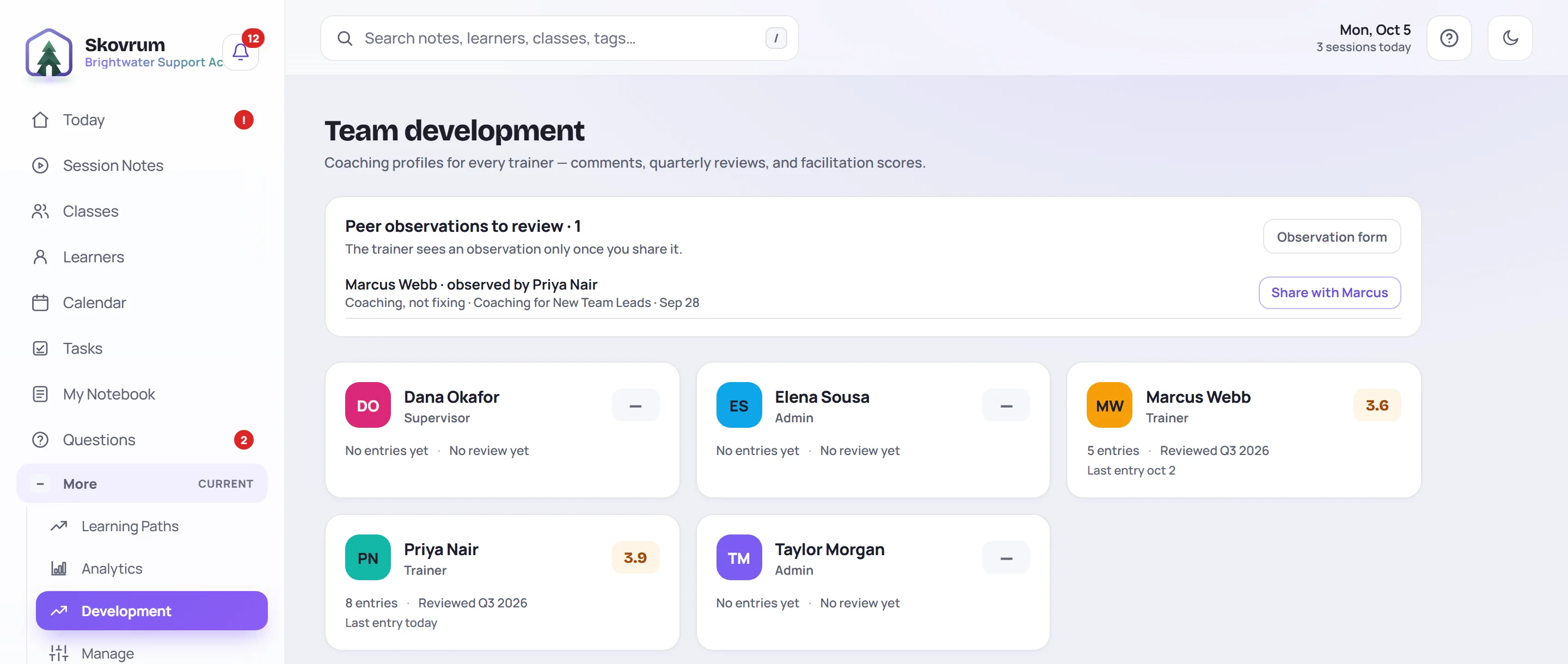
At the top, Peer observations to review lists observations colleagues have written that no trainer can see yet. It only lists drafts, so it's often empty. See Peer observation.
Below it there's one card for each active user, including you:
| On the card | What it means |
|---|---|
| The number on the right | The average of their last five practice and live review scores, out of 5. A dash means none yet. |
| N entries | Every entry on their profile, including ones the trainer can't see yet. |
| Reviewed Q3 2026 | The period of their latest quarterly review, or No review yet. |
| Last entry | When the newest entry was added. |
Click a card to open that trainer's profile.
A trainer's profile
The header shows the trainer's name and role. When they've run classes, it also shows three totals: Learners trained, Classes run and Sessions delivered. New entry adds a coaching entry, and Export prints a development report.
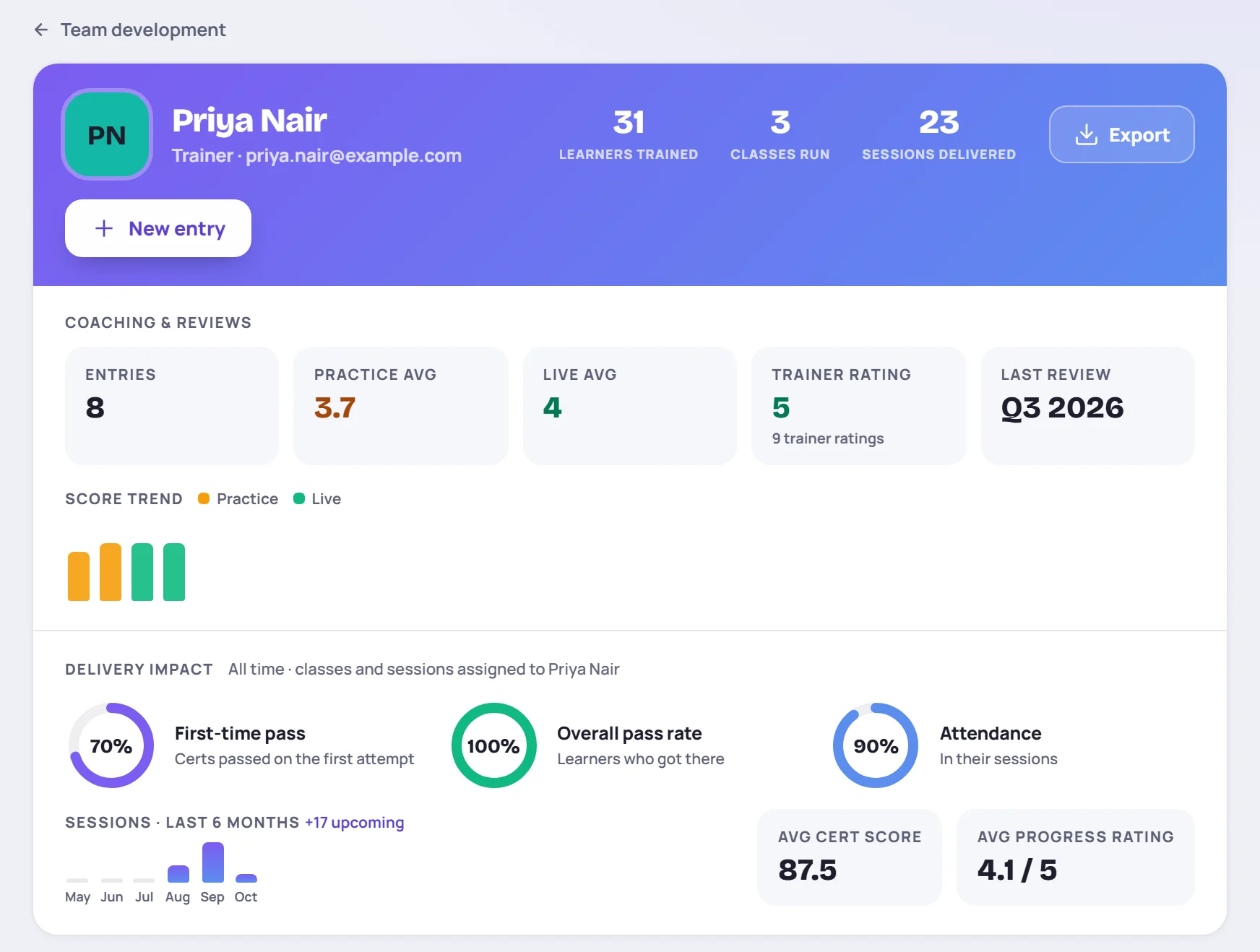
Coaching & reviews
| Box | What it shows |
|---|---|
| Entries | How many entries the profile has. |
| Practice avg / Live avg | The average score of their practice facilitation and live training reviews. |
| Trainer rating | The average rating learners gave this trainer in surveys, and how many ratings it's based on. Ratings of the session itself are counted separately. |
| Last review | The period of the latest quarterly review. |
Score trend shows their last 12 practice and live review scores as bars, oldest on the left. Hover over a bar to see the score, topic and date. Once learners have rated the trainer on more than one day, a Trainer rating trend line appears too.
Scores of 4 and above are green, 3 to 4 amber, and below 3 red.
Delivery impact
This part is worked out from the trainer's classes, not from anything you write. It covers all time and every class and session they're assigned to, including as a co-trainer:
- First-time pass: certifications passed on the first attempt.
- Overall pass rate: learners who passed in the end.
- Attendance: how often learners turned up to their sessions.
- Sessions · last 6 months: sessions delivered per month, plus how many are coming up.
- Avg cert score and Avg progress rating: the average best certification score, and the average daily progress rating they gave learners.
A dash means there's nothing to work it out from yet.
Entries
Under the header, the profile lists every entry, newest first. The chips filter it: All, Comments, Reviews, Practice, Live, and Peer once there are peer observations. Surveys lists the learner survey responses about this trainer, if there are any. They're read-only and never mixed into the other chips.
To add, edit, hide or delete entries, see Coaching entries and reviews.
What the trainer sees
The trainer sees the same profile on My Development, with a few differences:
- Entries you've hidden aren't there. Practice and live reviews start hidden. Comments and quarterly reviews are visible as soon as you save them.
- They can't add or change entries. A note says the page is view-only.
- They see their own peer observation requests, and the observations they've written.
- They also see Your performance data, a card showing how complete the records behind their numbers are.
The totals, delivery impact and survey ratings are the same for both of you, apart from anything worked out from entries they can't see yet.
Print a development report
Click Export on a profile, choose a period and click Generate report. A printable report opens in a new tab, ready to print or save as a PDF. It never includes hidden entries. See Coaching entries and reviews for what's in it.
Common questions
Why don't I see Development? Either your role doesn't include Trainer development, or your workspace is on the Solo plan. If your workspace moves from Team or Business to Solo, its development entries are kept, but nobody can see them until it moves back.
Can a Supervisor see development profiles? Not with the built-in Supervisor role. An Admin can make a custom role that includes Trainer development.
Why is a trainer's card average different from their Practice avg? The card averages their last five practice and live scores together. The profile shows each kind's average over all time.