Calendar feed
Subscribe to your sessions in Outlook, Google Calendar or Apple Calendar so they stay up to date, and reset the link if it's shared by mistake.
Your words may differ. Each workspace can choose its own words: a class might be a cohort, program or group, a learner a participant, trainee or new hire, a session a module or lesson. These guides use the default words. The steps are the same whatever your workspace calls them. Change your workspace's words
Your calendar feed puts your sessions in the calendar you already use, and keeps them up to date when a session moves. It's personal: each person has their own link with their own sessions.
Subscribe
- Click the gear next to your name at the bottom of the sidebar to open your account settings.
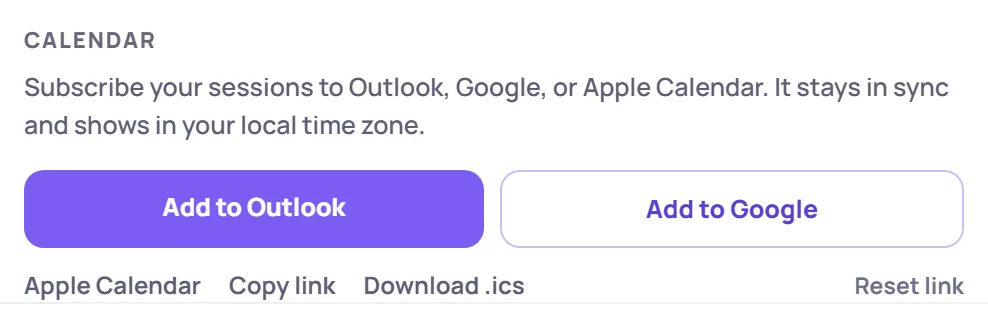
- Under Calendar, click the button for your calendar (see the table below).
- Confirm in your calendar app.
| Button | What it does |
|---|---|
| Add to Outlook | Opens Outlook on the web with the feed filled in |
| Add to Google | Opens Google Calendar with the feed filled in |
| Apple Calendar | Opens the calendar app on a Mac or iPhone. It also works with desktop Outlook. |
| Copy link | Copies the feed's address, for any other calendar app that can subscribe by URL |
The calendar is called Skovrum — Your Name. Your calendar app decides how often it checks for changes, so an edit can take a while to show up there.
Download .ics saves a one-off file instead. Importing it copies your sessions as they are now into your calendar, but it doesn't update afterwards. Subscribe if you want changes to follow.
What's in it
- Your sessions: the ones you lead or co-lead, and every session of a class where you're the main trainer.
- From 60 days ago onwards, including everything scheduled ahead.
- Not archived classes. Their sessions drop out of the feed.
Each event shows the class code and session title, such as [ONB-14] Integrations & APIs. The location is the room, or the join link for a virtual or hybrid class. Times show in your own time zone. When a class runs in a different time zone from your workspace, the event also gives its time in the class's zone. When a session is rescheduled, its event moves with it.
Keep your link private
Anyone with the link can see your session list, with titles, times and places, without signing in. Don't paste it anywhere public.
If it has been shared by mistake, click Reset link and confirm. The old link stops working straight away, and your existing subscriptions stop updating. Subscribe again with the new link on each device.
The feed also stops working if your account is deactivated.
Common questions
My calendar shows the wrong time. Check your calendar app's own time zone setting. Skovrum sends each session's exact time, and your calendar shows it in its own zone.
Can I see a colleague's sessions in my feed? No. Each person subscribes to their own. To see everyone's sessions, use the Calendar screen in Skovrum.