Courses and past classes
Start a new class from a saved course or a past class, save a class as a course, and keep your course catalog tidy.
Your words may differ. Each workspace can choose its own words: a class might be a cohort, program or group, a learner a participant, trainee or new hire, a session a module or lesson. These guides use the default words. The steps are the same whatever your workspace calls them. Change your workspace's words
A course is the thing you teach, such as New-hire onboarding. A class is one run of it, with its own dates and learners. Saving a course means you set up the type, times, schedule, certifications and curriculum once, and every new run starts from them.
Classes started from a course stay linked to it. The link is what course certificates, learning paths and competencies set up for one course follow.
Start a new class from a course
- Open Classes and click New class.
- In Start from at the top right, choose a course from the Courses group.

The form fills in from the course:
- the class type, delivery, start and end times, and how it runs (consecutive workdays, every week, every other week or a single session), with its length;
- the certifications, if the course names any;
- the curriculum template;
- the client or business unit, if your workspace uses them;
- a name, such as New-hire onboarding · Oct 2026.
The start date is set to today, and the location, country and roster start empty. Change anything you like, then carry on as usual. See Create a class.
The Course · chip under the title shows the link. Click its × to create the class without linking it to the course.
Start from a past class
Choose a class from the Past classes group in Start from. Archived classes are on the list too, marked Archived. This copies:
- the type, trainers, delivery, join link, location, country and time zone;
- the daily times and the number of days or sessions, and whether it ran weekly or every other week;
- the certifications.
The name gets (copy) added. Dates start from today and the roster starts empty. The curriculum isn't copied, so choose a Curriculum template in the form, or apply one later. If the past class was linked to a course, the new one is linked to the same course.
Save a class as a course
Open the class and click Save as course at the top. The button only shows when the class isn't linked to a course yet.
The new course takes the class's name, type, delivery, the first session's times, the number of days or sessions, how often it ran, and its certifications from the catalog. The class is then linked to it. The curriculum isn't saved with it, so edit the course and choose a Curriculum template if you want one.
If a course with the same name already exists, Skovrum tells you, and you can link the class to that course instead (see below).
Manage your courses
Go to Manage → Data and find the Courses card. Each course shows its type, length, certifications and how many times it has been delivered.
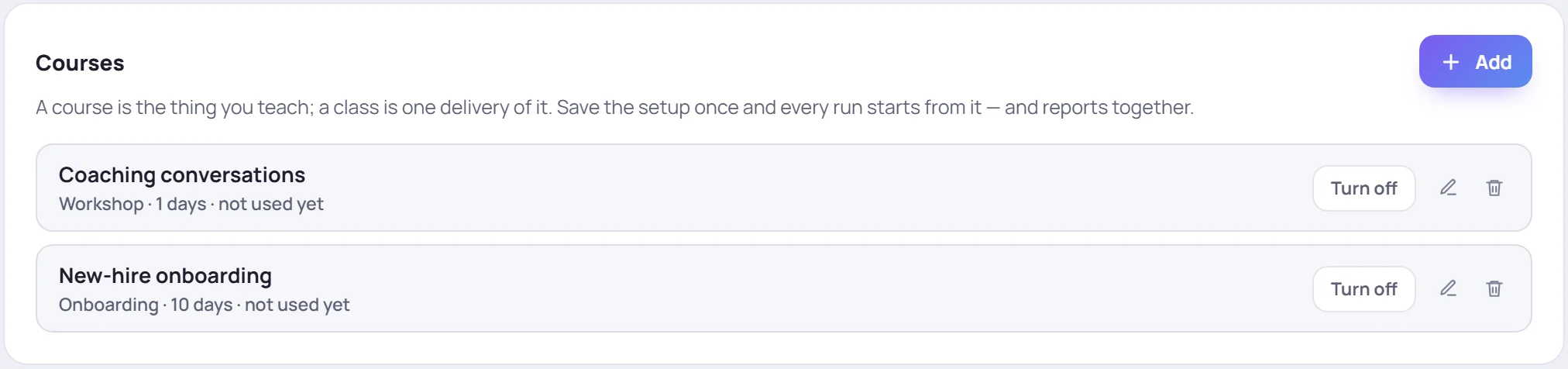
- Add creates a course from scratch.
- The pencil opens it for editing.
- Turn off hides a course from Start from. Classes already linked to it keep the link. Turn on offers it again.
- The trash can removes a course, but only one that has never been delivered and isn't a step in a learning path. For the others, turn them off instead.
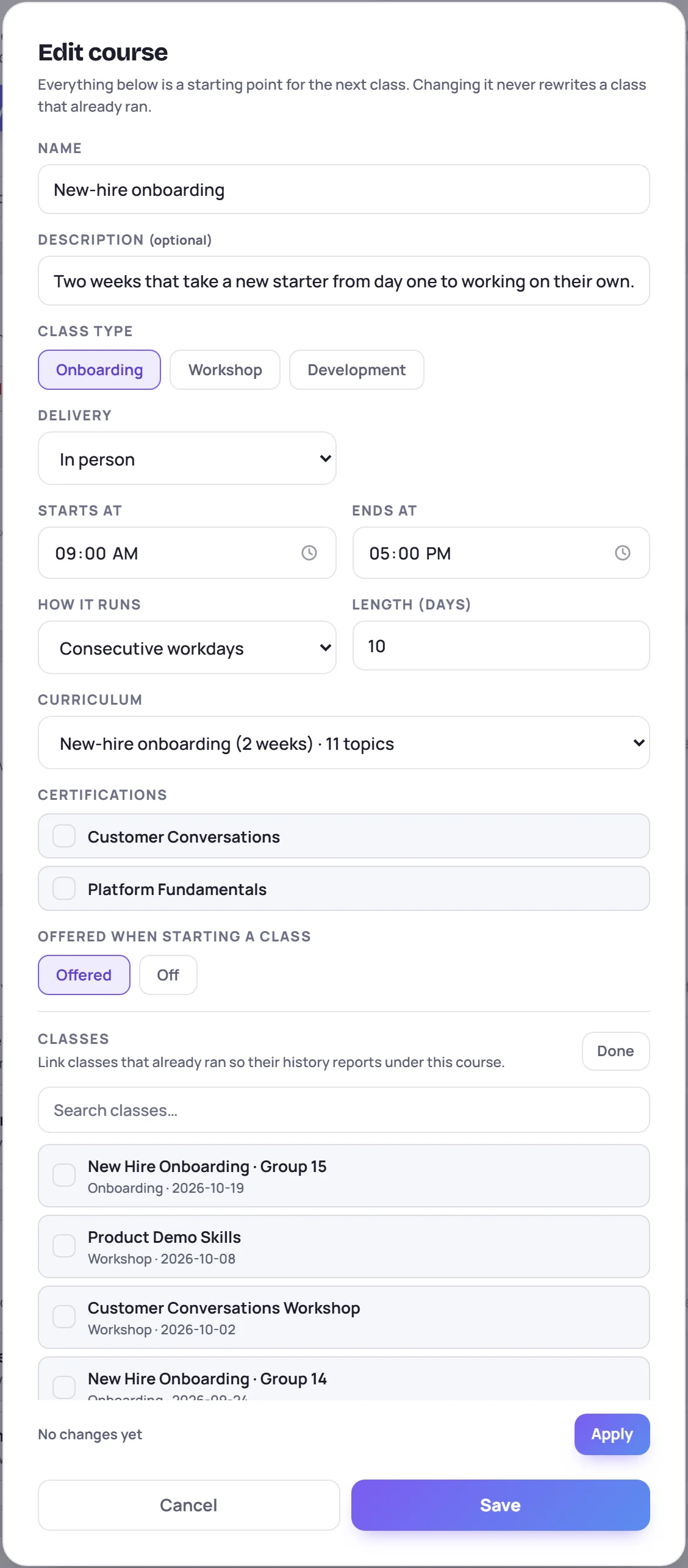
| Field | What it sets for the next class |
|---|---|
| Name, Description | The course's name, and an optional note on what it covers. |
| Class type | Onboarding, Workshop or Development. |
| Delivery | In person, Virtual, Hybrid or No default. |
| Starts at, Ends at | The daily times. |
| How it runs | Consecutive workdays, Every week, Every other week or Single session. |
| Length (days) or Sessions | Days for an onboarding course, sessions for the other types. |
| Curriculum | A curriculum template for this class type. |
| Certifications | Ticked from your workspace's catalog. |
| Offered when starting a class | Offered or Off. |
Everything here is a starting point. Changing a course never changes a class that already ran.
Link classes that already ran
To bring older classes under a course, edit the course and click Choose classes in the Classes section. Tick the classes that belong to it (search helps), untick any that don't, and click Apply. Skovrum reports how many were linked and unlinked. Classes you can't change are skipped.
Common questions
Can I change a class after starting it from a course? Yes. The course only fills in the form. The class keeps its own settings, and changing one doesn't affect the other.
Why don't I see Save as course? Either the class is already linked to a course, or your role doesn't manage the catalog.