Engagement, to-dos and history
Log engagement with one tap, and use a learner's history panel to check recent observations and keep their to-dos.
Your words may differ. Each workspace can choose its own words: a class might be a cohort, program or group, a learner a participant, trainee or new hire, a session a module or lesson. These guides use the default words. The steps are the same whatever your workspace calls them. Change your workspace's words
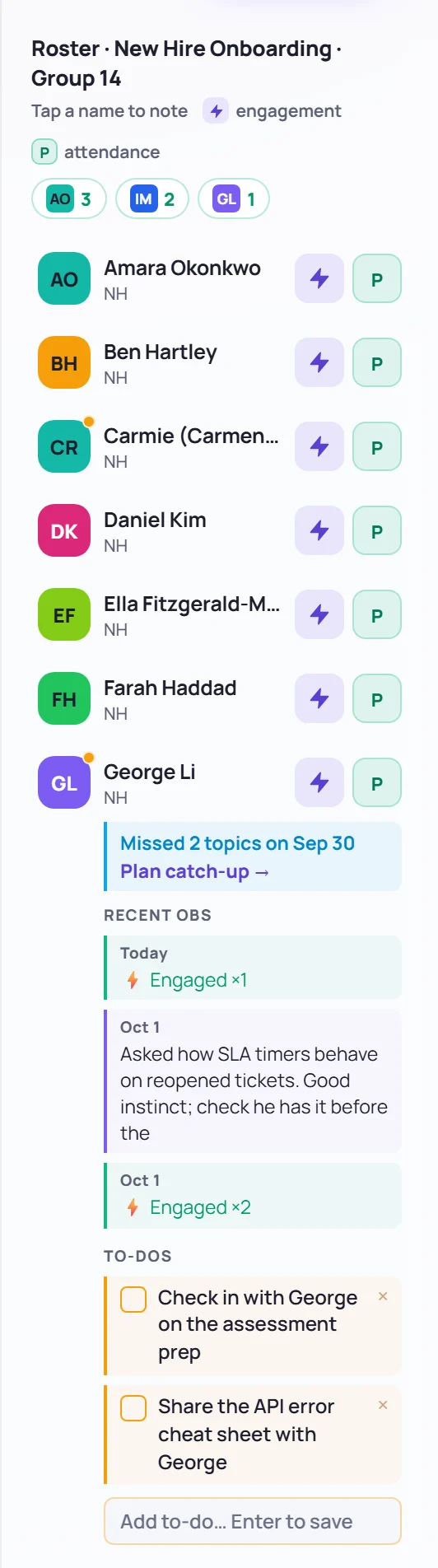
The roster on the right of the session screen does more than take attendance. Three quick tools sit on every learner's row.
Engagement taps
Click the lightning bolt next to a learner whenever they contribute: a good question, an answer, helping a neighbor. Each click adds one. The learners you've tapped appear at the top of the roster with their count, most engaged first, so you can see at a glance who hasn't spoken yet.
Engagement is saved on the learner's profile as a single line for the session, such as ⚡ Engaged ×3, and the wrap-up counts it. Taps can't be undone from the roster.
A learner's history panel
Click a learner's initials (the colored square) to open their panel under their row. Click them again to close it. The panel shows:
- Missed topics, if the learner missed topics on an earlier day of this class, with Plan catch-up → to create a catch-up to-do for the next session. See Missed topics and catch-ups.
- RECENT OBS: the learner's three latest observations in this class, engagement included.
- TO-DOS: their open to-dos in this class.
Learner to-dos
A to-do is a small follow-up about one learner, such as Share the API error cheat sheet with George. Type it in Add to-do… Enter to save at the bottom of the panel and press Enter. It's linked to the learner, the class and this session.
- Tick the box to mark it done, or click × to delete it.
- An amber dot on a learner's initials means they have open to-dos.
- To-dos also appear on the learner's profile, and the wrap-up counts them under Learner tasks.
Learner to-dos are kept apart from the team's Tasks list. See Learner to-dos and tasks.
Start an observation
Click a learner's name (not their initials) to start an observation about them: the note box switches to Obs and adds @ and their name. See Take notes during a session.