Observations and competencies
Record what a learner did, link it to a competency with a 1 to 5 rating, and see where it shows up afterwards.
Your words may differ. Each workspace can choose its own words: a class might be a cohort, program or group, a learner a participant, trainee or new hire, a session a module or lesson. These guides use the default words. The steps are the same whatever your workspace calls them. Change your workspace's words
An observation is a note about one or more learners. It sits in the session's notes like any other note, and it also lands on each learner's profile. If you link it to a competency and give it a rating, it feeds the learner's trends and the class report too.
Three ways to start one
You can log an observation from the session or from the learner's profile:
- Click Obs in the note box on the session screen. The list of learners opens straight away, so pick one or more first. See Take notes during a session for the basics.
- Click a learner's name in the roster on the right of the session screen. The note box switches to Obs with that learner already tagged.
- Mention a learner in a plain note. A note that @mentions a learner becomes an observation about them when you save it.
An observation needs at least one learner. Only learners who were in the class on the day of that session can be tagged.
Link a competency and rate it
When your workspace has competencies, a Competency list appears above the note box while Obs is selected. It offers the competencies set up for every class, for this class's type and for its course. An Admin manages the list (see Competencies).
Pick one, and the 1 to 5 rating buttons appear next to it. The rating is optional. The scale is the same everywhere: 1 is Needs Improvement and 5 is Exemplary (the full table is in Take notes during a session).
Once saved, the observation shows the learners, the competency and the rating:

An observation without a competency is labeled Observation.
Log one from the learner's profile
Not everything happens in a session. Open the learner's profile and use Log an observation on the Overview tab.

- Type what you saw.
- If the learner is in more than one of your active classes, choose the class.
- Choose a Competency, or leave it on General (No Category).
- With a competency chosen, answer How did they do on this? with a rating from 1 to 5.
- Press Enter or click Add observation.
An observation logged here isn't tied to a session, and it's always shared. If the learner has no active class that you lead, Skovrum asks you to re-enroll them first.
Where observations show up
| Where | What you see |
|---|---|
| The session's notes | The observation card, with learners, competency and rating |
| The learner's profile, Overview | The Observations list. Filter it by competency with the buttons above it. Engagement entries there are the engagement taps from the roster. |
| The learner's profile, Timeline | Each observation, plus a Rated 4/5 line for each rating |
| Competency trends on the profile | One card per competency the learner has been rated on |
| The class report | Observations by Competency: how many observations, how many learners and the average rating |
| AI summaries | Shared observations only |
Competency trends
The Competency trends card on the profile shows the latest rating for each competency, how many ratings there are and their range. A line appears once a competency has ratings on two different days.

See Competency trends for how to read them.
Change the competency or rating later
Open the learner's profile, hover over the observation and click the pencil (Edit observation). The Edit note window lets you change the Competency, the rating and the text. Choose No competency to remove the link.
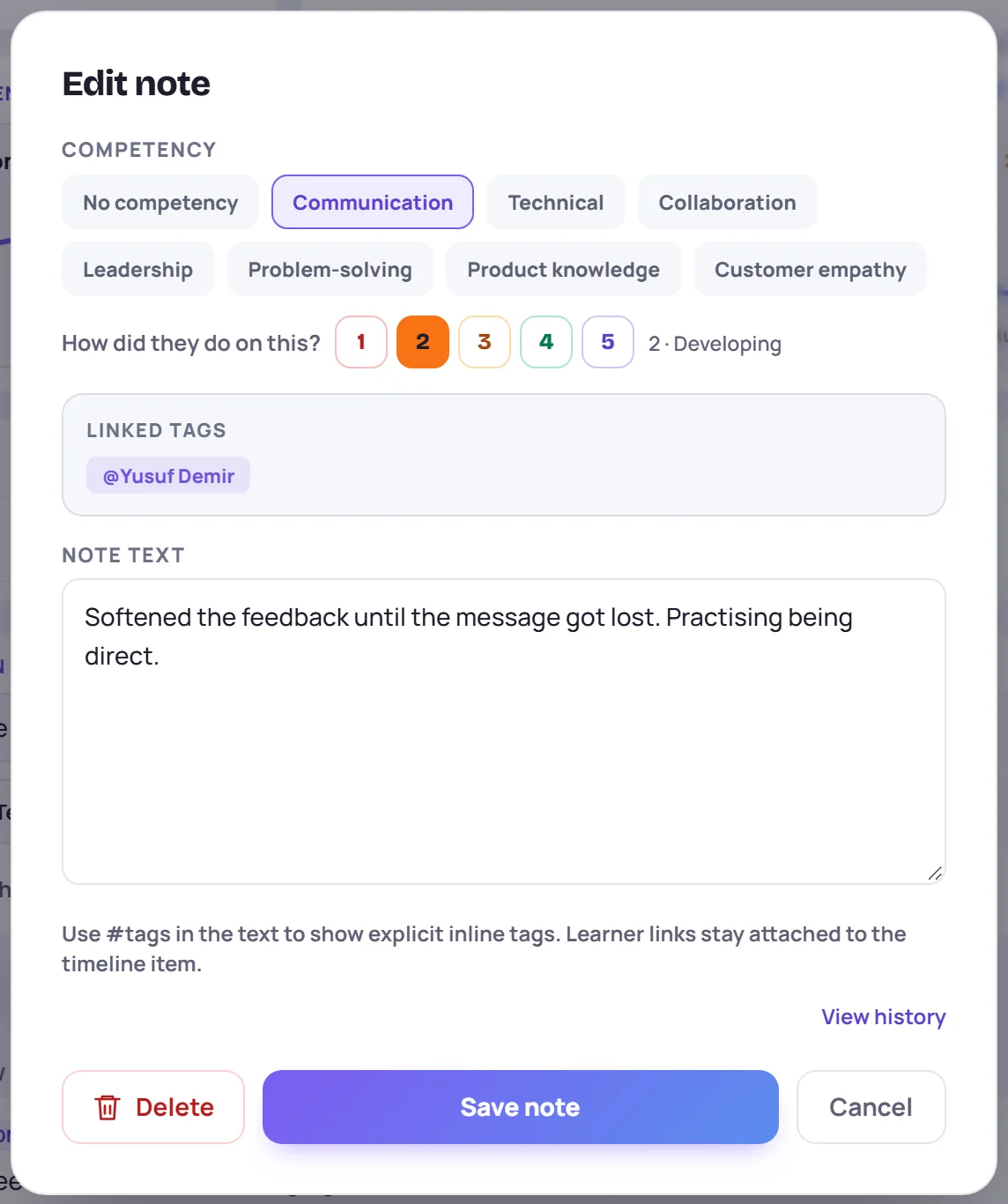
Editing from the session screen changes the text only. Every edit is kept in the note's edit history.
You can edit your own observations. Admins can edit anyone's.
Common questions
Why is there no Competency list when I click Obs? Your workspace has no active competencies for this class. Ask an Admin to add some under Manage → Data.
Can I keep an observation to myself? Yes, from the session screen. Switch Shared to Private before you save. A private observation is left out of the class report and AI summaries. See Private notes. Observations logged from a profile are always shared.
A learner's name is missing from the list. Only learners on the session's roster appear. Someone who joined after that day, or left before it, can't be tagged in that session.