Answer, accept and share
Answer a question, mark the best answer as accepted, and record that the class has heard it.
Your words may differ. Each workspace can choose its own words: a class might be a cohort, program or group, a learner a participant, trainee or new hire, a session a module or lesson. These guides use the default words. The steps are the same whatever your workspace calls them. Change your workspace's words
A question moves through a few simple steps. Someone answers it, the person looking after it accepts the best answer, and, if it came from a class, a trainer tells the class and marks it shared. This page covers each step and who can take it.
Open a question
Click a question anywhere it's listed: the Questions board, a class's Questions tab, the session's parking lot, a notification, or the command palette (Ctrl/⌘+K, then type a few words of it).
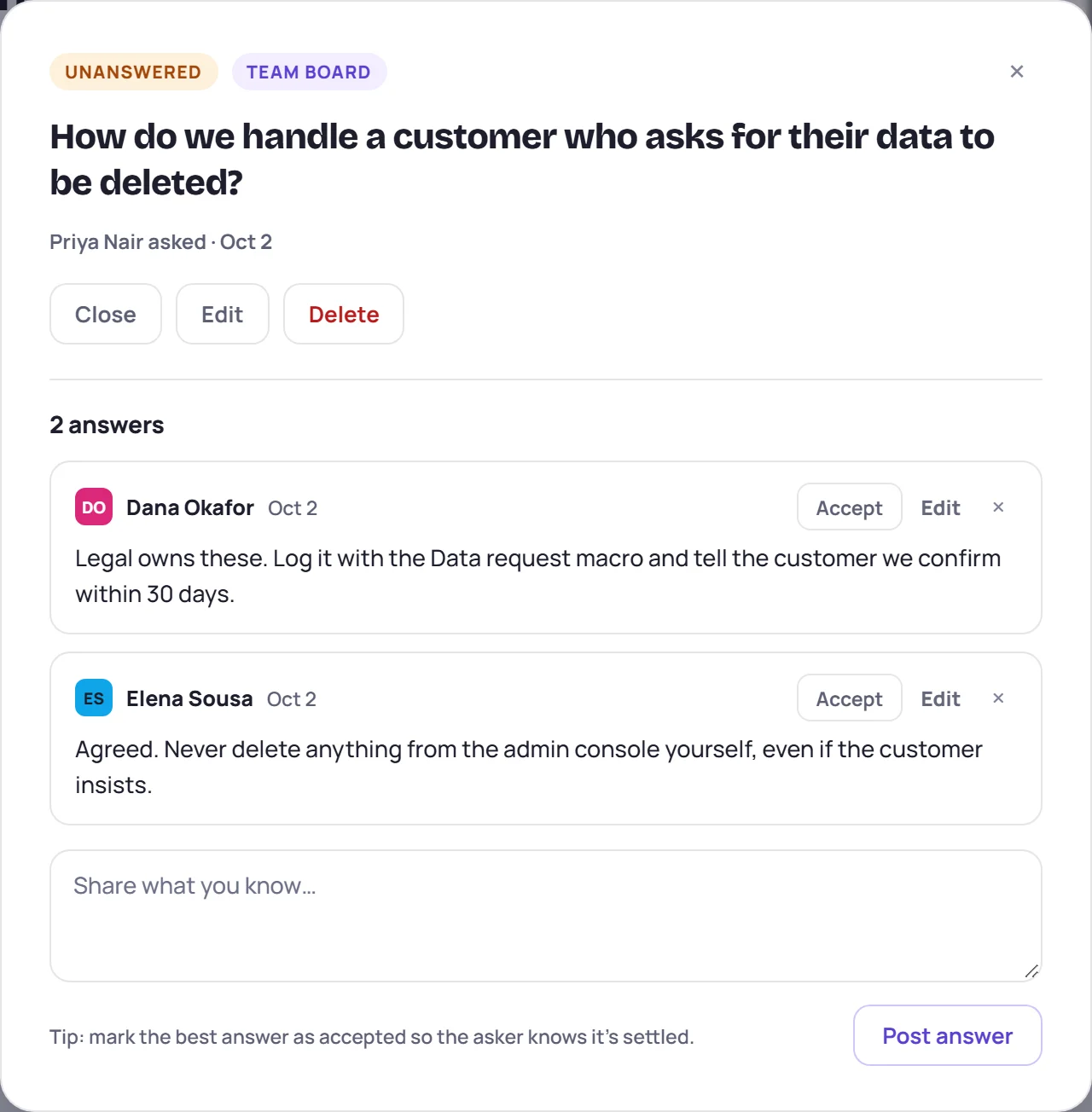
At the top are its status, whether it's Class only or on the Team board, and its topic. Under the question you'll see who asked it and when, and links to its class, session and learner. The buttons below are the steps your role can take. The answers follow, with the accepted one first.
Answer
Type in Share what you know… and click Post answer, or press Ctrl+Enter (⌘+Enter on a Mac). Type @ to mention a teammate; they'll get a notification. An answer can be up to 8,000 characters.
- The asker is told. They get a New answer to your question notification.
- Posting an answer doesn't change the status. The question stays Unanswered until someone accepts an answer. So a question can show 2 answers and still be Unanswered.
- Fix or remove your own answer with Edit and ×. Deleting your own answer offers an undo. Admins can edit or delete anyone's answer.
A closed question can't be answered: This question is closed. Reopen it to add an answer. If your role can't answer, the window says Your role can read answers but not post them.
Accept the best answer
Click Accept on the answer that settles it. The question becomes Answered, the answer is marked ✓ Accepted and moves to the top, and its author gets a Your answer was accepted notification.
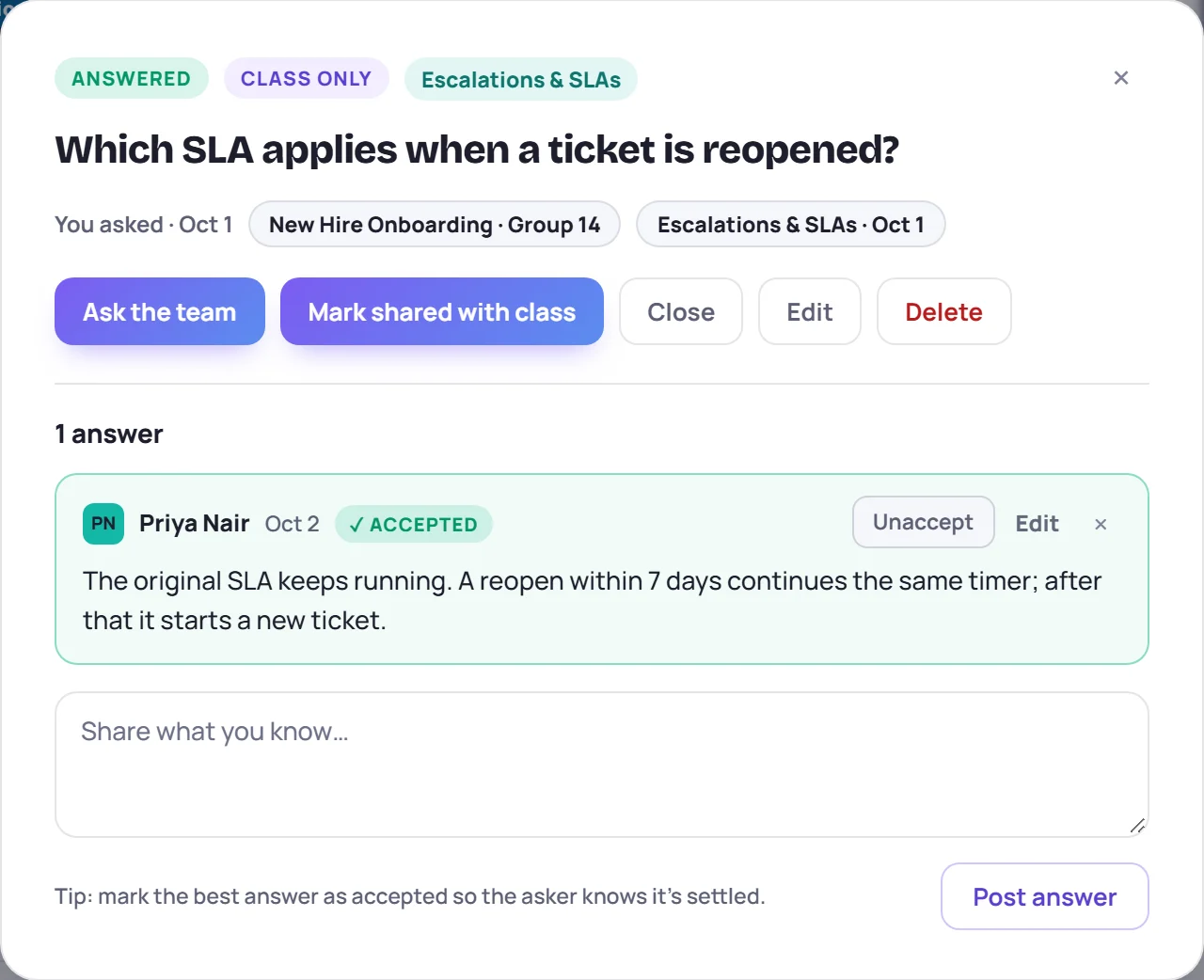
Changed your mind? Click Accept on a different answer, or Unaccept to take the question back to Unanswered. If an accepted answer is deleted, the question goes back to Unanswered too.
Accepted answers are what other trainers see later, next to the topic they teach. See Answers the team already has.
Share it with the class
For a question that came from a class, the last step is telling the learners. Do that in your next session, then click Mark shared with class. The status becomes Shared with class. If you clicked it too soon, Not shared yet undoes it.
You'll find Mark shared with class in the question window, on the class's Questions tab and on the board. In the session's parking lot and in live mode the button is called Shared. Questions asked straight on the board, with no class, don't have this step: Answered is as far as they go.
Close a question
Sometimes a question doesn't need an answer any more: the policy changed, or it was answered another way. Click Close, add a reason if you like, and click Close question.
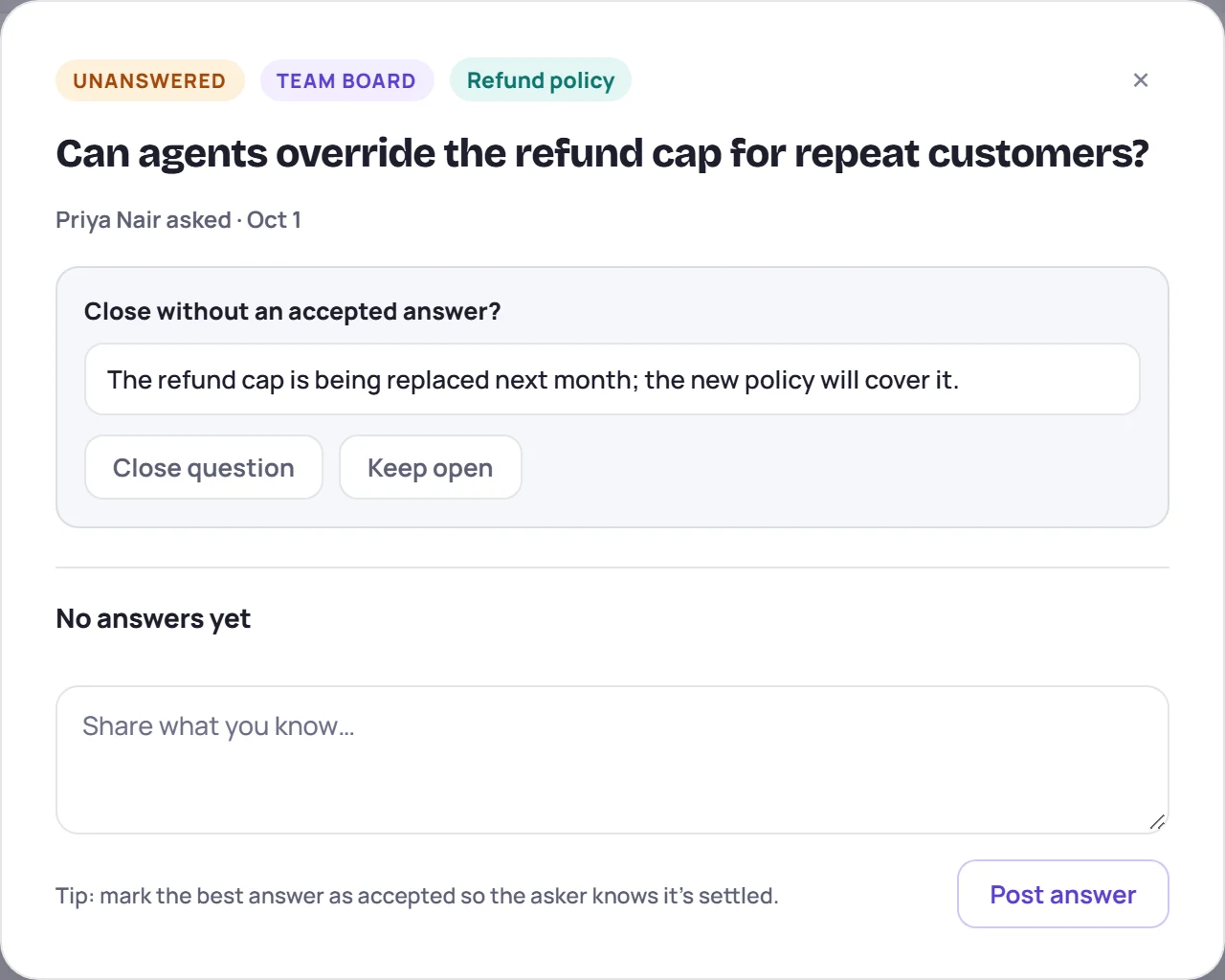
The reason is shown on the closed question. Reopen brings it back: to Answered if it had an accepted answer, otherwise to Unanswered.
The whole lifecycle
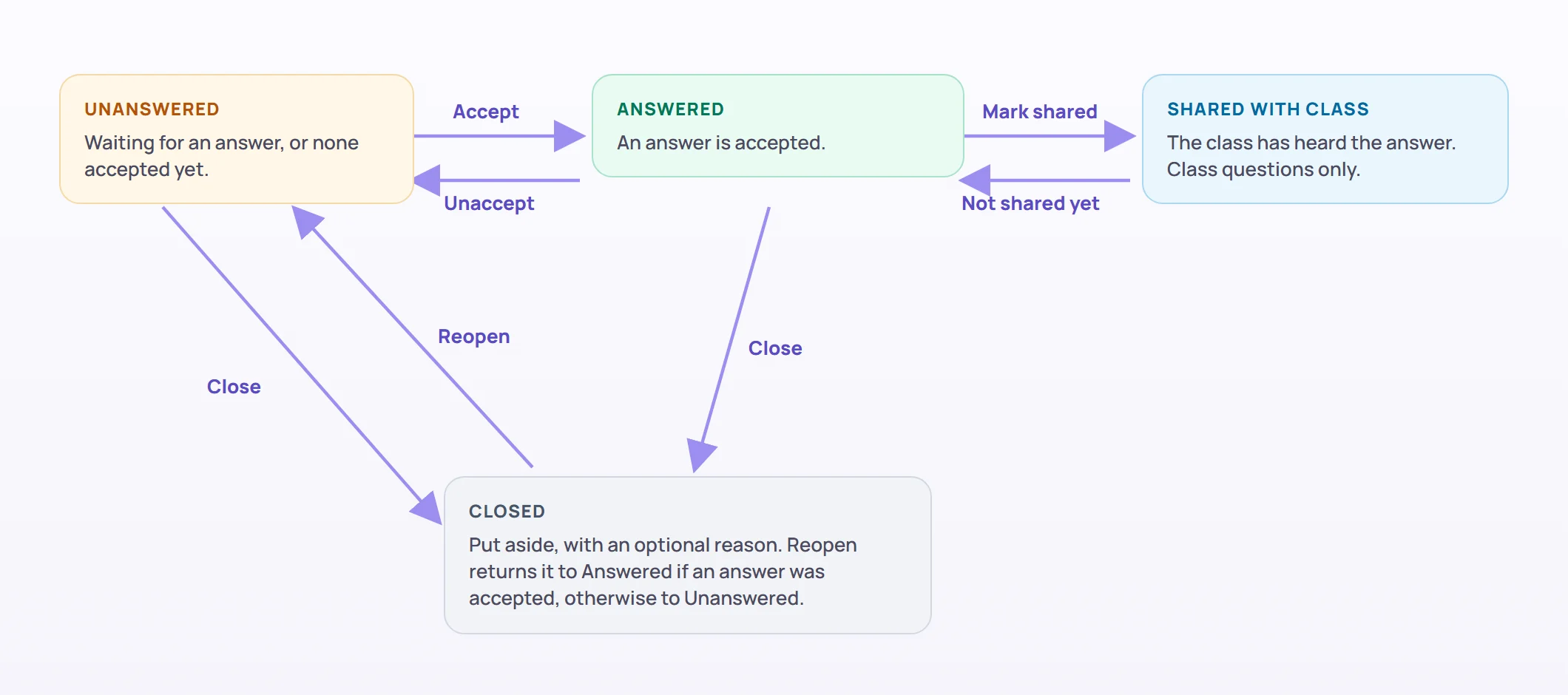
| Status | How it gets there | Next steps |
|---|---|---|
| Unanswered | New, unaccepted, or reopened without an accepted answer | Accept, Close |
| Answered | An answer was accepted | Mark shared with class (class questions), Unaccept, Close |
| Shared with class | A trainer told the class | Not shared yet |
| Closed | Someone closed it | Reopen |
If two people act on the same question at once, the second sees Couldn't update the question — it may have changed. Try again. Reopen the question to see where it stands.
Common questions
Can a Supervisor accept an answer? No. Supervisors can answer, and edit or delete their own answers, but accepting and sharing are for the asker, the class's trainers and Admins.
Can I edit the question itself? The person who asked it and Admins can, with Edit. Fix the wording, the context or the topic.
Why can't I delete a question? Once a teammate has answered, only an Admin can delete it. Close it instead.