Working offline
Keep working when the connection drops. How changes wait on your device, what the sync status means, what happens to a change the server refuses, and how to get the latest version.
Your words may differ. Each workspace can choose its own words: a class might be a cohort, program or group, a learner a participant, trainee or new hire, a session a module or lesson. These guides use the default words. The steps are the same whatever your workspace calls them. Change your workspace's words
Training rooms don't always have good Wi-Fi. If your connection drops while Skovrum is open, keep working: notes, attendance, tasks and other changes are kept on your device and sent as soon as you're back online.
The sync status
The bottom-right corner of the screen always shows the sync status. Click it for details.
| Status | What it means |
|---|---|
| Synced | Everything you changed has reached Skovrum, and you have the latest from your team |
| Syncing | Skovrum is checking for updates right now |
| 1 queued, 2 queued … | Changes waiting on this device. They're sent on their own. |
| Needs attention | Skovrum refused a change. See below. |
| Check sync | The last check for updates didn't finish. Queued changes are still safe. |
While you're online, Skovrum checks for your team's changes every 15 to 30 seconds, and again whenever you come back to the tab.
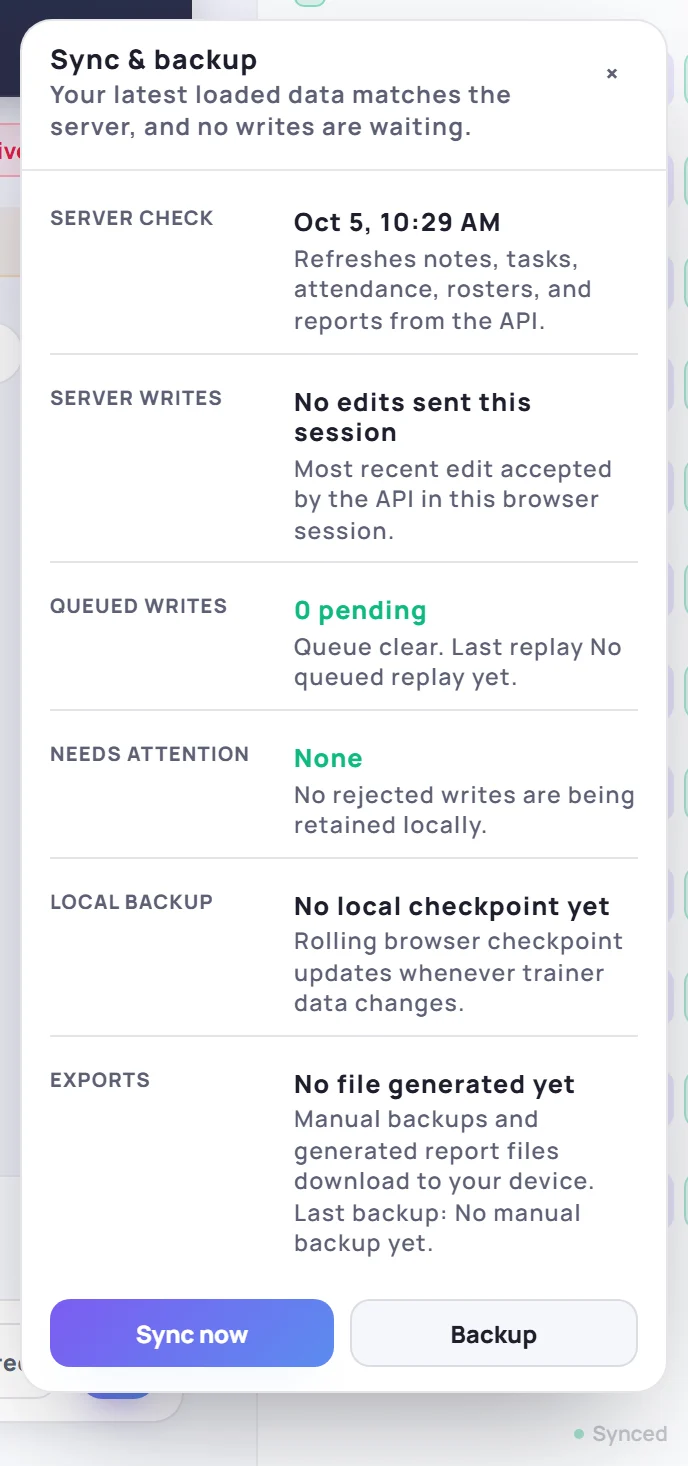
When the connection drops
Carry on as normal. Each change shows on screen straight away and joins a queue on this device. The corner counts how many are waiting:

The Sync & backup panel says Recent changes are backed up in this browser and will replay automatically.
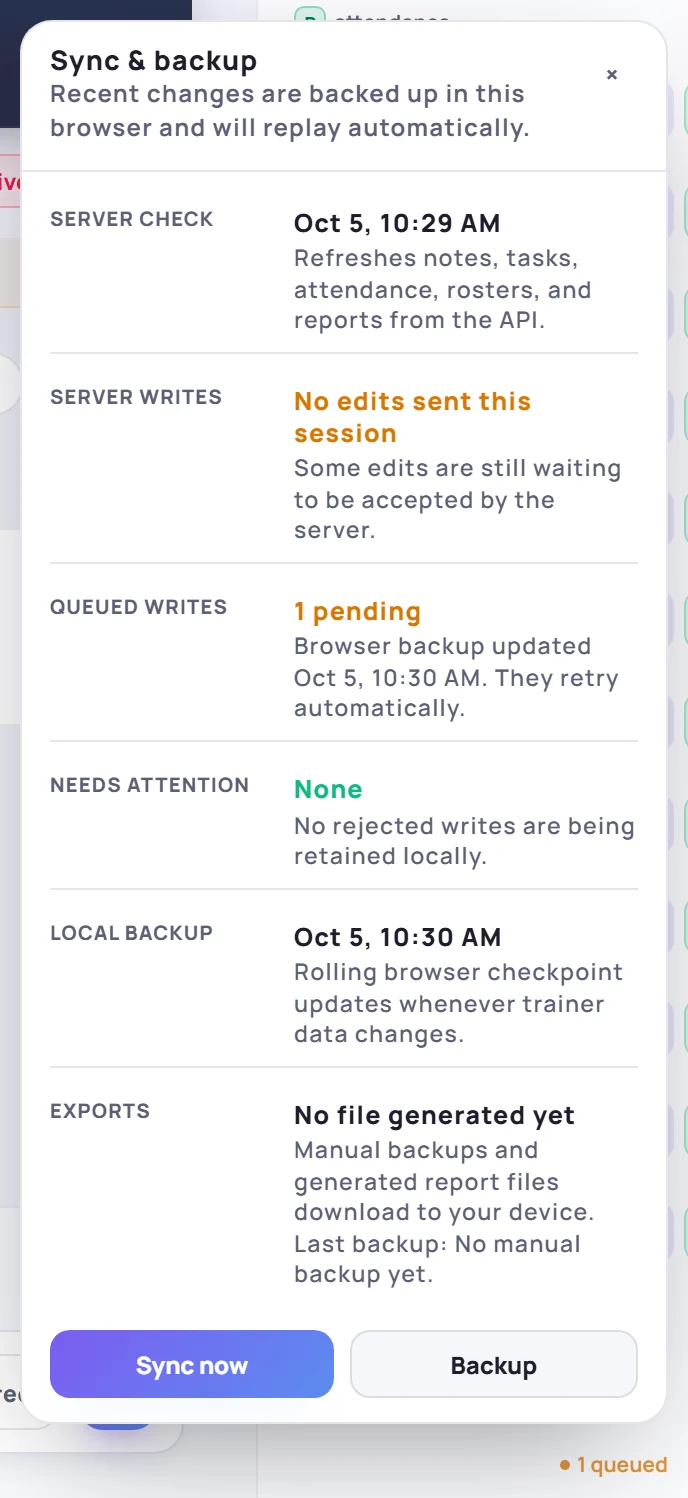
When the connection comes back, Skovrum sends the queued changes in the order you made them, then refreshes. You can also click Sync now in the panel. The same happens if Skovrum itself was briefly out of reach.
Things to know
- Keep the tab open, and don't reload while you're offline. The app needs a connection to load. Queued changes are safe if the tab closes, though: they're sent the next time you open Skovrum in the same browser, signed in as you.
- The queue holds up to 500 changes. After that, Skovrum says Offline queue full — this change was not saved, and the new change isn't kept until the queue has been sent.
- A few actions need a connection and are never queued, such as issuing a certificate, changing your password and signing out other devices.
- You can't sign out with changes waiting. Skovrum asks you to let them sync first, so nothing is lost. Signing out also needs a connection.
If Skovrum refuses a change
Now and then Skovrum refuses a change that was waiting in the queue, for example a score for a learner who has since left the class. Some refusals are final straight away; others are tried up to 5 times. Once a change can't be saved, it's set aside: the status turns to Needs attention and you see … needs attention — not applied to the server. It no longer holds up your other changes.
A refused change is never thrown away by itself. It stays in this browser until you decide:
- Click the status to open Sync & backup.
- Click Backup to download a copy that includes the refused change, if you might need it.
- Make the change again the normal way, if it's still needed.
- Click Discard rejected and confirm to clear it.
If your sign-in has expired, Skovrum asks you to sign in again. Your queued changes are kept and sent once you do.
The copy on your device
Skovrum also keeps a rolling copy of what you've loaded in this browser, shown as Local backup in the panel. If your role can export, Backup downloads it as a file, along with any changes still waiting. Private context about learners is left out.
This copy is cleared when you sign out. It isn't a replacement for a full workspace backup, which only an Admin can make. See also Where your data is stored.
A new version is ready
When Skovrum is updated, a note appears under the ? button at the top right: A new version of Skovrum is ready.
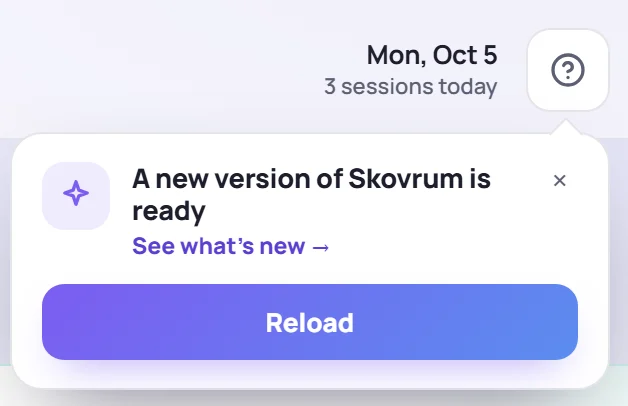
Click Reload to update. Anything already saved or queued is kept. If the update comes with release notes, See what's new → shows you where to find them. Click × to reload later.
If you leave the tab in the background, Skovrum reloads itself after a couple of minutes, but only when nothing could be lost: no changes waiting, no unsaved text and no open window.