Accept your invitation
Open the invitation email, choose your password, and sign in to your workspace for the first time.
Your words may differ. Each workspace can choose its own words: a class might be a cohort, program or group, a learner a participant, trainee or new hire, a session a module or lesson. These guides use the default words. The steps are the same whatever your workspace calls them. Change your workspace's words
Nobody picks a password for you in Skovrum. Instead you get an invitation email with a link, and you choose your own password. Accepting it takes about a minute.
You get one if you set up a new workspace (you're its first Admin), or if an Admin invited you to join theirs.
The invitation email
The subject is You're invited to and your organization's name, for example You're invited to Brightwater Support Academy on Skovrum.
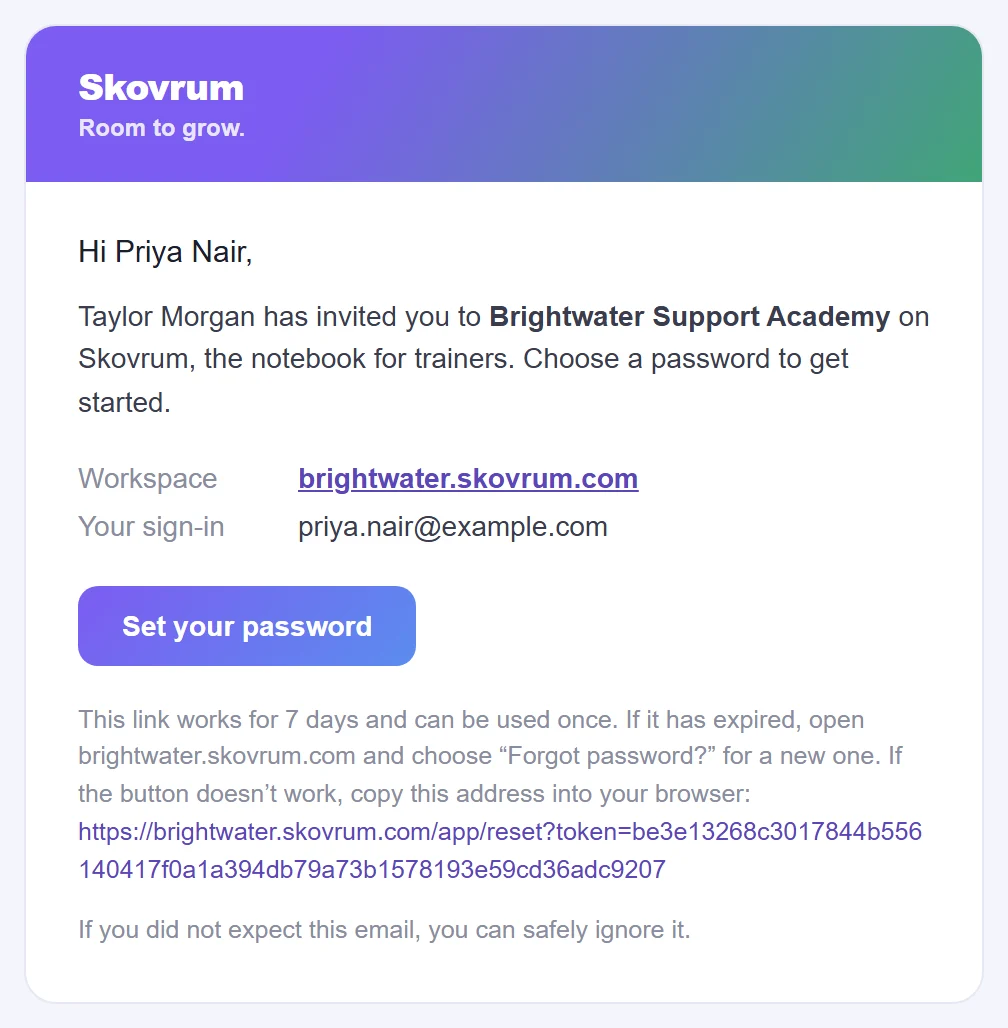
It shows:
- Workspace: your workspace's address, such as brightwater.skovrum.com. Keep it, since that's where you sign in.
- Your sign-in: the email address you sign in with.
The link works for 7 days and can be used once. A Business workspace may send the email with its own logo and colors.
Set your password
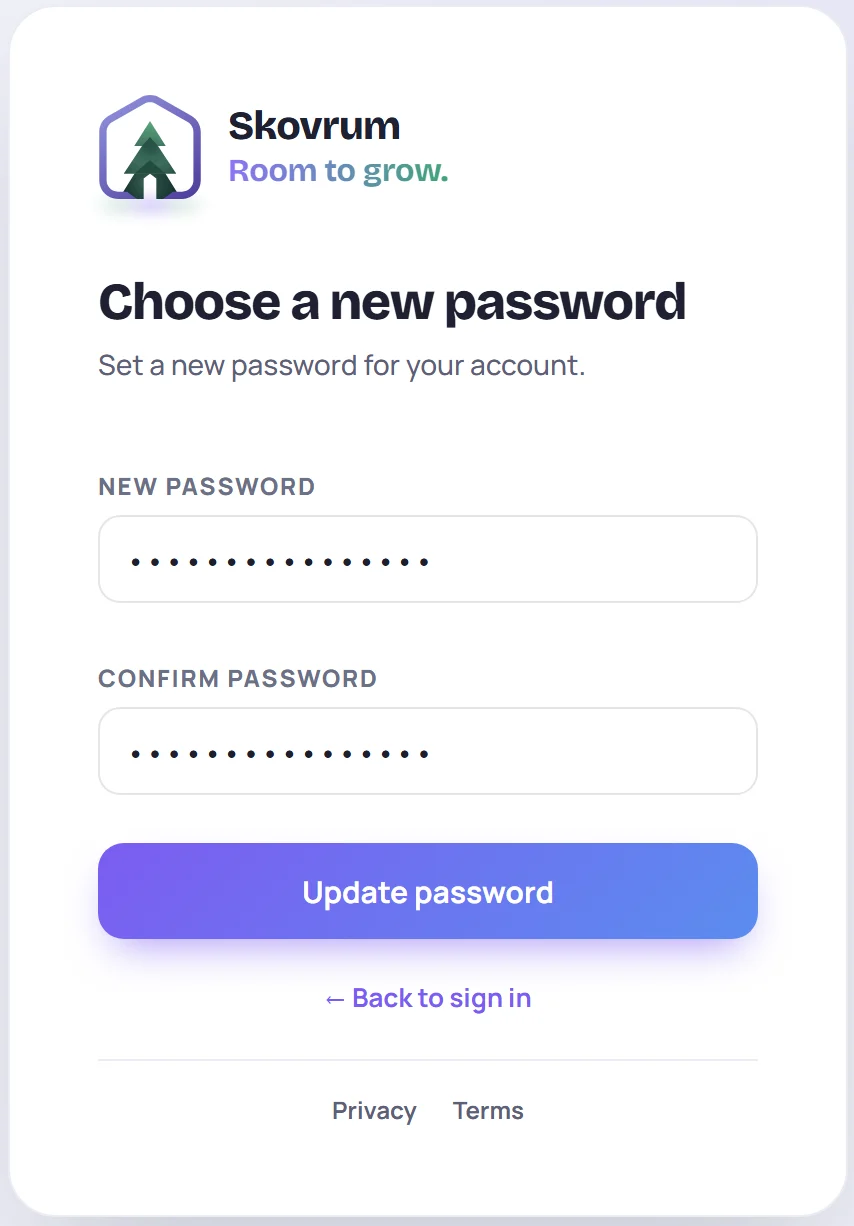
- Click Set your password in the email. Your workspace opens on Choose a new password.
- Type a New password of at least 8 characters, and type it again in Confirm password.
- Click Update password. You'll see Your password has been updated. You can sign in now.
- Click Go to sign in, then sign in with your email and your new password.
If the link has expired or was already used
Clicking Update password shows This link has expired or has already been used. We can email you a new one. You can:
- Click Email me a new link, enter your email, and click Send reset link. That link works for 1 hour.
- Or ask your Admin to send a new invitation from Manage → Users.
Your first sign-in
You start on Today.
- If you set up the workspace, a Set up your workspace checklist is waiting there: your organization, certifications, surveys, your team and your first class. See What's in a new workspace.
- If you were invited to a team, what you can see and do depends on the role your Admin gave you. Find your way around is a good next read.
To change your password, theme or accent color later, see Your account settings.
Common questions
I didn't get an invitation. Check your spam folder first. If it isn't there, ask your Admin to check the email address they used and send it again. Until you set a password, Manage → Users shows PASSWORD UPDATE REQUIRED next to your name.
Can learners accept an invitation? No. Learners never sign in to Skovrum. Invitations are for trainers, Admins and read-only viewers.