My Notebook
Your private place for notes that don't belong to a class or session, and where the team's announcements land.
Your words may differ. Each workspace can choose its own words: a class might be a cohort, program or group, a learner a participant, trainee or new hire, a session a module or lesson. These guides use the default words. The steps are the same whatever your workspace calls them. Change your workspace's words
My Notebook is for notes that aren't about one class or session: ideas for next time, a room booking, something a stakeholder said. Open it from My Notebook in the sidebar.
Only you can see it
Everything you write here is private: Personal notes — only visible to you. Admins can't read it either. See Private notes.
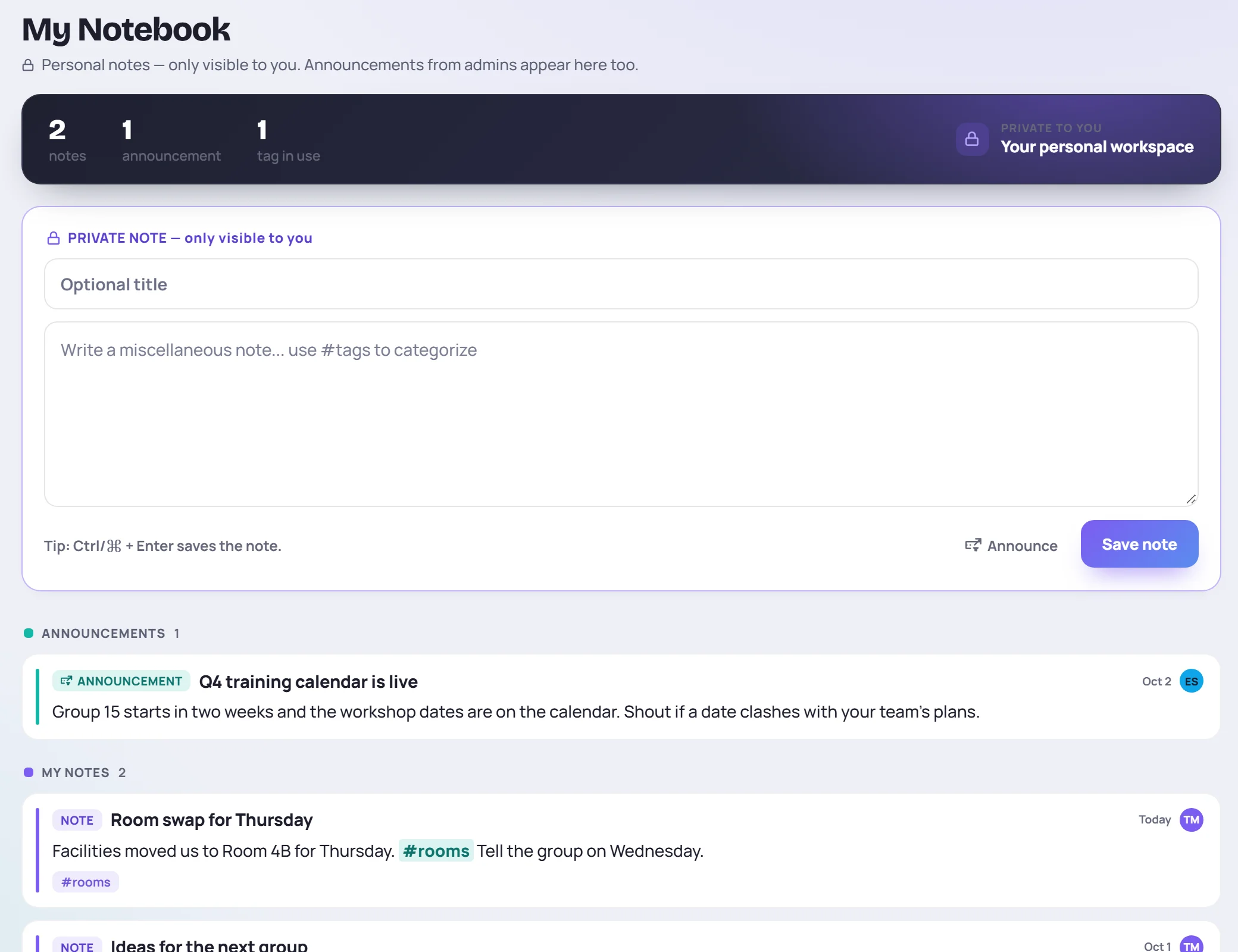
Write a note
- Add an Optional title. Without one, the start of the note is used.
- Write the note. Type
#to tag it. - Click Save note, or press Ctrl+Enter (⌘+Enter on a Mac).
Your notes are listed newest first under My notes. The bar at the top counts your notes and the tags you've used.
To save a note here without leaving the screen you're on, use quick capture: Ctrl+Shift+K (⌘+Shift+K on a Mac).
Edit, delete and history
Hover over a note and click the pencil to change its title or text, or the trash can to delete it. Undo appears for a few seconds after a delete. To see earlier versions, click the pencil, then View history (see Edit history).
Find a note again
Notebook notes are included in Search. Type a word or a #tag into the search box at the top of any screen.
Announcements
On the Team and Business plans, Announcements from your Admins appear at the top of everyone's notebook, above your own notes. Admins post them from here with Announce before saving. See Announcements.