Today's topics
Check off the topics you cover in a session, and move the ones you didn't get to.
Your words may differ. Each workspace can choose its own words: a class might be a cohort, program or group, a learner a participant, trainee or new hire, a session a module or lesson. These guides use the default words. The steps are the same whatever your workspace calls them. Change your workspace's words
Each session can have a plan: the topics from the class's curriculum that are meant to be covered that day. On the session screen you check them off as you go, so everyone can see how far the class has got, and learners who missed the day can catch up on exactly what they missed.
Open the plan
Click the Plan chip above the notes. The panel that opens is the Session plan:
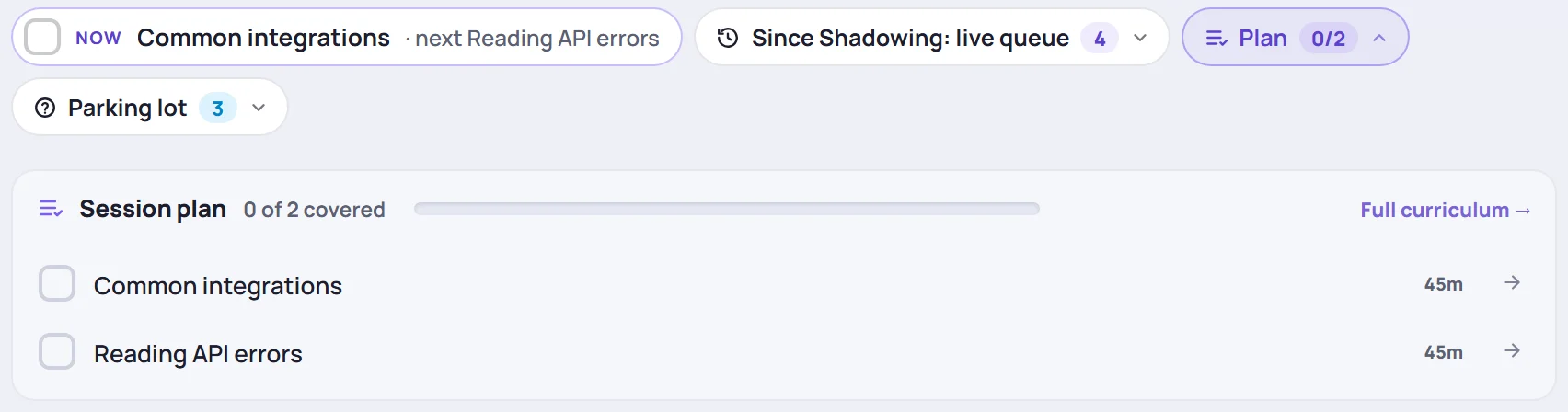
Each topic shows:
- A checkbox. Tick it when the topic is covered.
- The topic's name, and its objectives if it has any.
- Its time estimate, such as 45m.
- The arrow. It moves the topic to the class's next session.
If the team has already answered questions about a topic in other classes, a link such as 2 answered questions appears under it. Click it to read them. See Answers the team already has.
Full curriculum → opens the class's Curriculum tab, where you plan and reorder topics for every day. See Build the curriculum.
If a session has no topics, there's no Plan chip. Instead the row says No topics planned, with a Plan topics link if you can edit the class.
Check off a topic
Tick the box next to a topic you've covered. It's crossed out, your initials appear next to it, and the count at the top goes up (1 of 2 covered). When every topic is ticked, the panel says ALL COVERED.
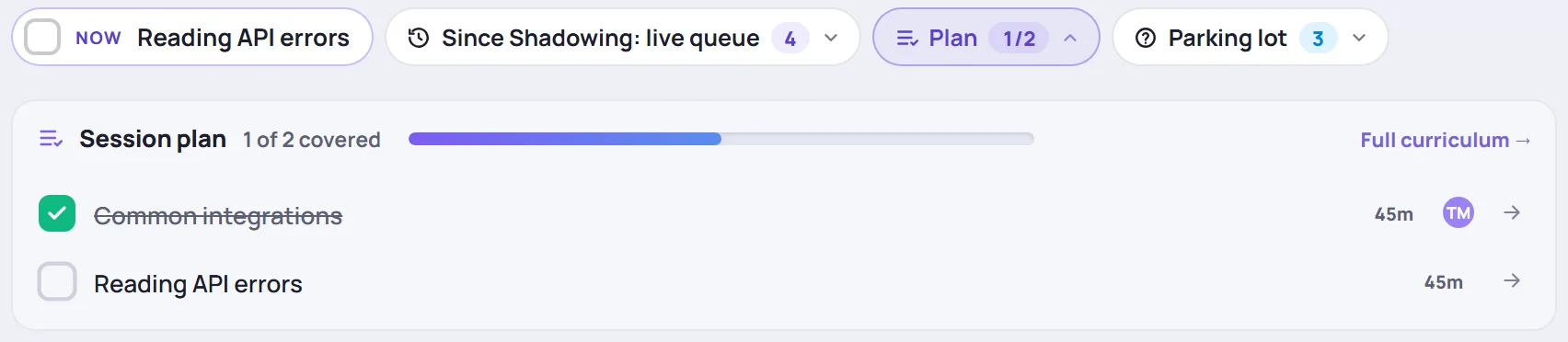
Untick a topic to mark it not covered again.
The Now pill
While a session is running, a Now pill sits at the start of the chip row. It shows the first topic you haven't checked off, and the one after it (· next Reading API errors). Tick the box in the pill to mark the current topic covered without opening the plan. The pill then moves on to the next one.
The pill follows the session's start and end times in the class's time zone, so it appears only during the session itself.
The Plan chip tells you how it went
The number on the Plan chip changes with the time of day:
| When | The chip shows |
|---|---|
| Before the session starts | How many topics are planned and their total time, such as 2 topics · 1h 30m |
| While it runs | How many are covered, such as 1/2 |
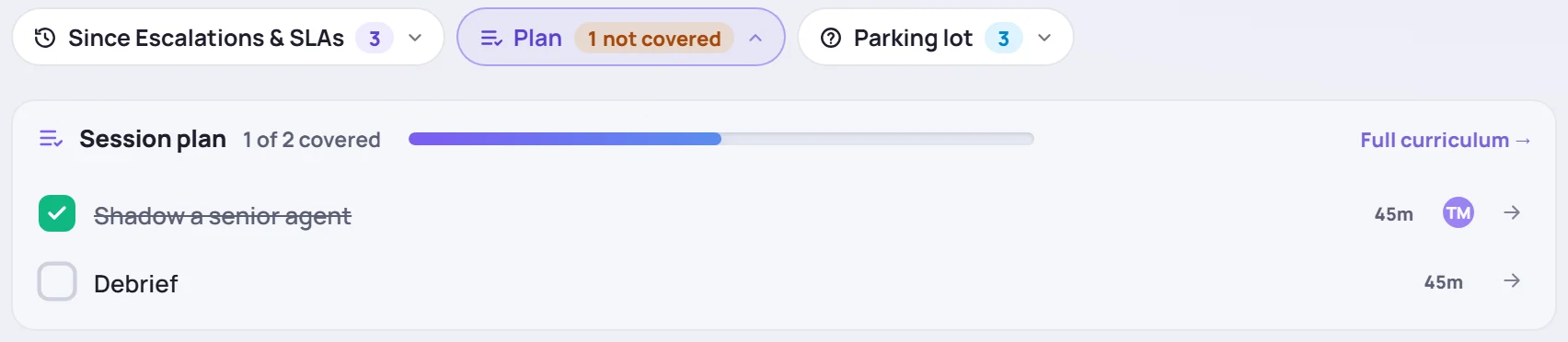
| After it ends | All covered in green, or how many weren't covered (1 not covered) in amber |
Move a topic you didn't get to
Ran out of time? Click the arrow next to the topic. It moves to the end of the class's next session's plan, and Skovrum confirms where it went (Moved to …). If the class has no later session, you'll see No later session to move this to.
Topics you leave unticked also show up on the next session's Since card under Topics still pending, where Move to today brings them forward. See Since last session.
Why it's worth ticking topics
- Catch-ups. A learner who was absent, excused or left early on a day "missed" the topics checked off that day. Skovrum lists them on the learner's profile and in the session roster, so you can plan a catch-up. See Missed topics and catch-ups.
- Progress. The class's Curriculum tab shows how much of the whole curriculum is covered.
- Live mode. In live mode, the agenda is this same plan. Finishing a topic there ticks it here too, and records how many minutes it took.
Common questions
Can I add a topic to today's plan from the session screen? Not from the Session plan panel. Add it on the class's Curriculum tab, or in live mode with + Add a topic.
Who ticked this topic? Hover over the initials next to a ticked topic to see who completed it.
I ticked the wrong topic. Untick it. Nothing else changes.