Edit history
See every earlier version of a note or observation, who changed it, and bring an old version back.
Your words may differ. Each workspace can choose its own words: a class might be a cohort, program or group, a learner a participant, trainee or new hire, a session a module or lesson. These guides use the default words. The steps are the same whatever your workspace calls them. Change your workspace's words
Skovrum keeps the earlier versions of every note and observation, and of your My Notebook notes. Nothing is lost when someone edits a note, and you can always see who changed what.
Edit a note
Hover over a note and click the pencil. Edit note opens. Change the text and click Save note. Only the author and Admins can edit a note.
The note is then marked Edited, with the initials of the person who made the last change.

See the history
Click Edited on the note. You can also click View history in the Edit note window, before you change anything.
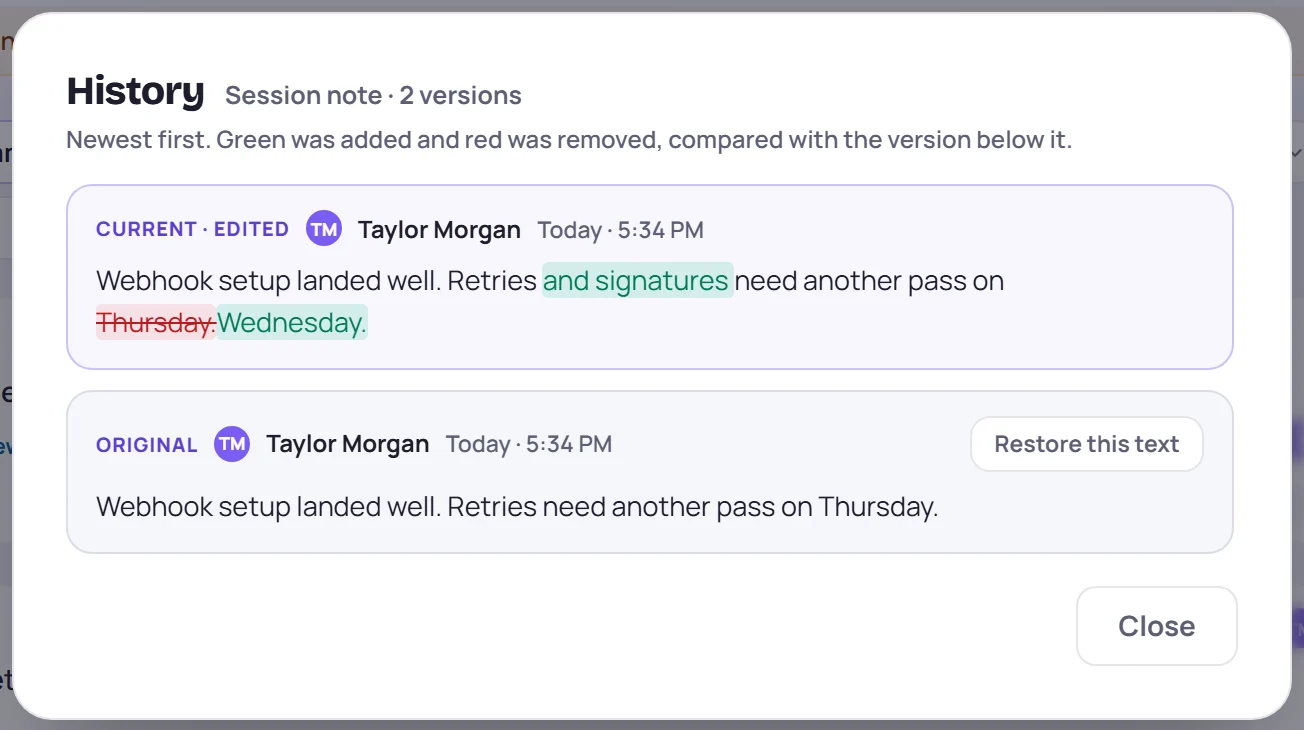
The history lists every version, newest first, with who made it and when:
| Label | Means |
|---|---|
| Current | The note as it is now, for example Current · Edited |
| Original | The note as it was first saved |
| Edited | A version made by an edit |
| Restored | A version made by bringing back an older one |
Added words are green and removed words are red and struck through, compared with the version below. If something else changed too, such as the learners, the competency or the rating, the version says Also changed: and what.
Bring an old version back
Click Restore this text on the version you want (Restore this version in My Notebook). The button shows only to people who can edit the note, and only on versions that differ from the current one.
Restoring is an edit like any other. The version it replaces stays in the history, so you can undo a restore the same way. For an observation, it also brings back that version's learners, competency and rating. It never changes whether a note is private.
Good to know
- Who can see the history: anyone who can see the note. The history of a private note is yours alone.
- What has history: notes, observations and My Notebook notes. Action items are tasks and have no history, and engagement taps don't add versions.
- A deleted note can be brought back with Undo in the message that appears for a few seconds after you delete it.
- In My Notebook, open the history from the pencil: click View history in the Edit note window.