Clients and business units
Group classes by the client, site or business unit they're for, so you can filter, compare and report by it.
Your words may differ. Each workspace can choose its own words: a class might be a cohort, program or group, a learner a participant, trainee or new hire, a session a module or lesson. These guides use the default words. The steps are the same whatever your workspace calls them. Change your workspace's words
If you train people for several clients, sites or business units, Skovrum can group your classes by them. Each class then belongs to one, takes its color, and you can filter, compare and report by it. This is optional and off in a new workspace.
Switch it on
- Go to Manage → Workspace and find Clients and business units.
- Turn the switch on.
- Under They are called, choose the word your team uses: affiliates, clients, business units, departments, sites, brands, accounts, partners or regions. The app uses that word everywhere.
- Click Save settings.

Switching it off later only hides them. Every class keeps its client, and switching back on brings them back. See Workspace settings.
Add your clients
Go to Manage → Data and click Add on the card named after your word (for example Clients). Give each one:
- a Code of two to four characters, shown on class cards;
- a Full name;
- a Color, which its classes take;
- Internal audience, if it's your own people rather than an outside organization.
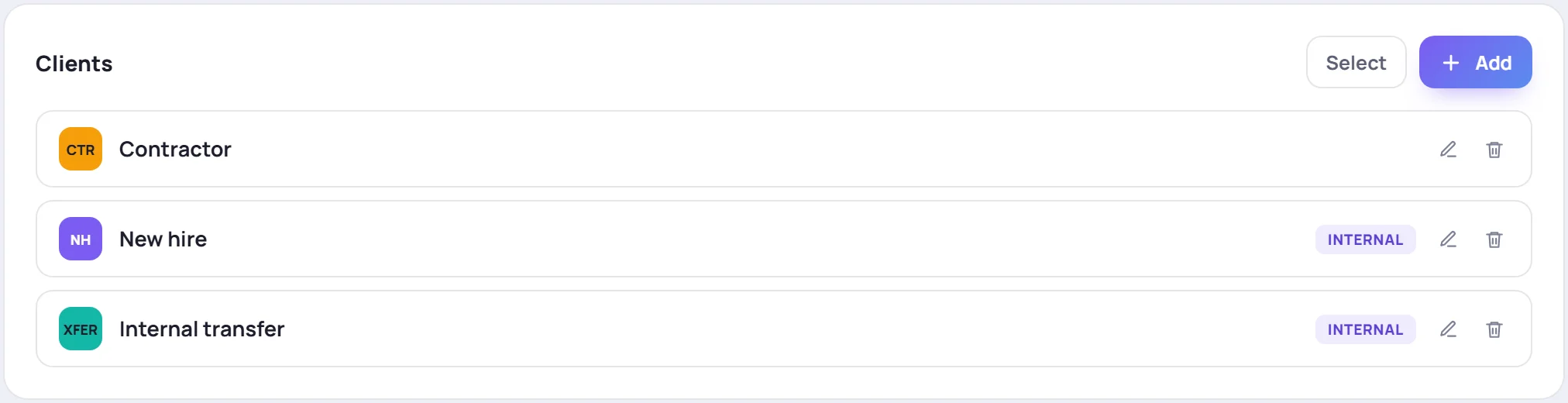
Use the pencil to change one, or the trash can to remove one. You can't remove one that classes still use.
Use them
- New classes: the new-class form has a picker for the client. If your role manages the catalog, + New adds one on the spot. See Create a class.
- Existing classes: an Admin can set the client for one or more classes from Classes → Select. See Archive and bulk-edit classes.
- Courses can name a default client. See Courses and past classes.
- Classes screen: cards show the client's code and color, and Filters gets a client filter. See Find, filter and pin classes.
- Sidebar: a list of clients with how many active classes each has.
- Analytics: an Audience filter (Internal or Client), a client filter and a By … table. See Analytics.
- Reports: Export report gets a report for a whole client, for roles that can run client reports (Admins and Supervisors by default). See Other reports.