The calendar
See every session and dated task by week or month, change a session's time, and export the schedule as a PDF.
Your words may differ. Each workspace can choose its own words: a class might be a cohort, program or group, a learner a participant, trainee or new hire, a session a module or lesson. These guides use the default words. The steps are the same whatever your workspace calls them. Change your workspace's words
The Calendar shows your workspace's training schedule: every session, the classes running that week and the tasks that are due. Click Calendar in the sidebar to open it.
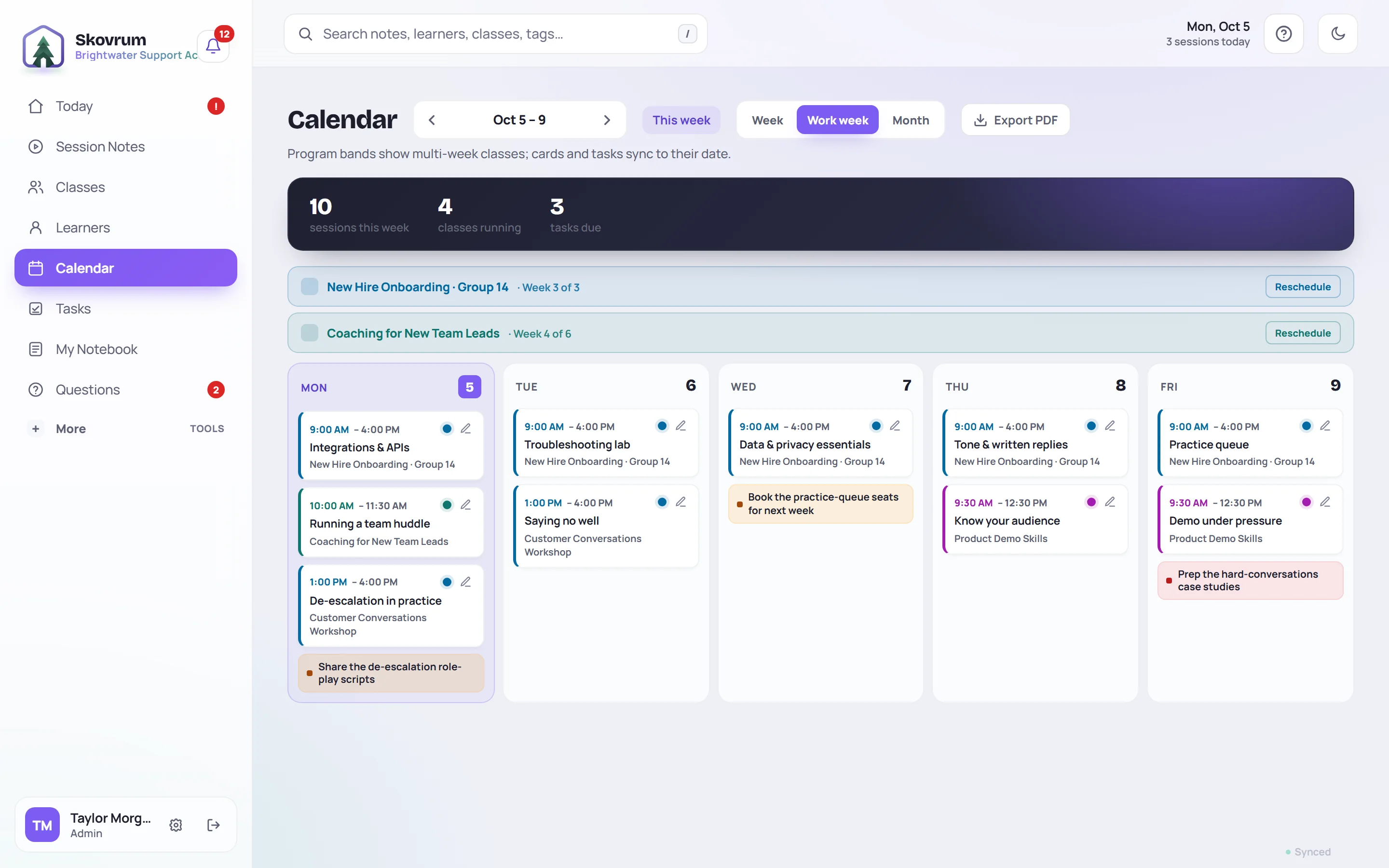
Choose a view
| View | Shows |
|---|---|
| Week | Monday to Sunday |
| Work week | Monday to Friday, plus Saturday or Sunday when a session falls on them. This is the view the calendar opens in. |
| Month | The whole month, with up to three sessions a day |
Use the arrows either side of the dates to move back or forward, and This week (or This month) to come back to today. Today's column is highlighted.
The dark strip at the top counts what's in view: sessions, classes running and tasks due. If a class starts within a few days after the week you're looking at, it's named there as Next class.
Sessions and tasks
Each session is a card with its start and end time, its name and its class. The colored edge matches the class. Click a card to open the session. See The session screen.
Tasks with a due date appear on that day as small colored notes, crossed out once done. These are the team's tasks; learner to-dos don't appear. See Tasks and follow-ups.
Running classes
Above the days, a band for each running onboarding or development class shows which week of the class this is, such as Week 3 of 3. Admins see Reschedule on each band: it moves every session of the class by the same number of days. Choose the New start date and click Confirm shift. See Reschedule sessions.
Change one session's time
Click the pencil on a session card.
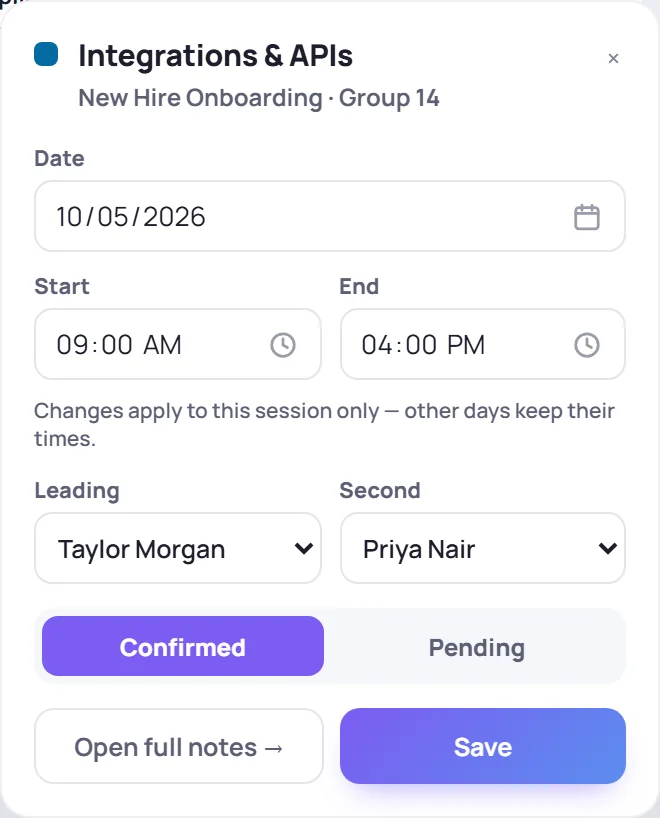
- Change the Date, Start or End. Changes apply to this session only.
- If your role can assign trainers, change who's Leading and who's Second for this day.
- Choose Confirmed or Pending.
- Click Save.
Open full notes → opens the session.
Pending sessions
Mark a session Pending while it isn't certain yet, such as a date that still needs a room. Pending cards are faded, with a dashed edge and a PENDING label. In the week views, the dot on a card switches it between pending and confirmed without opening the form.
The month view
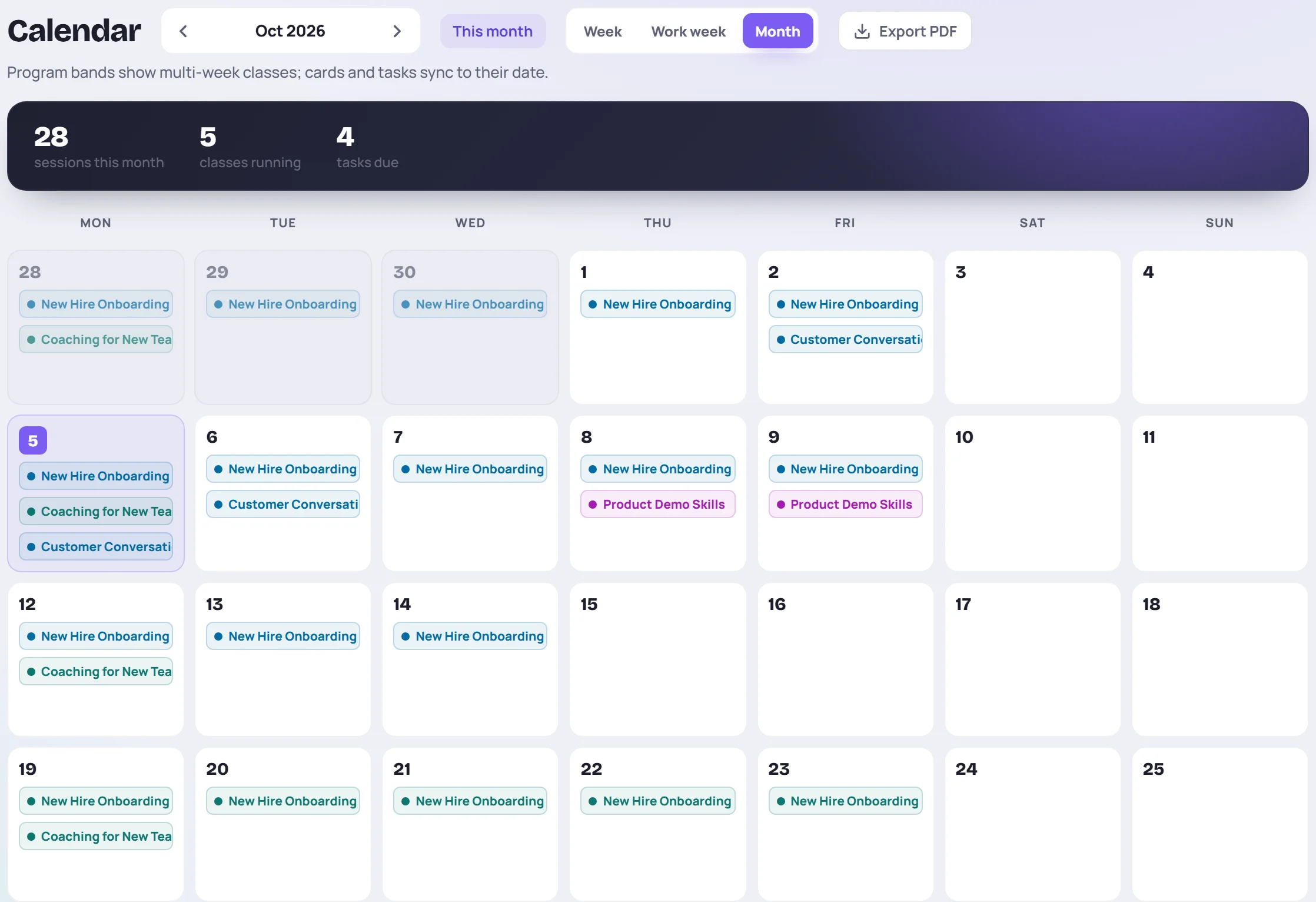
Each day lists its sessions by class name. An amber dot marks a pending session. When a day has more than three, click +2 (or however many more) to show them all, and Show less to fold them away again. Click a session to open it, or its pencil to change its time.
Export the schedule to PDF
- Click Export PDF.
- Choose the dates in From and To. They start as the current month, or the month you're looking at in the Month view.
- Choose All classes or one class.
- Tick what to include: Session times, Status badges and Program legend.
- Click Export PDF.
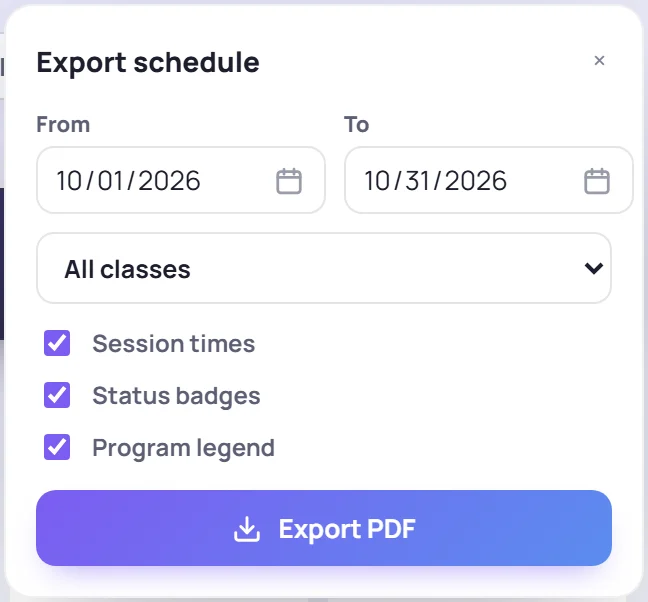
The schedule opens in a new tab, laid out by month and week, and your browser's print window appears. Choose Save as PDF (the wording depends on your browser) to save it, or print it. Pending sessions are labeled Tentative in the export.
If nothing opens, allow pop-ups for Skovrum and try again.
See your sessions in Outlook or Google Calendar
Skovrum can also send your sessions to the calendar app you already use. See Calendar feed.
Common questions
Why don't I see a session I know exists? Check the week or month you're on, and use the arrows. Archived classes' sessions still appear. If you can't open a class at all, ask an Admin whether you can see it.
Can I add a session from the calendar? No. Sessions belong to a class. To add a day to a class, edit the class. See Edit a class.
Who can move a whole class? Admins, with Reschedule on the class's band.