Take notes during a session
Write notes, log observations about learners, add action items and keep private notes, all from the session screen.
Your words may differ. Each workspace can choose its own words: a class might be a cohort, program or group, a learner a participant, trainee or new hire, a session a module or lesson. These guides use the default words. The steps are the same whatever your workspace calls them. Change your workspace's words
Most of your notes are written on the session screen, in the box at the bottom. Every note belongs to the session (or the whole class), and a note about a learner also lands on that learner's profile. Write it once and it shows up everywhere it's needed.
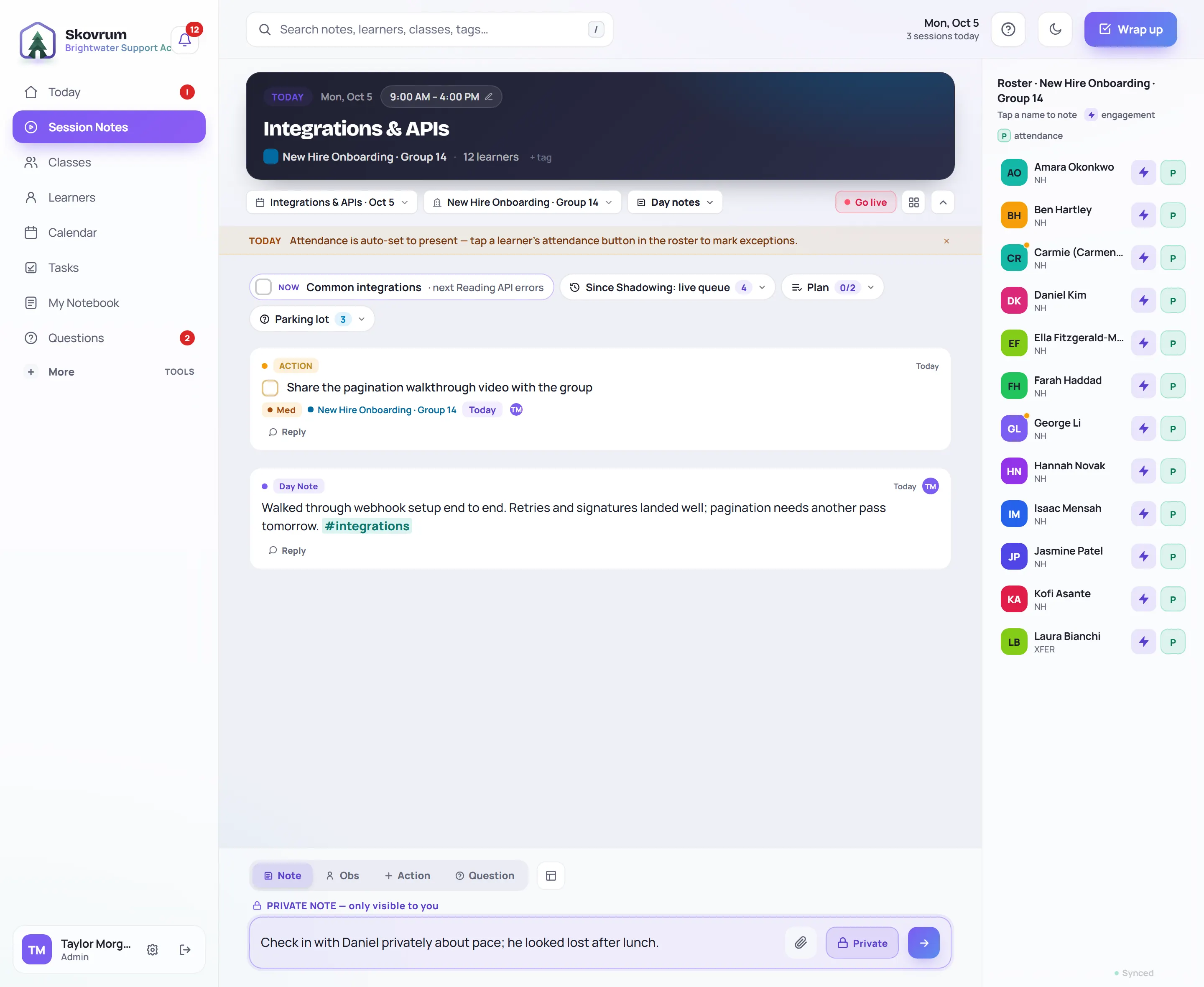
Open the session
Click Session Notes in the sidebar to jump to the session that's on now, or to your next one. You can also open any session from Today, the Calendar or its class.
Choose where the note goes
The Day notes menu above the notes chooses which notes you're reading and writing:
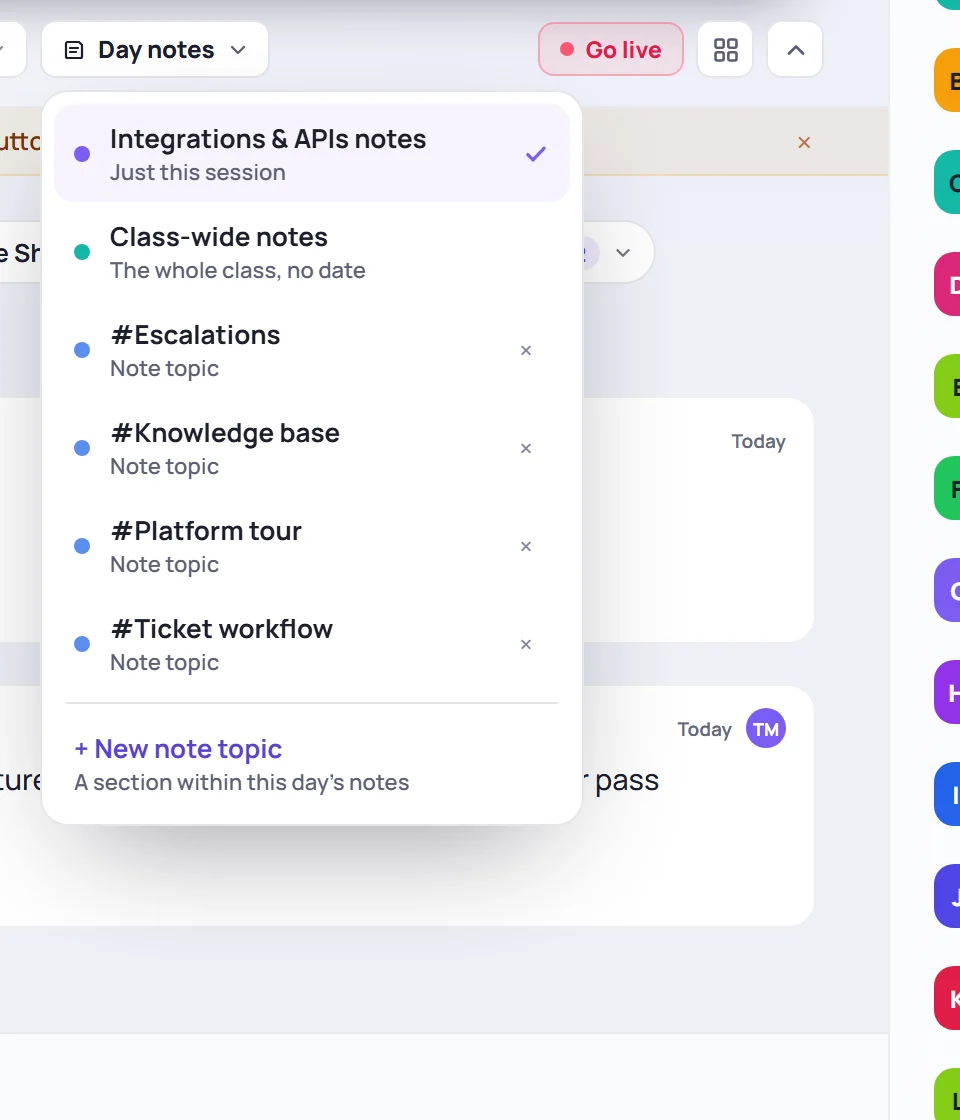
- The session's own notes, listed under the session's name (Just this session), belong to this day. If the session is rescheduled, its notes move with it.
- Class-wide notes (The whole class, no date) are for things that apply to every session, such as a seating plan or a room booking.
- Note topics (#Escalations, #Platform tour …) collect notes about one subject across the class. Every class of the same type shares the same topics. Add one with + New note topic.
Write a note
Type in the box and press Enter to save. Use Shift+Enter for a new line. In a note that already has several lines, Enter adds a line and Ctrl+Enter (⌘+Enter on a Mac) saves it.

- Wrap words in double asterisks for bold:
**like this**. - Type
#to tag the note, such as #integrations. Pick an existing tag from the list or keep typing to make a new one. Tags make notes easy to find in Search.
Mention a learner or trainer
Type @ and start typing a name. Use the arrow keys and Enter to pick from the list, or click.
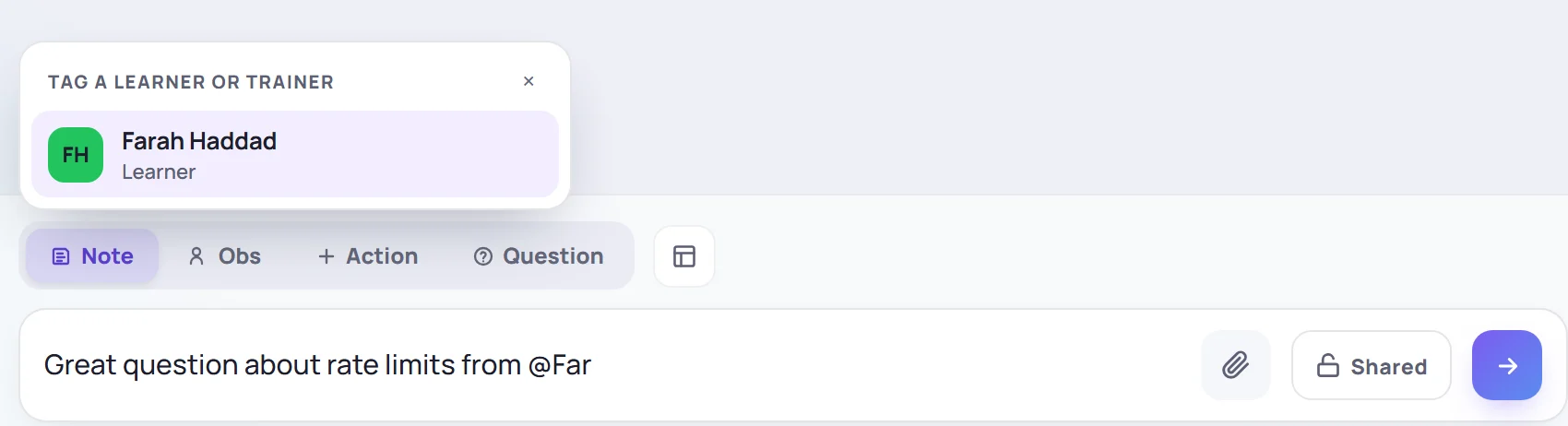
Mentioning a learner turns the note into an observation about them. It appears on their profile and their timeline, as well as in the session. Mentioning a trainer lets them know: they get a You were mentioned notification under the bell, and it's included in their daily email if they've turned that on. Mentions inside a private note don't notify anyone.
Log an observation with a competency and rating
When you want to record how a learner did at something specific, click Obs. The list of people opens straight away, so pick one or more learners first.
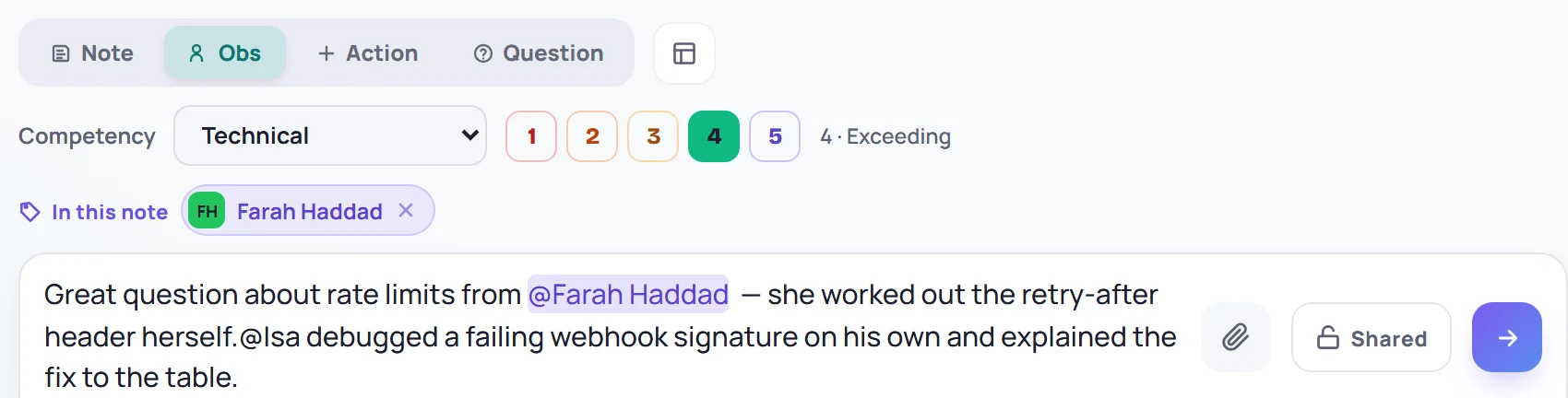
Then, optionally:
- Choose a Competency. The list comes from your workspace's competencies.
- Rate it from 1 to 5:
| Rating | Means |
|---|---|
| 1 · Needs Improvement | Needs close guidance and extra support |
| 2 · Developing | Building the fundamentals; inconsistent |
| 3 · Meeting Expectations | At the expected level for this point in training |
| 4 · Exceeding | Consistently above expectations, growing independence |
| 5 · Exemplary | Fully independent; sets the standard |
Observations with a competency feed the learner's Competency trends and the class report's Observations by Competency. An observation needs at least one learner. If you forget, Skovrum reminds you to Tag at least one learner first.
Add an action item
Something to follow up? Click Action.
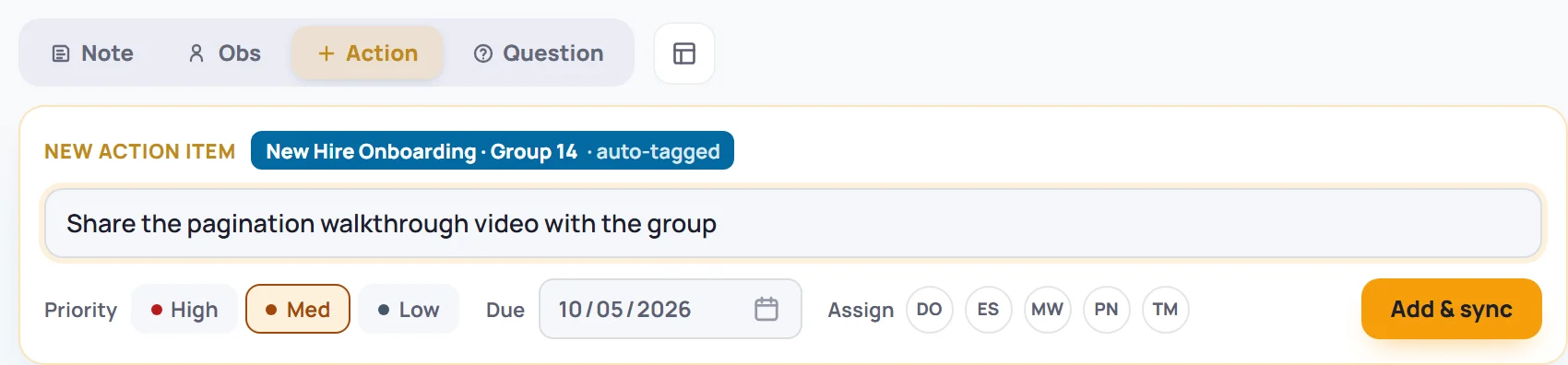
Describe what needs to happen, then set the Priority (High, Med or Low), a Due date, and who it's Assigned to. Click Add & sync. The class is tagged automatically.
The action item appears in the session's notes and on the Tasks screen, where the whole team can see it. Check it off from either place.
Park a learner's question
Click Question to note something a learner asked that you'll come back to. It goes to the class's parking lot rather than into your notes, so it can be answered and shared later. See Use the parking lot.
Keep a note private
Click Shared next to the send button to switch it to Private before you save.

Nobody else can see a private note, including Admins. Private notes are also left out of class reports, handoff packets and AI summaries. See Private notes. Use them for things you want to remember but not share, such as a quiet word you need to have with someone.
Attach a screenshot or PDF
Click the paperclip, paste an image straight into the box, or drag a file onto it. You can attach images (PNG, JPG, GIF, WebP, HEIC) and PDFs up to 25 MB each. See Attach images and PDFs.
Start from a template
The template button (the small grid next to Question) opens your reusable notes: ready-made structures such as a daily recap. Pick one, fill it in, and save with Ctrl+Enter (⌘+Enter). Templates are managed on the Templates screen (see Reusable note templates).
Keyboard shortcuts in the note box
| Key | What it does |
|---|---|
| / in an empty box | Switch type: Note → Obs → Action → Question |
| @ | Mention a learner or trainer |
| # | Tag the note |
| Enter | Save (a one-line note) |
| Shift+Enter | New line |
| Ctrl/⌘+Enter | Save (any note) |
| Esc | Close the name or tag list |
After you save
Your notes appear in the list in the order you wrote them. Under each one you can:
- Reply to start a thread. Replies can mention people and carry attachments.
- Edit or delete it with the pencil and trash icons. You can change your own notes; Admins can change anyone's.
- See its edit history. Edited notes are marked Edited, and earlier versions can be viewed and restored.
If your connection drops, keep writing. Notes are queued on your device and sent as soon as you're back online. The status in the bottom-right corner shows how many are waiting. See Working offline.
Where your notes show up
| You wrote | It also appears in |
|---|---|
| A note | The class report's session notes |
| A note that mentions a learner, or an Obs | The learner's profile and timeline, the class report and, with a competency, the learner's competency trends |
| An Action | Tasks, and the task list on Today |
| A Question | The class's parking lot |
| A Private note | Nowhere else. Only you see it. |
Common questions
I switched days and Skovrum warned me about my note. You had an unsaved note in the box. Choose Keep editing to go back to it, or Discard to throw it away.
Can learners see my notes? No. Learners never sign in to Skovrum. Shared notes are visible to the trainers and managers in your workspace who can see the class.