Private notes
Who can see a private note, what it's left out of, and how to hide your private notes while you share your screen.
Your words may differ. Each workspace can choose its own words: a class might be a cohort, program or group, a learner a participant, trainee or new hire, a session a module or lesson. These guides use the default words. The steps are the same whatever your workspace calls them. Change your workspace's words
A private note is one only you can see. Use it for things you want to remember but not share, such as a quiet word you need to have with someone.
Make a note private
In the note box on the session screen, click Shared next to the send button. It changes to Private, and PRIVATE NOTE — only visible to you shows above the box. Save as usual. The switch goes back to Shared after each note.
This works for plain notes and observations. Everything in My Notebook is private already.
You choose when you save. There's no switch to change a saved note from shared to private, or back.

Who can see it
Only you. Not your co-trainer, not your manager, and not Admins. This is enforced by Skovrum's server, not just hidden on screen.
| Shared note | Private note | |
|---|---|---|
| Other trainers and managers who can see the class | Yes | No |
| Admins | Yes | No |
| You | Yes | Yes |
The same goes for everything attached to a private note: its files, its replies and its edit history.
What it's left out of
A private note stays out of:
- every report and export: the class report (including Observations by Competency), learner and affiliate reports and CSV exports;
- handoff packets;
- AI summaries;
- other people's notifications and daily email. An @mention in a private note notifies nobody.
It still appears for you: in the session, in Search, and, for a private observation, on the learner's profile and timeline.
Hide your private notes while presenting
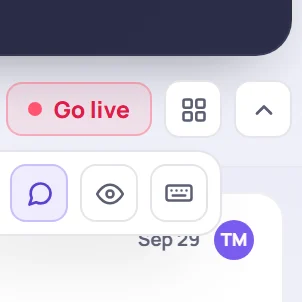
Sharing your screen with the group? Open the session tools (the four-squares button above the notes) and click the eye. Your private notes disappear from the session screen until you click it again.
To show the agenda to learners, the presenter view is a better choice. It never shows notes.
Common questions
Is a private note the same as private context? No. A learner's private context is a field on their profile that everyone with permission can read. A private note is yours alone.