Pre/post self-assessments
Ask learners how confident they feel in each competency before and after a class, and see how their confidence changed.
Your words may differ. Each workspace can choose its own words: a class might be a cohort, program or group, a learner a participant, trainee or new hire, a session a module or lesson. These guides use the default words. The steps are the same whatever your workspace calls them. Change your workspace's words
A self-assessment asks each learner to rate their own confidence in every competency the class covers, once before the class starts and once after it ends. Skovrum puts the two side by side, so you can see who grew in confidence and where.
It's separate from feedback surveys. Learners rate themselves, not the session, so their ratings never count toward feedback scores, the rating trend or the AI comment themes.
How it works
| Pre | Post | |
|---|---|---|
| Tied to | The class's first session | The class's last session |
| Opens | A week before the first session | The day before the last session |
| Closes | On the day of the first session | Two weeks after the last session |
Cancelled sessions don't count as the first or last. The questions are the same in both: one How confident are you with …? question per competency, rated from 1 (Not yet) to 5 (Confident), plus the learner's name.
Before you start: the template and the competencies
A class can only offer a self-assessment if there's a self-assessment template for its class type, or one for any class type. A new workspace has one, Confidence self-assessment, for workshops. An Admin adds more in Manage → Data → Survey templates by choosing Pre/post self-assessment:
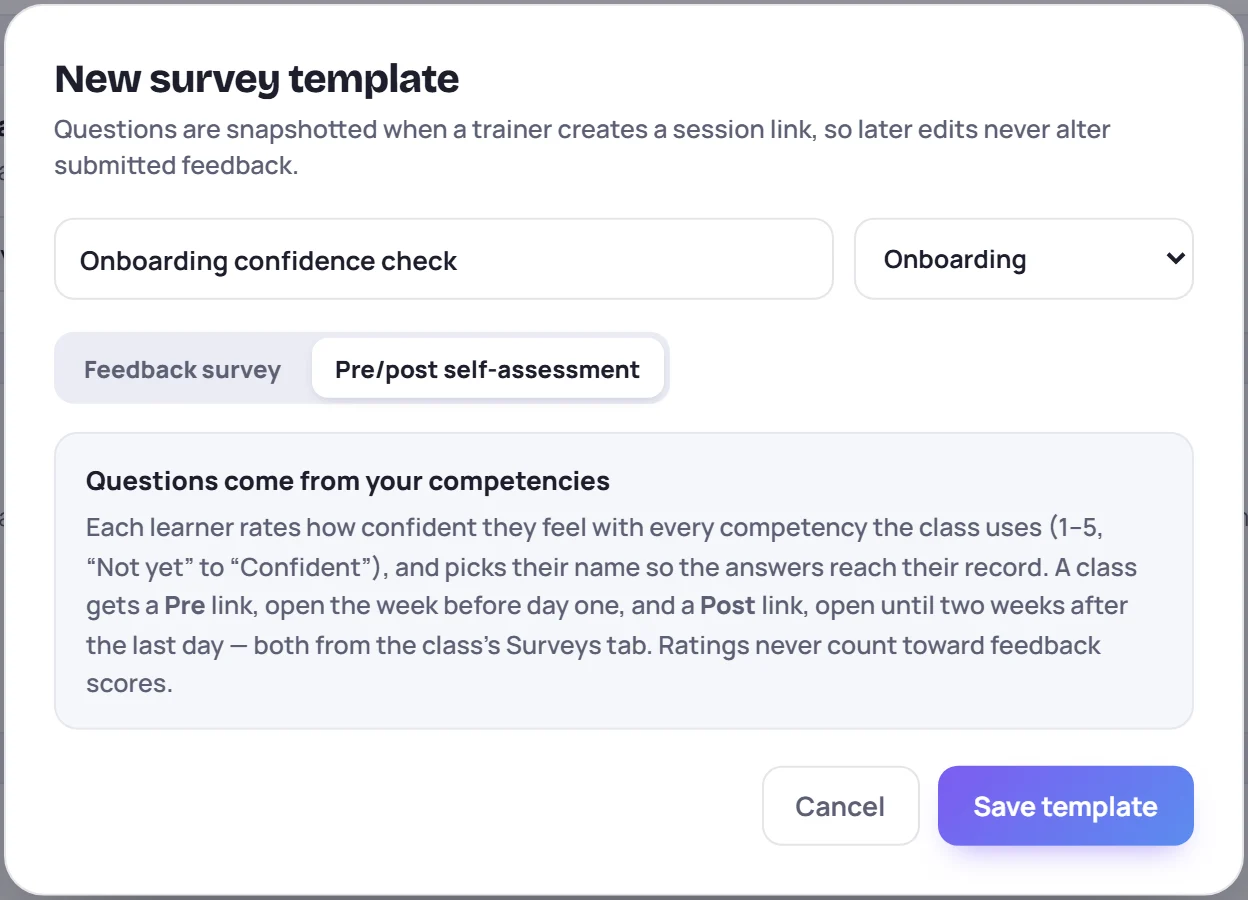
See Build a survey template. The template has no questions of its own. When a link is created, Skovrum asks about every active competency that applies to the class: the workspace-wide ones, the ones for its class type, and the ones for its course. If there are more than 19, only the first 19 fit on the form.
A class with no competencies that apply can't create a link: Skovrum asks you to add some under Manage → Data first.
Create the links
Open the class and go to its Surveys tab. The Self-assessment card is at the top. If it says No self-assessment is set up for … classes, there's no template for this class type yet. Ask an Admin.
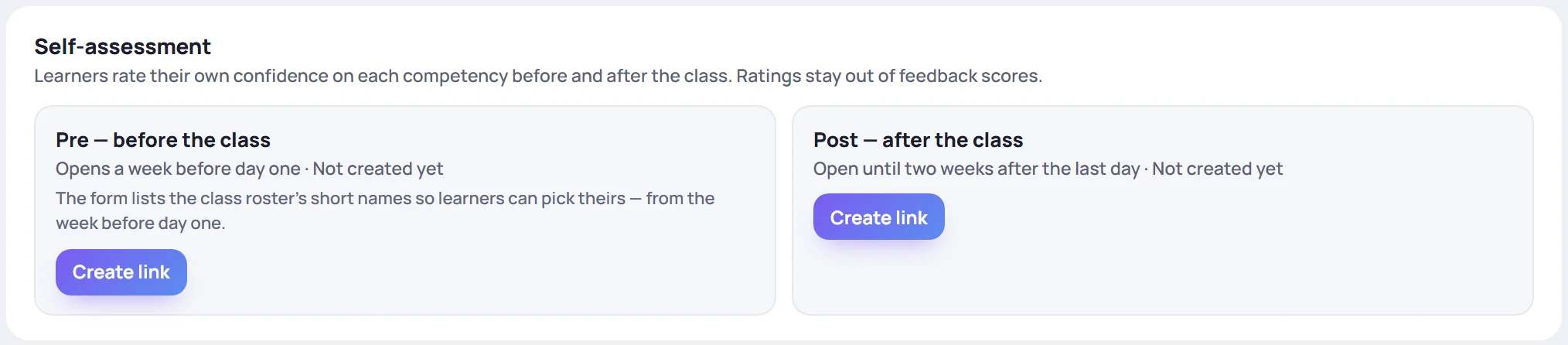
- Click Create link under Pre — before the class. The link is created and copied.
- Do the same under Post — after the class, whenever suits you. You can create both at the start.
Each phase now shows its window, how many learners have answered, and its buttons:
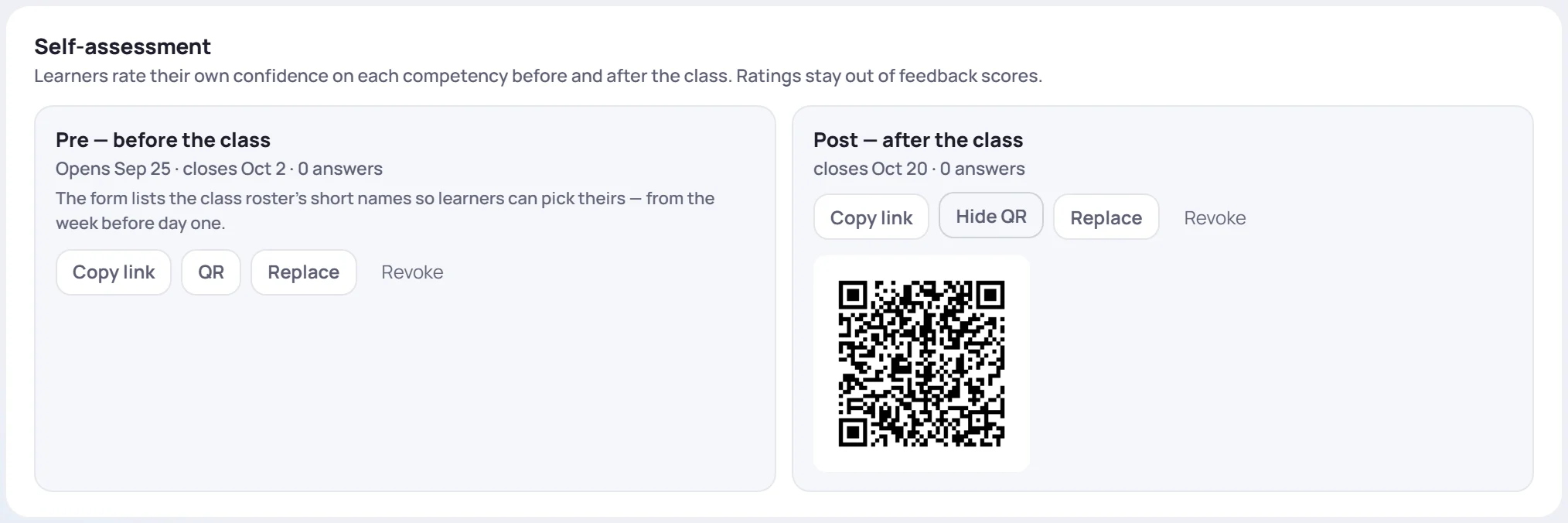
| Button | What it does |
|---|---|
| Copy link | Copies the link to share |
| QR | Shows a QR code learners can scan; Hide QR closes it |
| Replace | Gives the link a new address; the old one stops working |
| Revoke | Stops the link; answers already in are kept |
| Re-open link | Appears after a revoke, and makes a new link for that phase |
Share the Pre link before day one, for example in the joining email, and show the Post QR code at the end of the last session.
Everyone who can see the class sees the card, its windows and its answer counts. Only the people who run the class, and Admins, get the buttons and the links themselves.
Replace, revoke or re-open a link
These work like the buttons on a session's survey link:
- Replace asks first (Replace this link? Anyone with the current one can no longer answer.), then copies the new link for you. Answers already in stay.
- Revoke asks first (Revoke this link? It stops working at once; answers already in are kept.). Learners who open the old link see Survey not found.
- Re-open link brings a revoked phase back with a new address. If nobody had answered that phase yet, it also picks up any competencies added since.
A class with one session
A one-day workshop works too. Both phases are tied to the same session: the Pre link is open for the week before it and closes that day, and the Post link opens the day before and stays open two weeks after. Share the Pre link ahead of the day, and the Post link at the end of it.
What learners see
Learners open the link on a phone or computer, without signing in. They choose their name from the class roster (shown as first name and last initial), rate each competency, and press Save my answers. Their name is required here, because the answers are saved to their learner record.
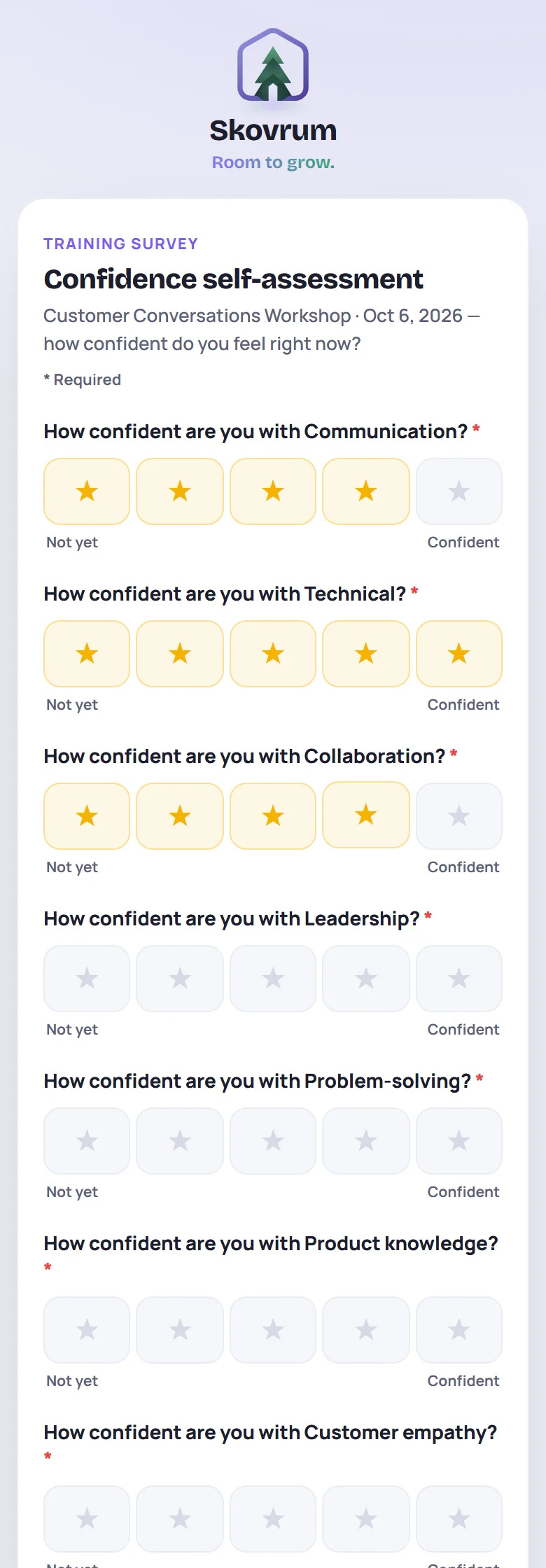
Each name can answer each link once. If a learner tries again under the same name, they see Answers for this name are already saved. If they need changing, ask your trainer. See What learners see.
Read the results
Results appear on the class's Surveys tab under the two phases.
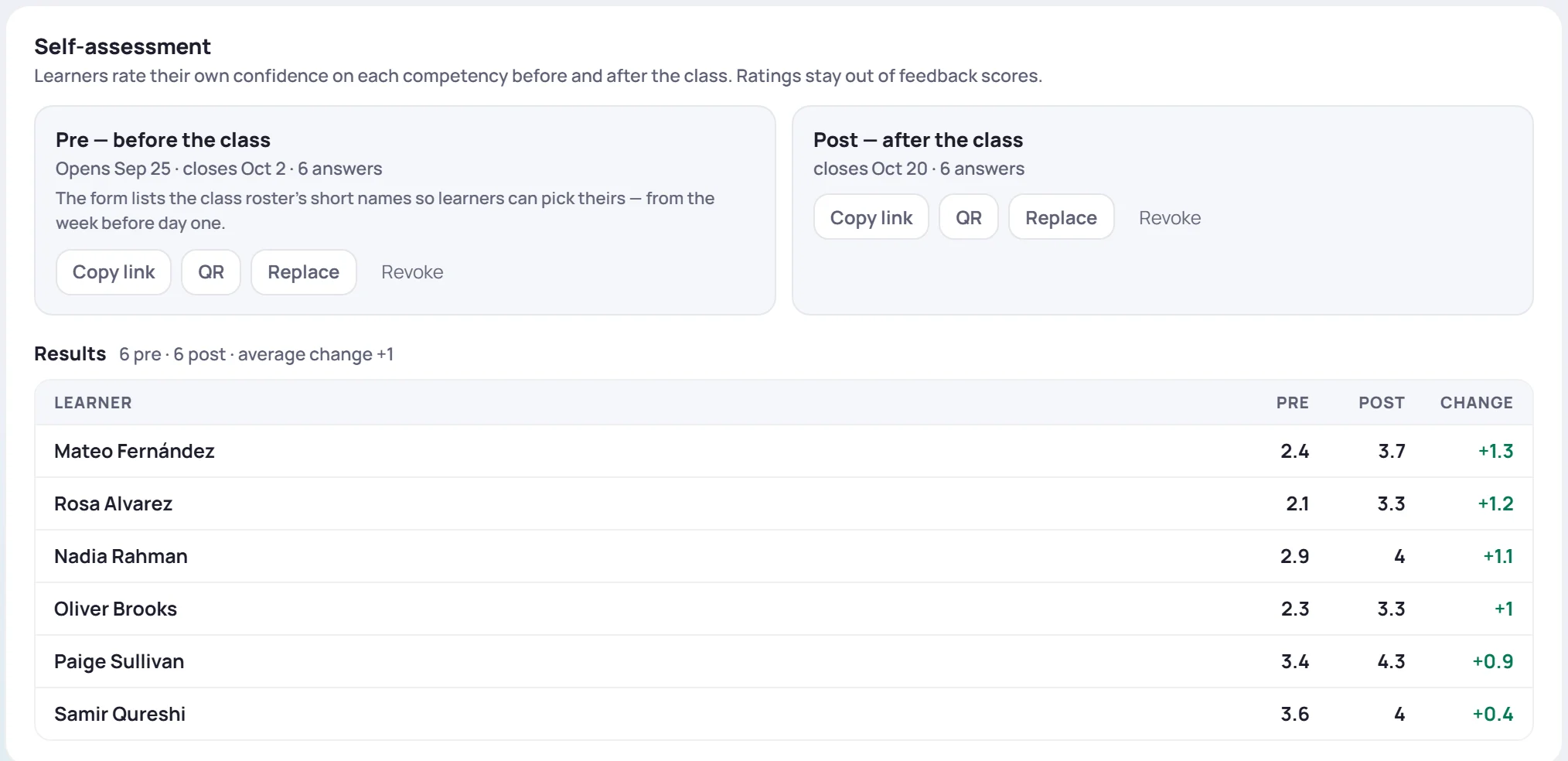
- Results sums up how many learners answered each phase and, for learners who answered both, the average change.
- Each row shows a learner's average Pre and Post rating across the competencies, and the Change: green when confidence went up, red when it went down.
- The learners who grew most are at the top. A learner who has answered only one phase shows — for the other.
Click a learner to open their profile.
The numbers are the learner's own 1-to-5 ratings, averaged across the competencies they rated and rounded to one decimal. Change is the Post average minus the Pre average. A drop isn't always bad news: learners sometimes rate themselves lower once they see how much there is to learn, so read it beside what trainers observed.
On the learner's profile
A learner's Overview tab has a Confidence card once they've answered. It breaks their answers down by competency, with Pre, Post and Change, and a Trainer column with the latest rating a trainer gave them for that competency in an observation.
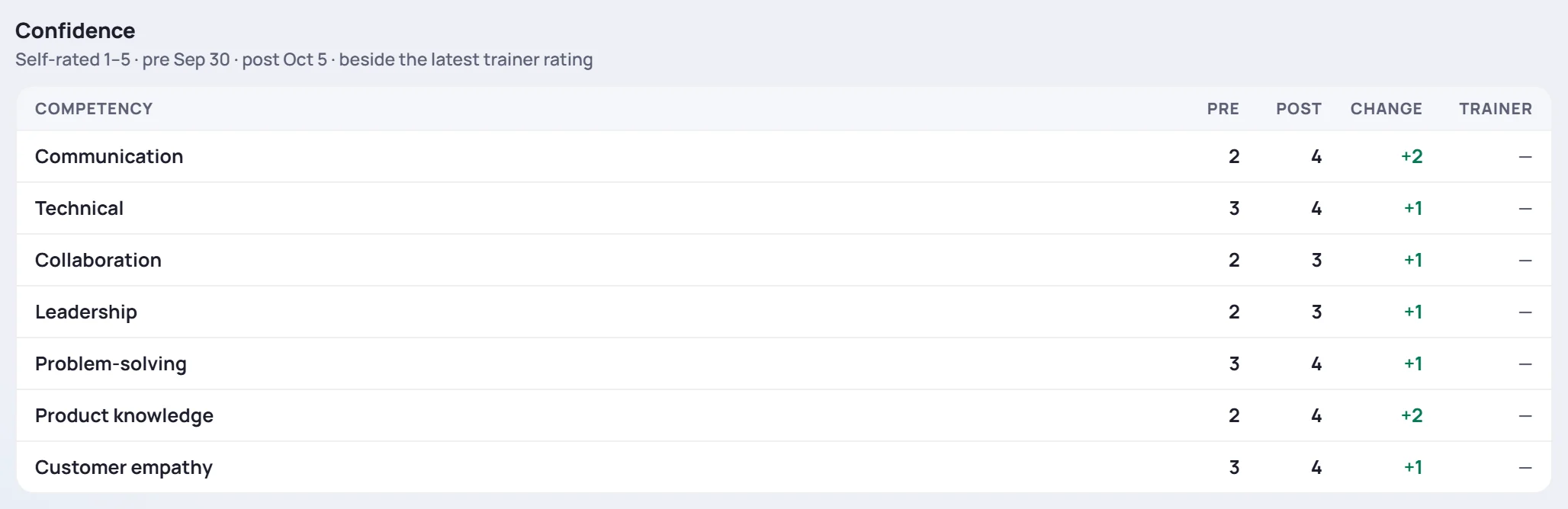
Comparing the two is often the most useful part: a learner who rates themselves far above or below what trainers observe may need a conversation. If the learner did self-assessments in more than one class, the card shows the most recent class's.
Each answer also appears on the learner's Timeline, for example Self-assessment (pre) · avg 2.4. See The learner profile.
Common questions
The class's dates changed after I created the links. A link keeps the window it was created with. Revoke it and click Re-open link: the new link's window is worked out again from the class's current first or last session. It has a new address, so share it again.
Can I edit the questions? Not directly. They come from the competencies when the link is created. Once anyone has answered a link, its questions stay fixed, so Pre and Post answers stay comparable.
A learner answered the wrong phase, or chose someone else's name. They can't change it themselves. Their answer stays as given, so make a note of it when you read the results.
Why doesn't an onboarding class have a Self-assessment? The starting template is for workshops. An Admin can open it and click Duplicate for another class type, or create a new one for onboarding.