Reusable note templates
Start a note from a ready-made structure, fill in the useful parts, and build your own templates for the team.
Your words may differ. Each workspace can choose its own words: a class might be a cohort, program or group, a learner a participant, trainee or new hire, a session a module or lesson. These guides use the default words. The steps are the same whatever your workspace calls them. Change your workspace's words
A template is a ready-made note structure, such as an end-of-day recap or a workshop debrief. You fill in a few short fields and Skovrum writes a clean note for you. Templates are shared with the whole training team.
Use a template
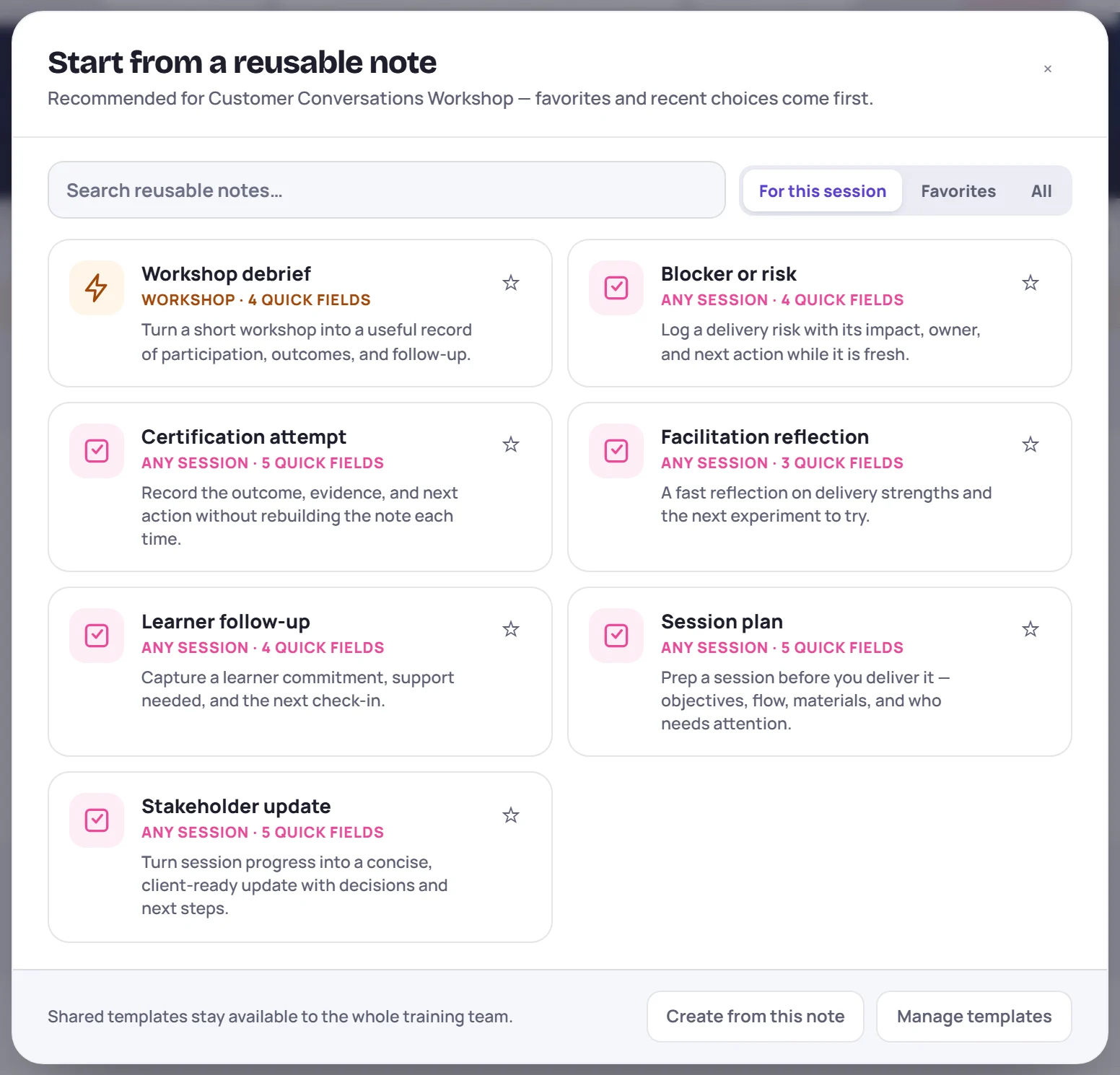
- In the note box on the session screen, click the template button (the small grid next to Question). Start from a reusable note opens.
- For this session shows the templates for this class's type and for any session, with your favorites and recent picks first. Favorites and All show the rest. Click the star on a template to make it a favorite.
- Click a template. If it has parts to fill in, Fill the useful parts opens.
- Fill in what's useful and skip the rest. Choices are one click; checklists take several.
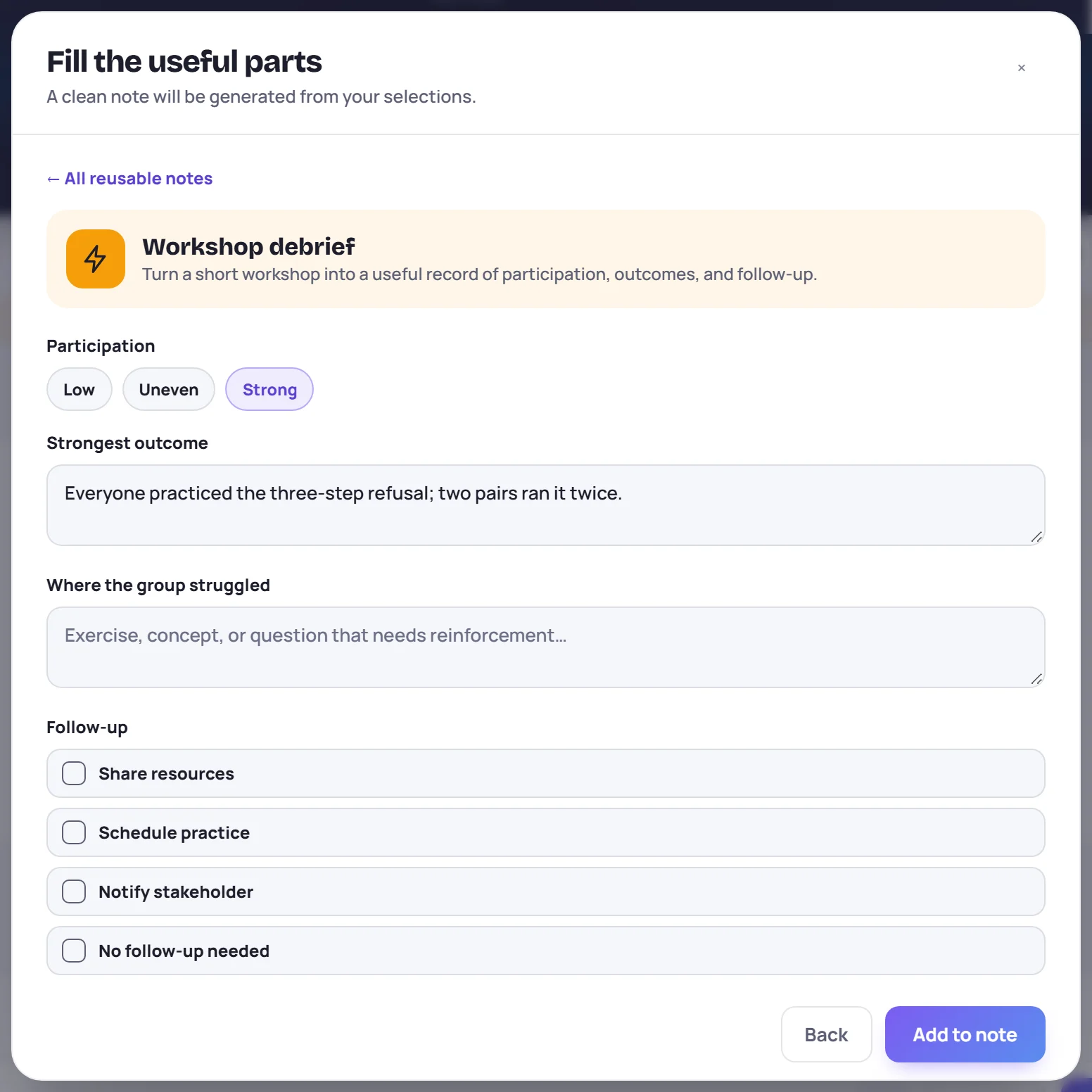
- Click Add to note. The finished text goes into the note box with headings in bold. Check it, then save with Ctrl+Enter (⌘+Enter on a Mac).
Two parts do more than add text:
- Follow-up task fields become tasks assigned to you as soon as you click Add to note. Pick when each is due: Today, Next session, In a week or No date.
- @mentions of learners in a field link the note to their profiles, as an observation.
Words such as {{class}}, {{session}}, {{date}}, {{trainer}} and {{topic}} in a template are filled in from the session.
Make your own
Click Manage templates at the bottom of the picker to open the Templates screen, then New template. Or type a note first and click Create from this note to start from its text.
Give it a Name, a Description and a Session type (Onboarding, Workshop, Development or Any session). Then add blocks:
| Block | What it does |
|---|---|
| Heading | A bold heading in the note |
| Fixed text | Text that's always included |
| Fill-in | A box to type in |
| Quick choice | Pick one option. List the options, separated by commas. |
| Checklist | Tick any of the options |
| Follow-up task | Becomes a task assigned to whoever uses the template |
Use the arrows to reorder blocks and Insert token to add the session words above. Click Save template.
Who can change templates
- Anyone who can write notes can create templates and edit the team's templates.
- Only the person who made a template, or an Admin, can delete it.
- The built-in templates can't be changed or deleted. Their pencil makes a copy you can edit.
Common questions
I clicked Use template on the Templates screen and nothing happened. For a template with parts to fill in, start it from the note box instead (step 1 above). Use template on the Templates screen only works for templates made of headings and fixed text.
Where did my favorites go? Favorites and recent picks are kept in your browser. On another computer or browser you start with none.