Reschedule sessions
Move one session to another day or time, mark sessions pending or confirmed, or shift a whole class.
Your words may differ. Each workspace can choose its own words: a class might be a cohort, program or group, a learner a participant, trainee or new hire, a session a module or lesson. These guides use the default words. The steps are the same whatever your workspace calls them. Change your workspace's words
Plans change. You can move a single session, mark one as not yet confirmed, or move every session in a class by the same number of days. Whatever was recorded for a session moves with it: its notes, attendance and topics.
Move one session
Open the session's schedule in either of these ways:
- In the Calendar, click the pencil (Edit schedule) on the session.
- On the session screen, click the session's times under its title.
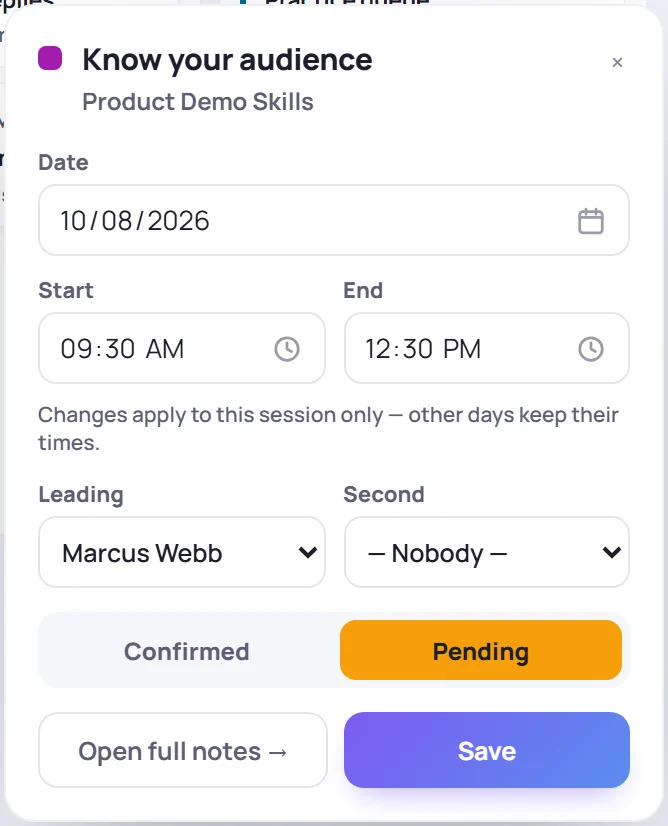
Change the Date, Start or End, then click Save. Session updated appears. Only this session changes; the class's other days keep their times. The end time must be after the start time.
If your role can assign trainers, you can also change who is Leading the session and who is Second for this day only. See Working with a co-trainer.
If you move a class's first or last session, the class's start or end date moves with it.
Mark a session pending or confirmed
A session you haven't confirmed yet, because a room or a date is still being arranged, can be marked Pending. Every session starts as Confirmed.
- In the session's schedule, choose Pending or Confirmed and click Save.
- In the Calendar's week views, click the small colored dot on the session to switch it straight away (Mark pending or Mark confirmed).
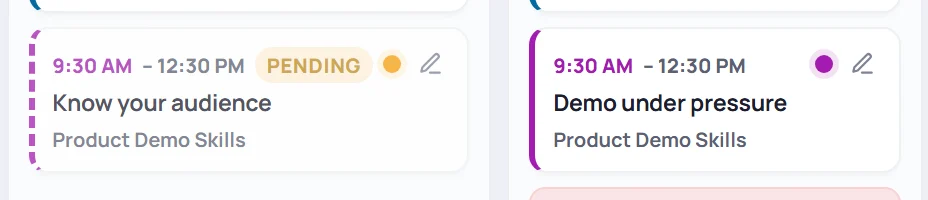
Pending sessions show PENDING, with a dashed edge, and look faded. When you export the calendar to PDF with Status badges switched on, they're marked Tentative.
Shift a whole class
Shifting moves every session in a class by the same number of days, which is useful when a class starts a week late.
- Click Reschedule in either place: - on the class's band across the top of the Calendar, in the week views. Bands show for onboarding and development classes. - next to the class in Manage → Classes. This works for every class type.
- Choose the New start date. The line below tells you how far everything will move, for example All class sessions shift by 7 day(s).
- Click Confirm shift. Class shifted appears with the number of days.
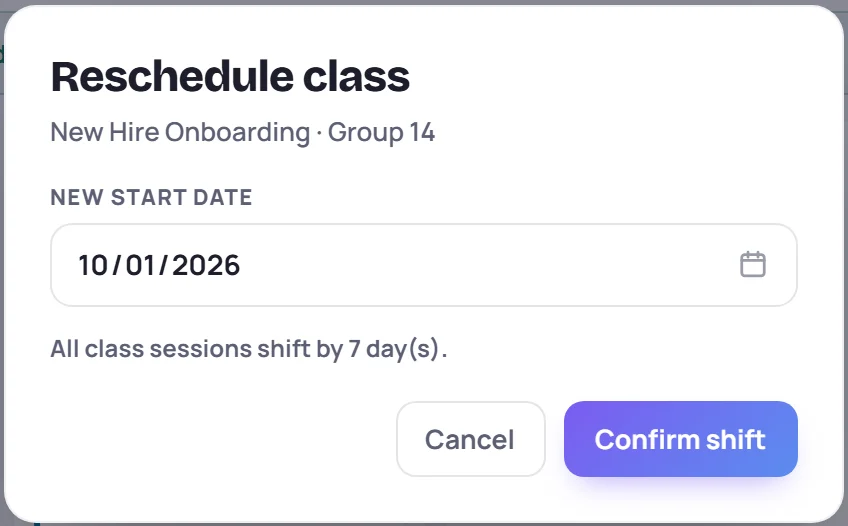
The class's start and end dates, every session, their notes, and each learner's enrollment date all move together.
Common questions
Why don't I see Reschedule on the calendar? Either your role can't change every class, the class is a workshop (workshops have no band; use Manage → Classes), or you're in the month view, which doesn't show bands.
Does moving a session change the time zone? No. Times are read in the class's own time zone, which you change with Edit on the class.