Custom roles
Make a role with exactly the permissions someone needs, limit it to the classes they lead, and the rules that stop anyone handing out more than they hold.
Your words may differ. Each workspace can choose its own words: a class might be a cohort, program or group, a learner a participant, trainee or new hire, a session a module or lesson. These guides use the default words. The steps are the same whatever your workspace calls them. Change your workspace's words
The three built-in roles fit most people. When they don't, make your own: a lead who manages the catalog but not users, a coordinator who sees only their own classes, a viewer who can also use Analytics.
Create a role
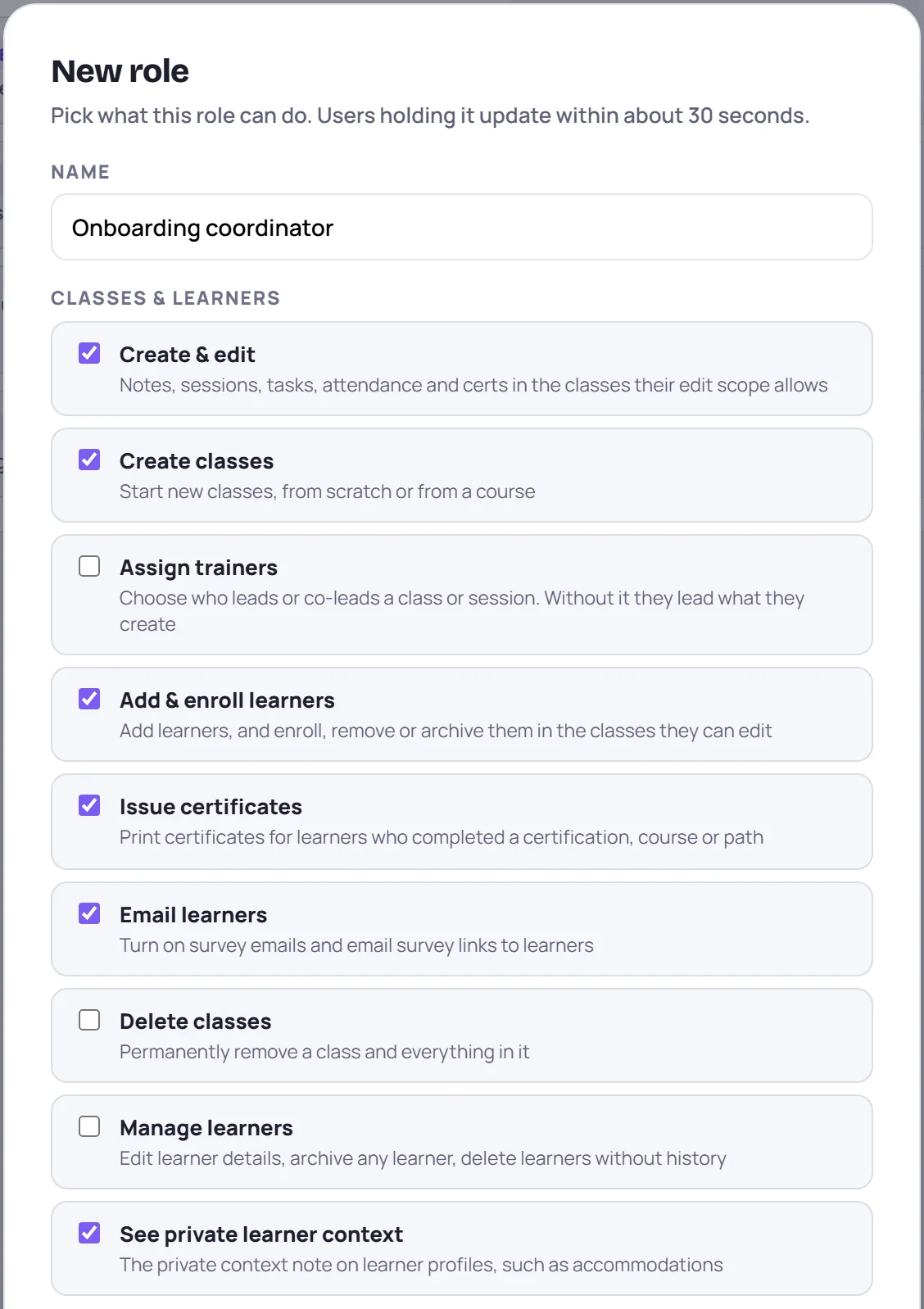
- Go to Manage → Roles and click + New role.
- Give it a Name, such as Team Lead. Two roles can't share a name.
- Tick the permissions it should have. A new role starts with the same ticks as Trainer.
- Choose its Class scope (below).
- Click Create role.
Then give it to people in Manage → Users. See Invite and manage users.
What each permission means
Classes & learners
| Permission | Allows |
|---|---|
| Create & edit | Notes, sessions, tasks, attendance and certifications in the classes the role can edit. Without it, the role is read-only. |
| Create classes | Starting new classes, from scratch or from a course |
| Assign trainers | Choosing who leads or co-leads a class or session. Without it, they lead what they create. |
| Add & enroll learners | Adding learners, and enrolling, removing or archiving them in classes they can edit |
| Issue certificates | Printing certificates for learners who completed a certification, course or path |
| Email learners | Turning on survey emails and emailing survey links |
| Delete classes | Permanently removing a class and everything in it |
| Manage learners | Editing learner details, archiving any learner, deleting learners without history |
| See private learner context | The private context on learner profiles, such as accommodations |
The five permissions under Create & edit need it. While it's off they're greyed out.
Reports & exports
| Permission | Allows |
|---|---|
| Export reports & data | Class and learner reports for the classes the role reports on, plus spreadsheet and workspace downloads |
| AI summaries | AI-drafted report summaries, handoff notes and survey comment themes. Needs Export reports & data. |
| Affiliate roll-up report | The report across classes, by client or business unit |
Content & collaboration and Workspace administration
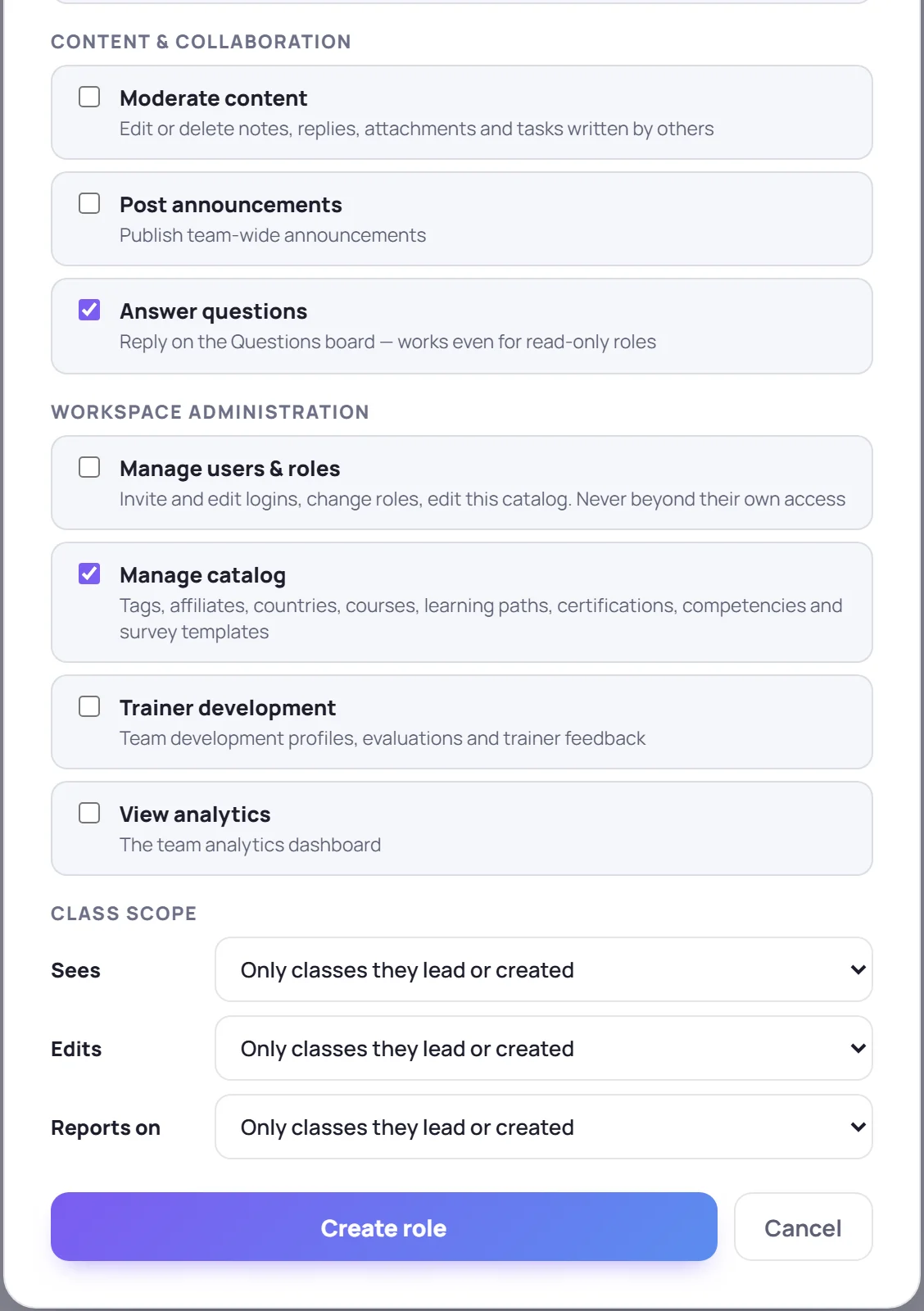
| Permission | Allows |
|---|---|
| Moderate content | Editing or deleting notes, replies, attachments and tasks written by others. Everyone can always change their own. |
| Post announcements | Announcements on everyone's Today screen |
| Answer questions | Replying on the Questions board, even in a read-only role |
| Manage users & roles | Inviting and editing users, changing roles, this role editor and the workspace settings: all of Manage except Backups. Never beyond their own access. |
| Manage catalog | Tags, affiliates, countries, courses, learning paths, certifications, competencies and survey templates. See the catalog. |
| Trainer development | Team development profiles, evaluations and trainer feedback |
| View analytics | The team Analytics dashboard |
A role with Manage catalog but not Manage users & roles gets a Manage screen with only the Data tab.
Class scope: which classes
Class scope has up to three lines:
| Line | Means |
|---|---|
| Sees | Which classes the role can open at all |
| Edits | Which classes it can change. Shown when Create & edit is ticked. |
| Reports on | Which classes it can export reports for. Shown when Export reports & data is ticked. |
Each is Every class or Only classes they lead or created: the classes where the person is the primary trainer or a co-trainer, or that they created.
A role never edits or reports beyond what it sees. Set Sees to Only classes they lead or created and the other two follow. Use it for people who should see only their own work, such as contract trainers.
Change or delete a role
Click Edit on a custom role's row, change it and click Save role. People with the role get the change within about 30 seconds, without signing out.
To delete a role, click the bin on its row, then Delete role? to confirm, or Keep.
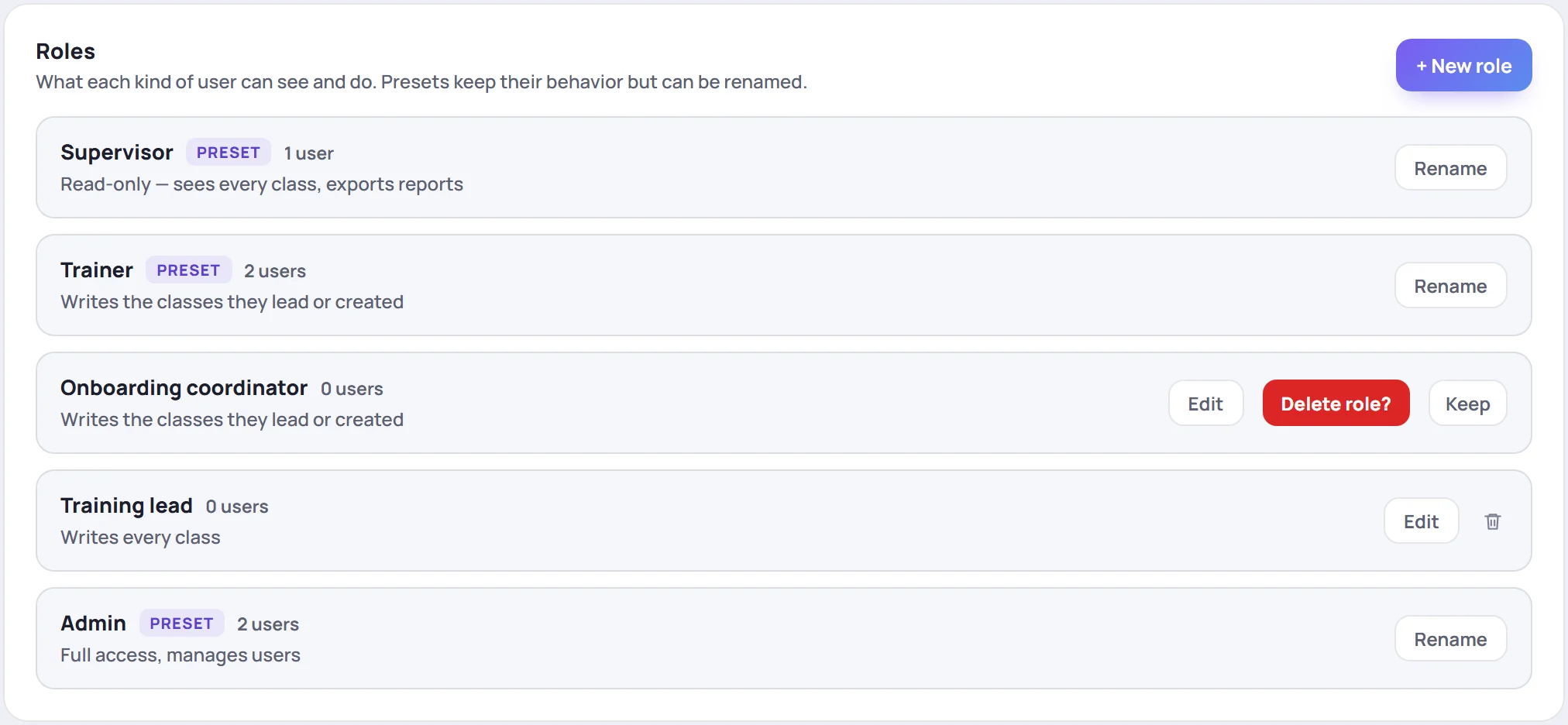
A role that anyone has, including deactivated users, can't be deleted: its row says Reassign its 1 user first. Move those people to another role in Manage → Users first. The built-in roles can be renamed but never edited or deleted.
Rules that stop anyone handing out too much
- You can't give more than you hold. Creating, editing or assigning a role is refused if it would have a permission or a wider scope than your own: You can't give a role more access than your own. Only the built-in Admin holds everything.
- Only the built-in Admin makes Admins. Someone with a custom role that manages users can't give anyone the Admin role. Only an Admin can download backups, too.
- There's always an Admin. The last active Admin can't be moved to another role or deactivated.
- Someone can always manage users. You can't take Manage users & roles off a role if that would leave nobody active who has it.
Seats
A role with Create & edit uses a trainer seat for each person who has it. A role without it uses a read-only seat. Ticking Create & edit on a role people already have is refused if your plan doesn't have the seats. See Seats and read-only viewers.
If you move to the Solo plan
Custom roles you already have keep working, and you can still delete them. You can't create new ones or edit them until you're back on Team or Business. See What's in each plan.
Creating, changing and deleting roles is recorded in the audit log.