Answers the team already has
See the questions learners asked about a topic, with the team's answers, right where you plan and teach it.
Your words may differ. Each workspace can choose its own words: a class might be a cohort, program or group, a learner a participant, trainee or new hire, a session a module or lesson. These guides use the default words. The steps are the same whatever your workspace calls them. Change your workspace's words
Learners tend to ask the same things about the same topic. Once the team has answered a question, Skovrum shows it next to that topic for every trainer who teaches it next. You see what's likely to come up, and the answer, before the session starts.
Where you'll see it
Under a topic, a link such as 2 answered questions ▾ appears. Click it to read them.
- On the session screen, in the Session plan that opens from the Plan chip (see Today's topics).
- On the class's Curriculum tab, under each topic (see Build the curriculum).
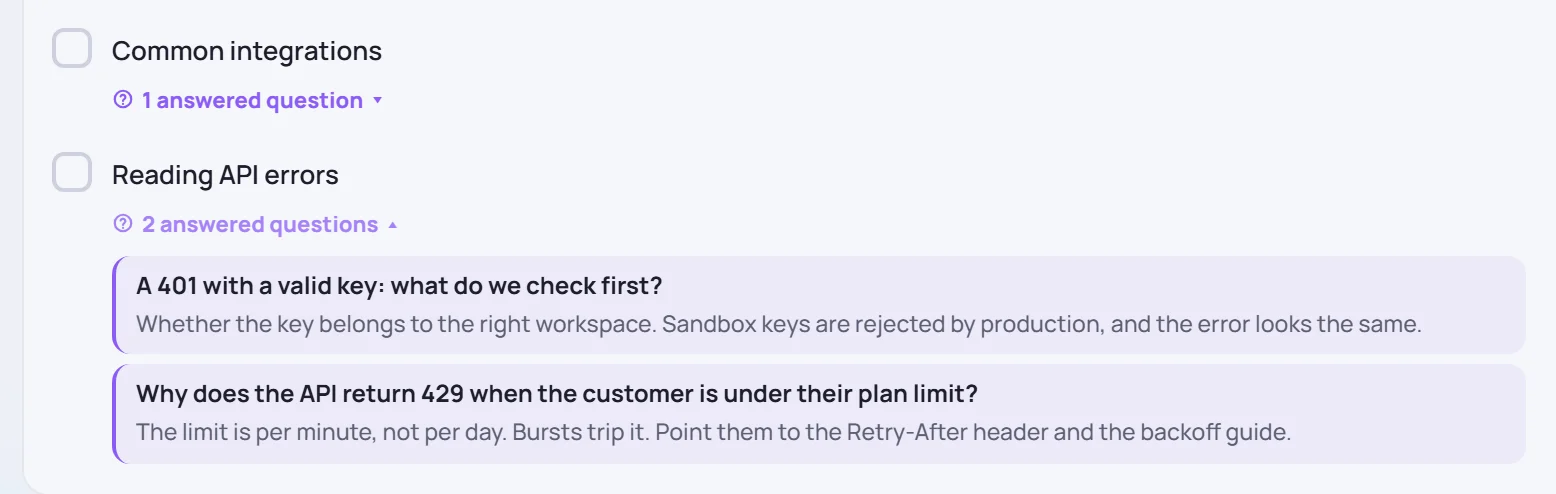
Each entry shows the question and the start of its answer: the accepted answer, or the latest one if none was accepted. Click an entry to open the whole question.

Which questions are shown
A question appears under a topic when:
- It's answered. Its status is Answered or Shared with class. Unanswered and closed questions never appear.
- Its topic matches the topic's name. Capitals and extra spaces don't matter, but the words must be the same. Reading API errors matches reading api errors, not API errors.
- It's from the same kind of class. Onboarding questions show on onboarding classes, workshop questions on workshops, and so on. A board question asked with no class and Any class type has no type, so it never appears under a topic.
- The class can see it. Questions on the team board show in every class of that type. A question still in a class's own parking lot shows only in that class.
Up to five are shown per topic. Questions from classes that ran the same course come first, then the most recent.
Help the next trainer
The topic is what links a question to the right place, so give every question one:
- When you park a question while writing in a note topic, it takes that topic.
- When you Ask the team, fill in Topic. The suggestions include the class's curriculum topics, so pick one from the list to get an exact match.
- For a question with no class, choose its Class type rather than Any class type.
- To add or fix a topic later, open the question and click Edit. The person who asked it and Admins can.
Then make sure each question gets an accepted answer. See Answer, accept and share.