Archive and bulk-edit classes
Archive finished classes, change the trainer or type of several classes at once, and delete classes you no longer need.
Your words may differ. Each workspace can choose its own words: a class might be a cohort, program or group, a learner a participant, trainee or new hire, a session a module or lesson. These guides use the default words. The steps are the same whatever your workspace calls them. Change your workspace's words
When a class is over, archive it. Archiving tidies up your lists without losing anything. You can also change several classes at once, for example to hand them to another trainer, and delete classes that were created by mistake.
Select several classes
- Go to Classes and click Select on the right of the toolbar.
- Click the cards you want. A tick appears on each one. Select all picks every class that matches your current search and filters. It then reads Clear all, which unticks them.
- A bar appears at the bottom of the screen with what you can do.
- When you're finished, click Done.
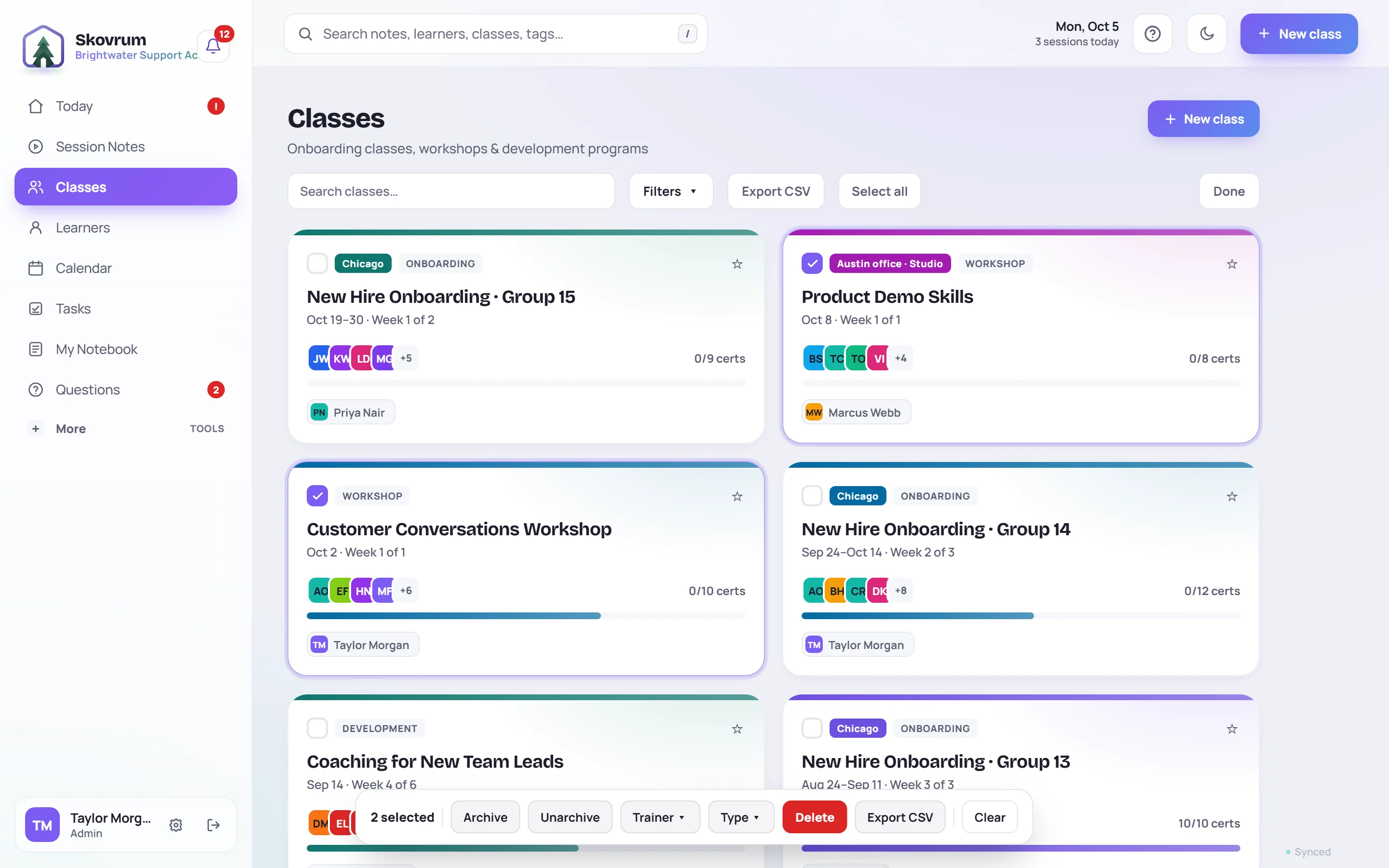
| Button | What it does |
|---|---|
| Archive, Unarchive | Archive or restore every selected class. |
| Trainer ▾ | Set the primary trainer of every selected class. |
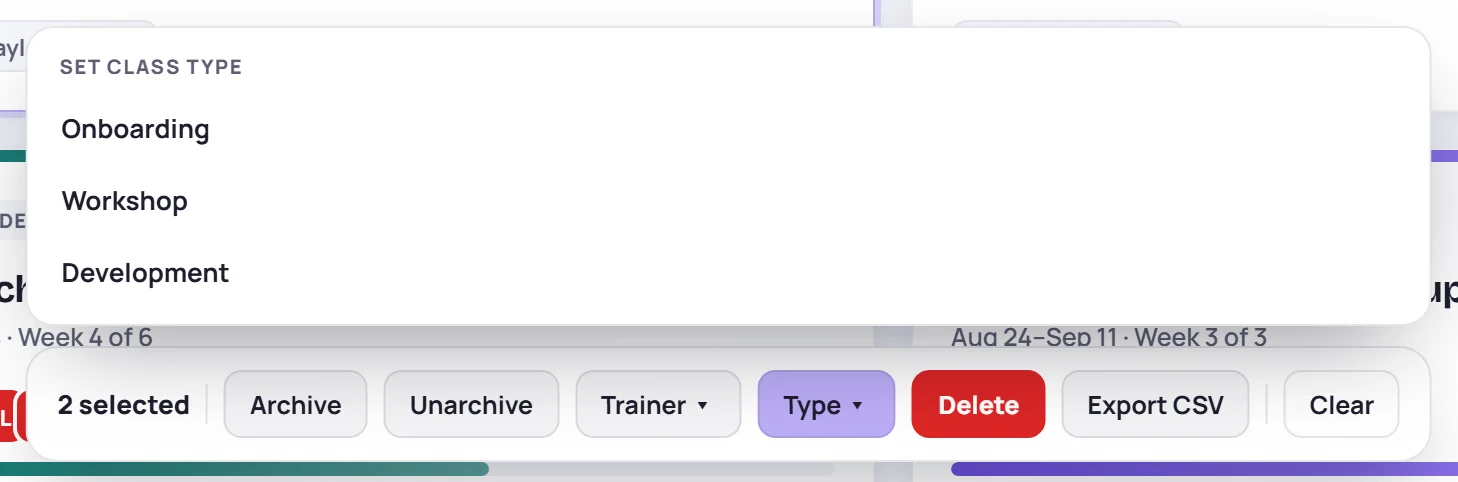
| Type ▾ | Set the class type: Onboarding, Workshop or Development. |
| Delete | Delete every selected class, after a confirmation. |
| Export CSV | Download the selected classes as a spreadsheet. |
| Clear | Untick everything. |
If your workspace groups classes by client or business unit, there's also a picker for that. If you can't change some of the selected classes, the bar says Bulk actions are available only for classes you lead, and only Export CSV works.
Archive a class
Archiving a finished class:
- hides it from Classes, unless you filter by Status → Archived;
- takes its sessions off Today and out of trainers' calendar feeds;
- keeps everything: sessions, notes, attendance, scores and reports.
You can still open an archived class, its sessions and its reports. Its sessions show an Archived label, with Unarchive for people who can change the class.
To bring a class back, filter Classes by Status → Archived, select it, and click Unarchive.
Manage → Classes
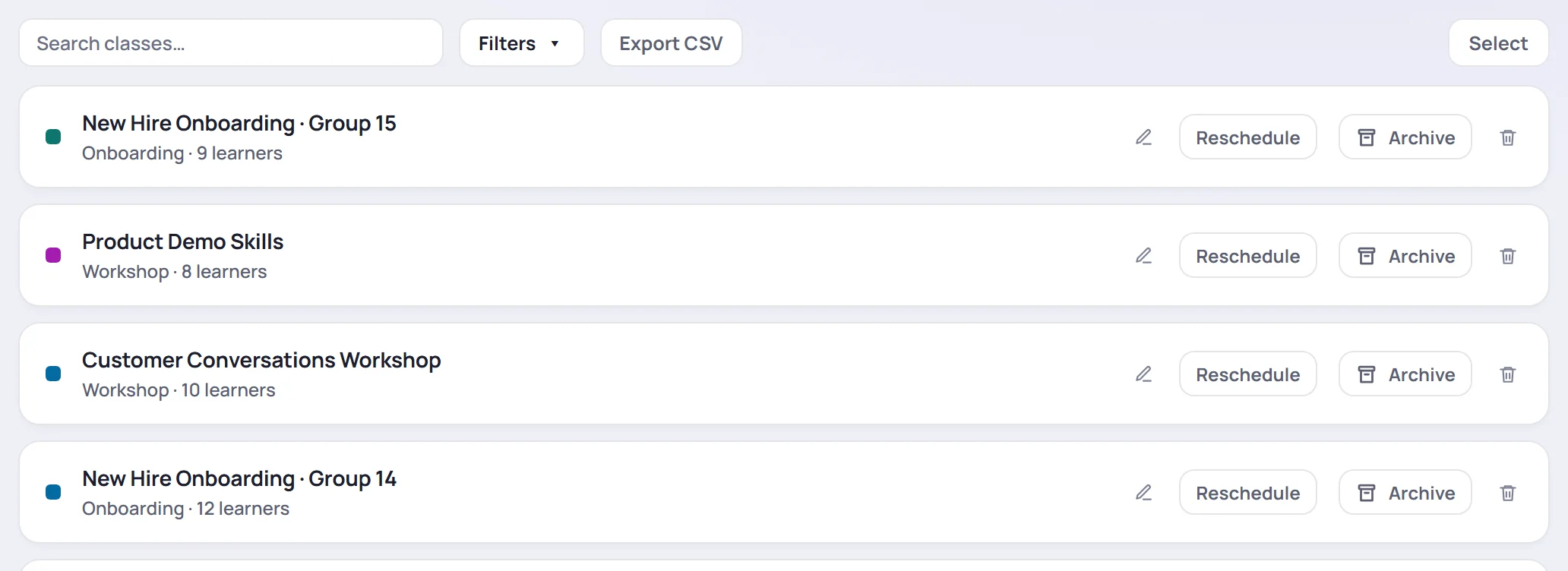
Admins also have a list of every class in Manage → Classes. It has its own search, Filters, Export CSV and Select, and a row per class with:
- the pencil to edit the class;
- Reschedule, to move every session by the same number of days (see Reschedule sessions);
- Archive or Unarchive;
- the trash can to delete it.
Delete a class
Delete one class with the trash can in Manage → Classes, then confirm. To delete several, select them on Classes and click Delete, then confirm.
Common questions
Will archiving a class archive its learners? No. Learners are archived separately. See Archive, delete or erase.
Can I archive a class before it ends? Yes, but its upcoming sessions then drop off Today and the calendar feeds. Usually it's better to wait until it's over.