#tags and @mentions
Tag notes so they're easy to find again, and mention learners and trainers so the note reaches them.
Your words may differ. Each workspace can choose its own words: a class might be a cohort, program or group, a learner a participant, trainee or new hire, a session a module or lesson. These guides use the default words. The steps are the same whatever your workspace calls them. Change your workspace's words
Type # to tag a note and @ to mention someone. Both work in the session note box, in replies, in My Notebook (tags only) and when you log an observation on a learner's profile.
Tag a note
Type # and a list of your workspace's tags opens. Keep typing to narrow it, then use the arrow keys and Enter, or click. To make a new tag, just type it, for example #escalations, and save the note.
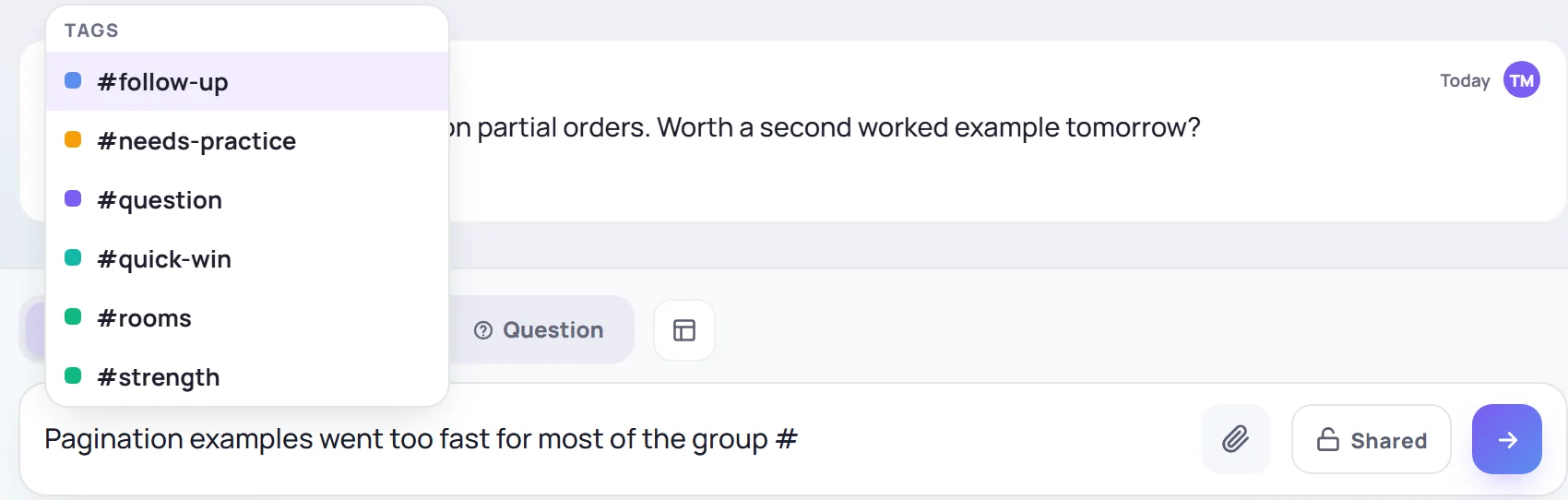
- Tags are shared by the whole workspace, so everyone picks from the same list.
- Tags are saved in lowercase.
- Tagged words are highlighted in the note, and the tags you've used appear above the box under In this note as you type.
Admins can add tags with a color, or delete them, under Manage → Data. See Courses, certifications, tags and countries.
Find tagged notes
Type the tag into the search box at the top of any screen, for example #strength. The results list every note with that tag, and Filter by tag: narrows them further.
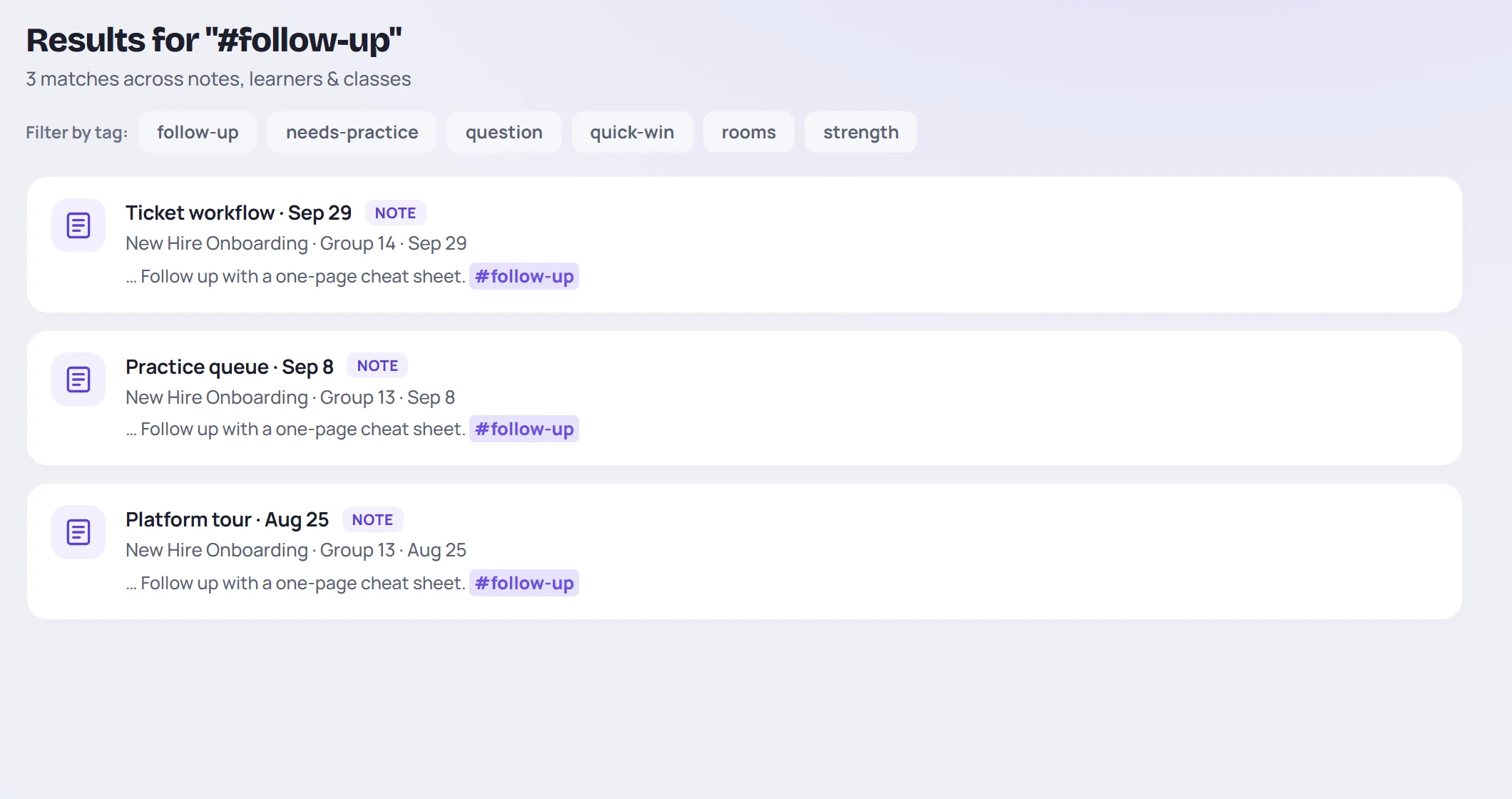
On a learner's profile, click a tag under an observation to search for it.
Mention someone
Type @ and start typing a name. The list matches full names and preferred names; Skovrum always writes the full name, such as @Farah Haddad.
| You mention | What happens |
|---|---|
| A learner | The note becomes an observation about them and appears on their profile. In the session note box, the list offers the session's learners. |
| A trainer | They get You were mentioned under the bell for a week, and a Mentions line in their daily email if they get it. |
A mention in a private note notifies nobody, because nobody else can see the note. In a reply, the list shows trainers first.
Keys
| Key | What it does |
|---|---|
| # | Open the tag list |
| @ | Open the name list |
| ↑ ↓ | Move through the list |
| Enter | Pick the highlighted tag or name |
| Esc | Close the list |