What's in a new workspace
A brand-new workspace isn't empty. Here's what it starts with, the settings it starts on, and the checklist that helps you finish setting it up.
Your words may differ. Each workspace can choose its own words: a class might be a cohort, program or group, a learner a participant, trainee or new hire, a session a module or lesson. These guides use the default words. The steps are the same whatever your workspace calls them. Change your workspace's words
A new workspace has no classes, learners or notes yet, but it isn't blank. It comes with a few ready-made pieces to start from, and a checklist for the Admin who set it up. Everything listed here can be edited or deleted.
The setup checklist
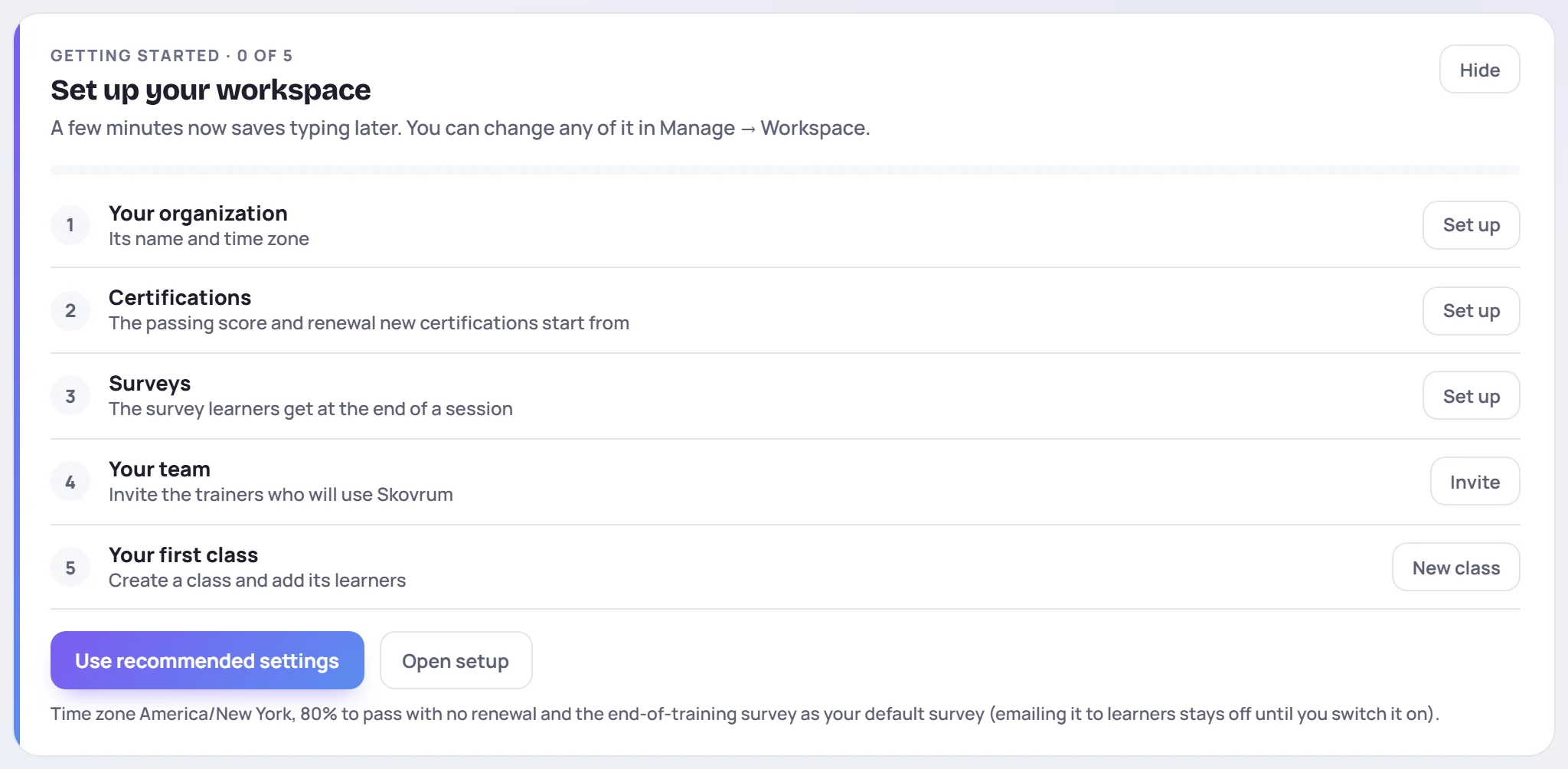
The first time you sign in as the workspace's Admin, Today shows Set up your workspace:
| Step | What it sets |
|---|---|
| Your organization | Its name and time zone |
| Certifications | The passing score and renewal period new certifications start from |
| Surveys | The survey learners get at the end of a session |
| Your team | Invite the trainers who will use Skovrum |
| Your first class | Create a class and add its learners |
The checklist only tracks your progress. The work happens elsewhere, and each step's button takes you there: Set up on the first three steps opens Manage → Workspace, Invite opens Manage → Users, and New class opens the new-class form. Open setup goes straight to Manage → Workspace, where all the settings live for good. Use recommended settings fills in whichever of the first three steps are still open, in one click: your browser's time zone, 80% to pass with no renewal, and the end-of-training survey as your default survey. Emailing that survey to learners stays off until you switch it on.
Only people who can manage users see the checklist. Click Hide to put it away, or Finish setup once every step is done. On the Solo plan, Your team is already ticked, because the plan has one trainer seat. See Workspace settings.
What's already there
| What | In a new workspace |
|---|---|
| Courses | New-hire onboarding (10 workdays, 9 AM to 5 PM, in person) and Coaching conversations (one half-day workshop, 9 AM to 1 PM) |
| Curriculum templates | New-hire onboarding (2 weeks), with 11 topics over 10 days, and Coaching conversations (half-day workshop), with 4 topics. Each course uses its template. |
| Survey templates | End-of-training feedback (any class), End-of-day pulse (onboarding) and Confidence self-assessment (workshops) |
| Competencies | Communication, Technical, Collaboration, Leadership and Problem-solving |
| Tags | #strength, #needs-practice, #follow-up, #question and #quick-win |
| Roles | Admin, Trainer and Supervisor |
Start a class from a starter course with Start from on the new-class form, and its schedule and curriculum fill in for you. See Create a class.
Settings it starts with
- Time zone: US Eastern (New York), until you change it.
- Certifications: a 90% passing score and no renewal. No certifications exist yet. You add your own in the catalog.
- Default survey: none, and survey emails are off.
- Words: class, learner, trainer and session. See Your workspace may use different words.
- Clients and business units: off. Switch them on in Manage → Workspace if you group classes that way. See Clients and business units.
- Countries: none. The class form's Country field appears once you add one.
Next steps
- Work through the checklist, starting with your organization's time zone.
- Invite your team.
- Create your first class.