Record scores
Record certification attempts one at a time, see the whole class on the Compare & certify tab, or import scores from a spreadsheet.
Your words may differ. Each workspace can choose its own words: a class might be a cohort, program or group, a learner a participant, trainee or new hire, a session a module or lesson. These guides use the default words. The steps are the same whatever your workspace calls them. Change your workspace's words
Each score you record is an attempt on one of the class's certifications. You can type scores in one at a time, or bring in a whole spreadsheet from another system, such as a learning platform export. Either way they count the same: pass marks, renewals and certificates all follow from them.
Record an attempt
- Open the class and click the Compare & certify tab.
- Click the learner's cell under the certification. Record certification attempt opens.
- Type the Score (%), from 0 to 100. Decimals are rounded to a whole number.
- Check the Date. It starts at today; change it if the assessment was on another day.
- Click Add attempt.
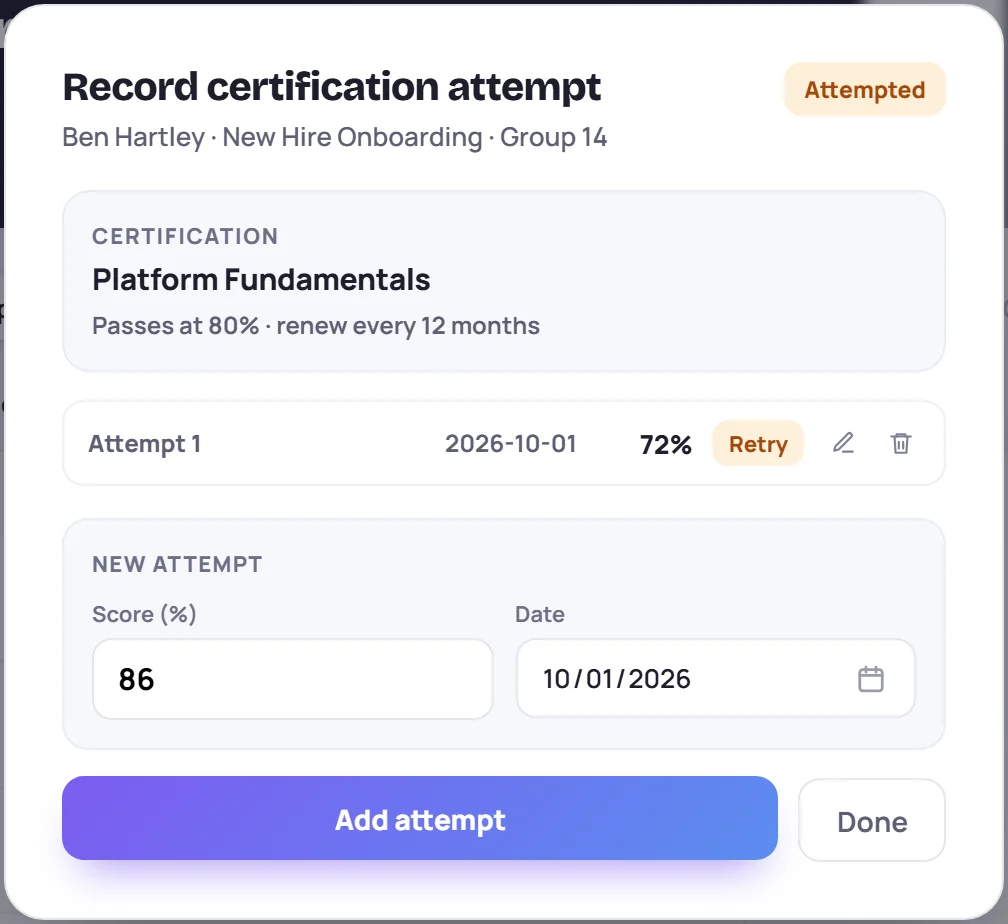
The attempt appears in the list, marked Pass or Retry against that certification's pass mark. The badge in the top corner changes to Passed or Attempted, and Certification passed ✓ or Attempt recorded appears briefly.
You can also open the same window from a learner's profile: on the Timeline tab, click a certification in the Certifications section. If the learner is in more than one class, each class's certifications are listed separately.
Retakes
A retake is just another attempt. Open the same cell and add it. The learner counts as passed as soon as any attempt reaches the pass mark, and earlier attempts stay in the list.
Fix a mistake
Click the pencil on an attempt to change its score or date, then Update attempt (or Cancel). Click the trash icon to delete it. Click Done when you're finished.
The Compare & certify tab
The tab shows the whole class at once: one row per learner and one column per certification.
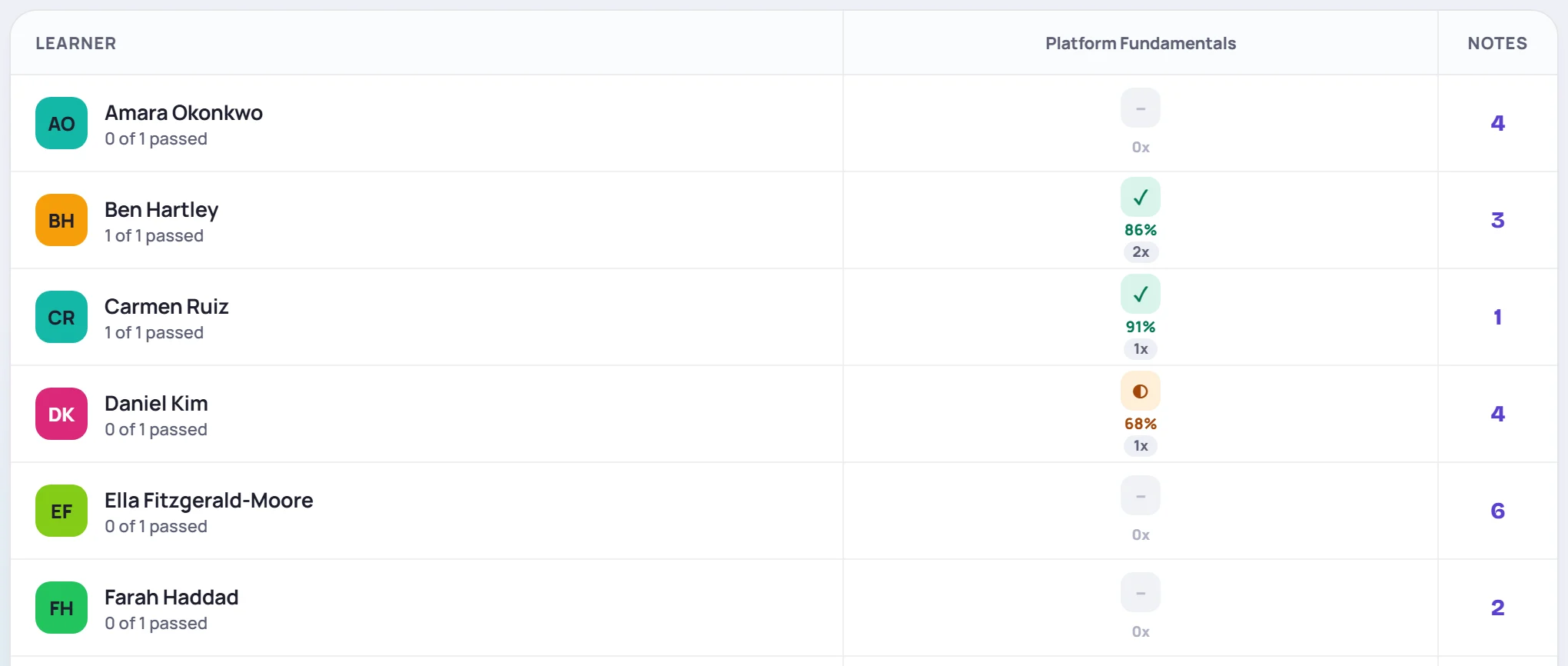
| You see | It means |
|---|---|
| ✓ in green, with a score | Passed. The score is the best attempt. |
| ◐ in amber, with a score | Attempted, not passed yet |
| – in grey | Not started |
| 1x, 2x … | How many attempts are recorded |
| 2 of 3 passed under a name | How many of the class's certifications this learner has passed |
| Notes | How many notes about the learner there are in this class |
Click a learner's name to open their profile, or a cell to record an attempt.
Import scores from a spreadsheet
If learners sit their assessments somewhere else, export the results as a CSV file and import them. Scores become ordinary attempts, exactly as if you'd typed them. Nobody is added to the class, so every learner in the file must already be on the roster.
- Open the class's Roster tab and click Import scores. (It's also on a learner's profile, next to Certifications on the Timeline tab. From there, only that learner's rows are imported.)
- Choose the CSV file.
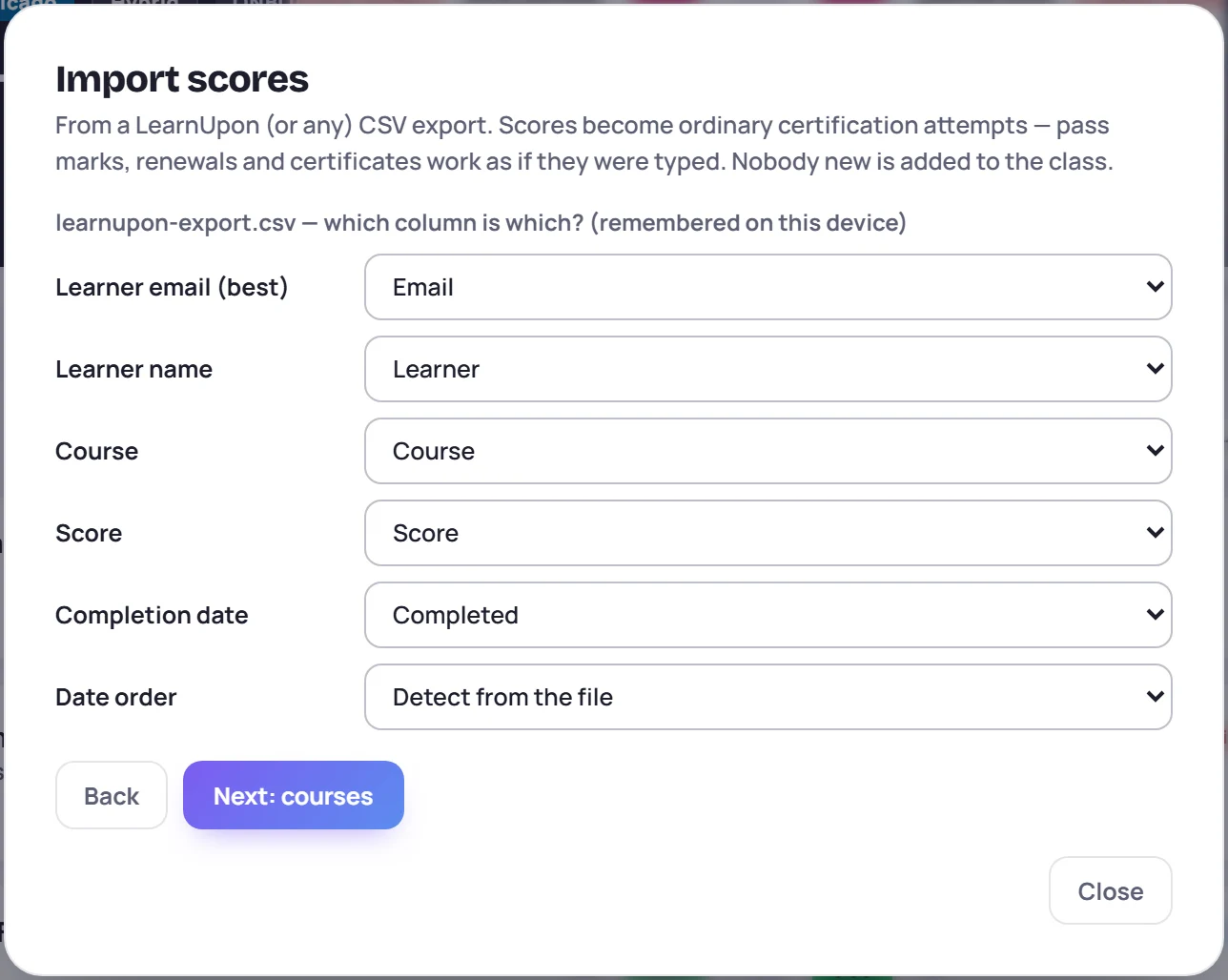
- Tell Skovrum which column is which: Learner email (best), Learner name, Course, Score and Completion date. It guesses from the column headings, so check them. You need a learner column (email or name), a course and a score. Skovrum remembers your choices on this device for the next file with the same columns.
- If the dates are ambiguous, set Date order to Month first or Day first. Left on Detect from the file, it reads them month first unless a date only makes sense the other way.
- Click Next: courses, then match each course in the file to a certification in this class. Leave a course on Skip this course to ignore its rows.
- Click Next: preview.
Check the preview
The preview sums up the file, for example 3 to import · 1 already recorded · 2 to review · 1 skipped.
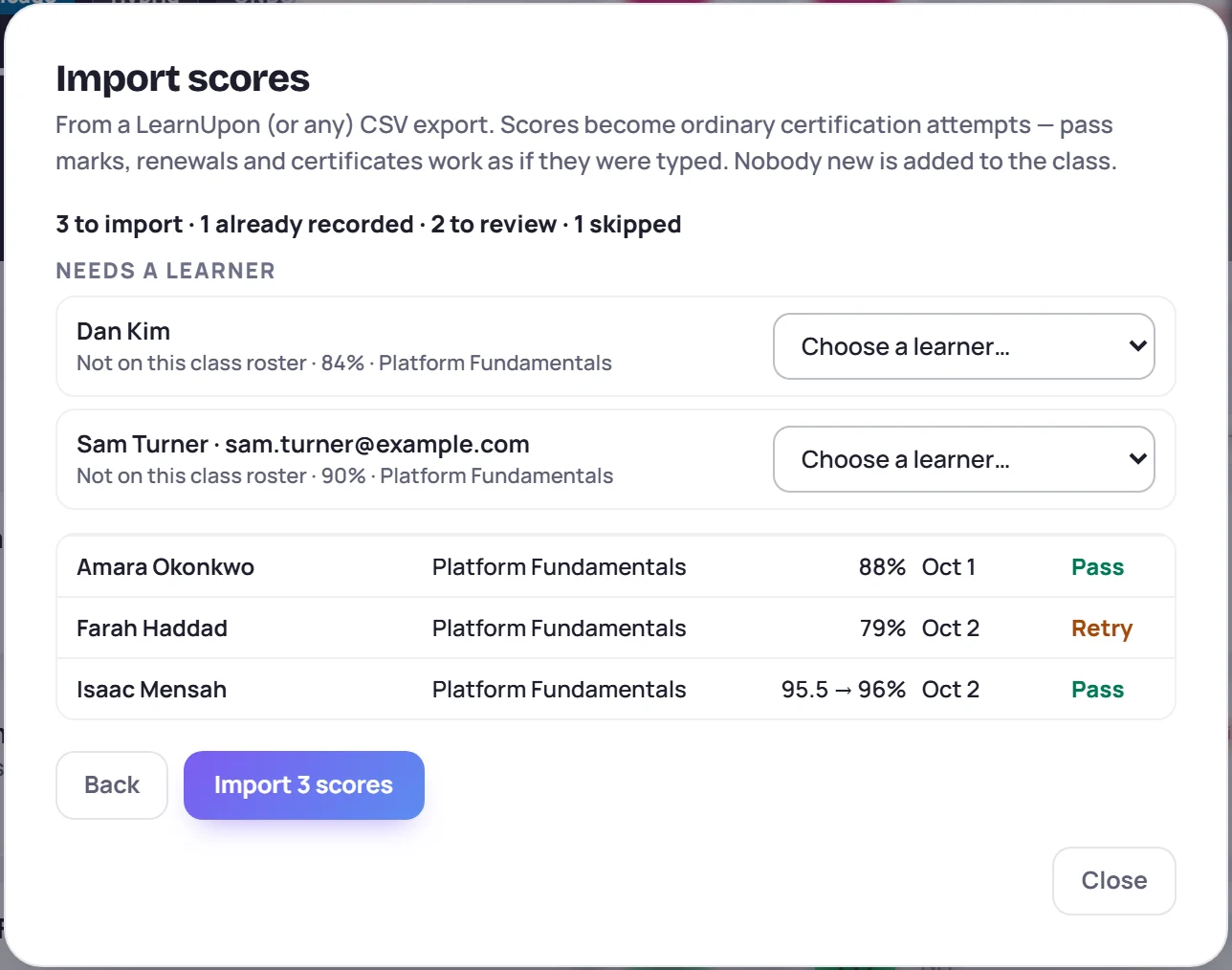
- To import: rows matched to a learner on the roster, listed with their score, date and Pass or Retry.
- Already recorded: the learner already has an attempt with the same score and date, so it's left out. Importing the same file twice doesn't double anything.
- To review: listed under Needs a learner, with the reason, such as Not on this class roster or More than one possible learner. Choose the right person from the list, or leave it and the row is skipped.
- Skipped: rows whose course you skipped or whose score isn't a number from 0 to 100.
Skovrum matches learners by email first. Without an email it uses the name, and only an exact match is taken automatically. Then click Import (for example Import 3 scores). A message such as Imported 3 scores · 4 skipped confirms it. The skipped count includes rows already recorded and rows you left without a learner.
Common questions
I clicked a cell and nothing opened. If a message says you can record certifications only in classes you lead, the class isn't yours to edit. Ask its trainer or an Admin.
Why isn't Import scores showing? It appears only on classes you can edit that have at least one certification.
The score in my file was 95.5%. Why does Skovrum say 96%? Scores are whole numbers. The preview shows the rounding, such as 95.5 → 96%.