Edit a learner's details
Change a learner's name, role, contact details, preferred name, pronouns, status, flag and manager, or take them off a class roster.
Your words may differ. Each workspace can choose its own words: a class might be a cohort, program or group, a learner a participant, trainee or new hire, a session a module or lesson. These guides use the default words. The steps are the same whatever your workspace calls them. Change your workspace's words
A learner's details live on their profile and are shared by every class they're in, so you change them once.
Open the editor
Open the learner's profile and click Edit at the top right. Admins can also click the pencil on a learner's row in Learners or Manage → Learners.
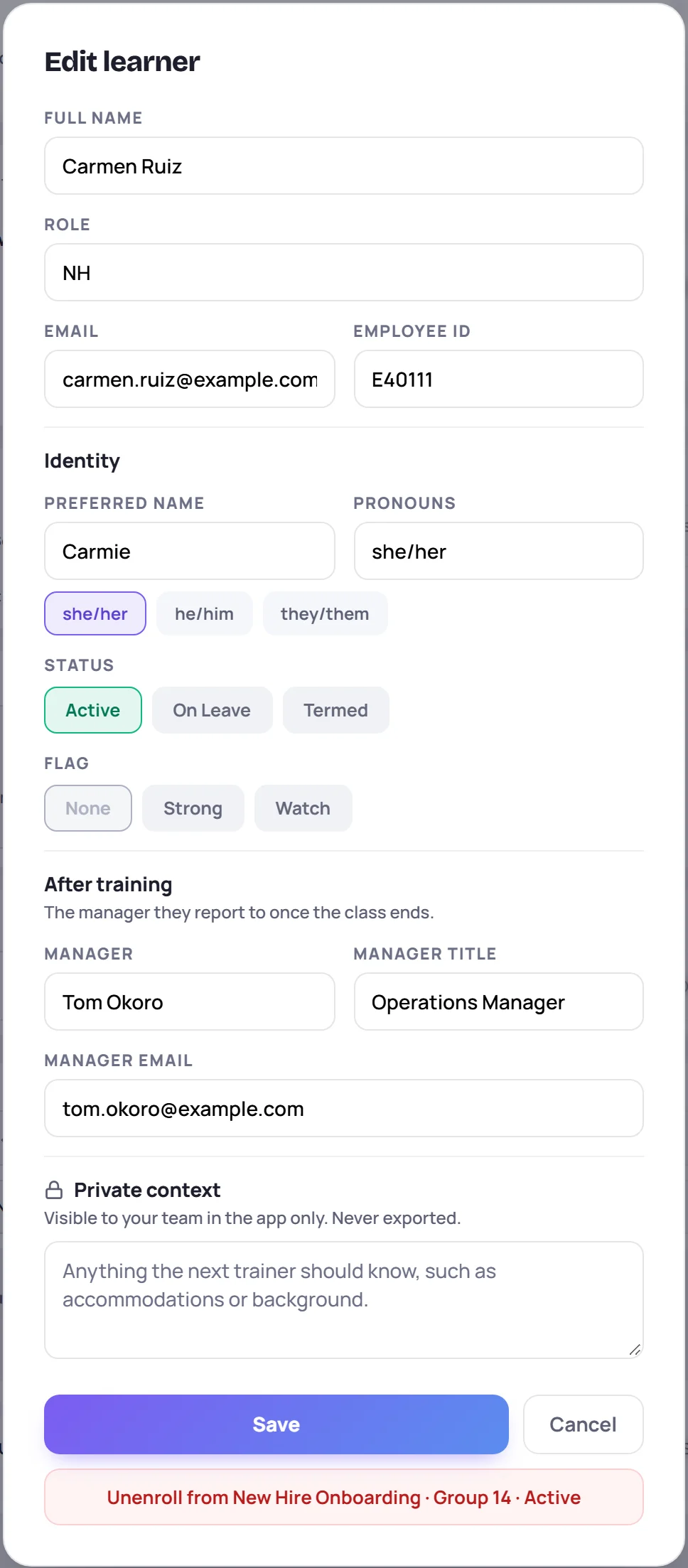
What you can change
| Field | What it's for |
|---|---|
| Full name, Role | Their name as on file, and their job or title |
| Email, Employee ID | Let Skovrum recognize them exactly when they join another class. Clear a field and save to remove it. |
| Preferred name | What they like to be called. It's shown large on their profile, and lists show both, for example Carmie (Carmen Ruiz). If it's the same as their first name, nothing changes. |
| Pronouns | Type them, or tap she/her, he/him or they/them. Tap the highlighted one again to clear it. |
| Status | Active, On Leave or Termed. On Leave and Termed show as a label on their class roster. A Termed learner no longer appears on session rosters, so they aren't counted in attendance. |
| Flag | None, Strong or Watch. A flag shows on their row and profile, can be filtered on in Learners, and on Mondays the daily email lists Watch learners in classes you lead under Watching. |
| Manager, Manager title, Manager email | Under After training: who they report to once training ends. It appears on their profile with an Email manager link, and in handoff packets. |
| Private context | Background the team should know. See Private context. |
Click Save.
Take a learner off a class roster
The red button at the bottom names the class, for example Unenroll from New Hire Onboarding · Group 14. Click it and confirm. They leave that class's roster from now on, but their notes and scores for the class are kept.
For someone with more than one class, choose the class first in Enrollment. A class they've already left shows Re-enroll in … instead, which puts them back on the roster.
To take someone off every class at once, archive them instead. See Archive, delete or erase.
Common questions
I added the same person twice. Should I edit one of them? No, merge them, so their history ends up on one profile. See Merge duplicate profiles.
Does changing a name change old notes? Notes that mention the learner keep the wording they were written with.