Cold call, timer and quick notes
Pick a learner to call on, run a countdown for a break or activity, and capture questions and notes in live mode.
Your words may differ. Each workspace can choose its own words: a class might be a cohort, program or group, a learner a participant, trainee or new hire, a session a module or lesson. These guides use the default words. The steps are the same whatever your workspace calls them. Change your workspace's words
Live mode has a few tools for the room itself: a fair way to pick who answers next, a countdown for breakouts and breaks, and quick capture for questions and notes.
Cold call
Click Cold call in the top bar, or press C. Skovrum picks a learner and shows their name large enough to read across the room, with their full name and pronouns underneath.
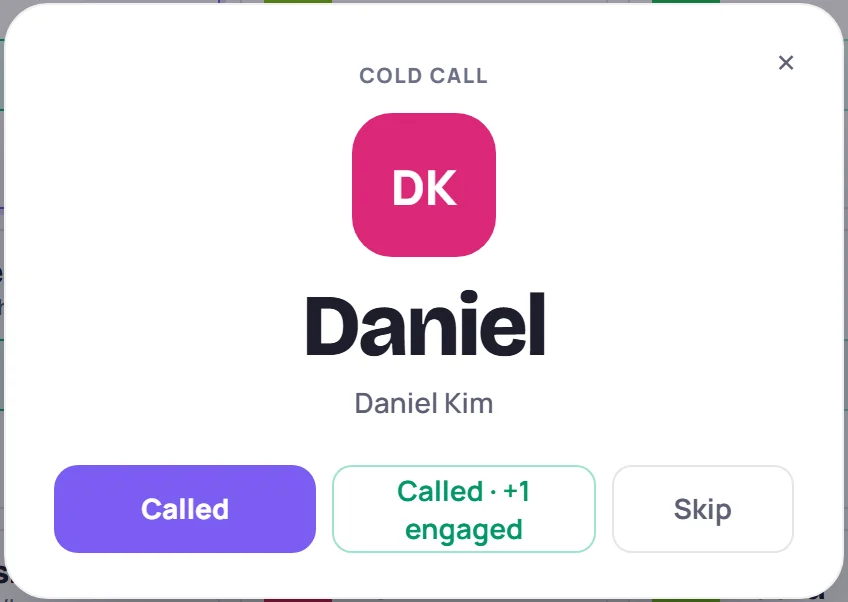
Then choose:
- Called (or press Enter) to record that you called on them.
- Called · +1 engaged to record the call and add an engagement tap for a good answer.
- Skip (or press C again) to pick someone else without recording anything.
Who gets picked
- Only learners who are here: anyone marked Absent, Excused or Early Leave is left out.
- Quieter learners are more likely to be picked. The fewer engagement taps a learner has today, and the fewer times they've been called on in this session, the better their chance.
- The last two learners you marked as called aren't picked again unless there's no one else.
A learner's tile shows Called once or Called 2× so you can see how the calls are spread. Call counts are kept on the device you're teaching from, for this session only. They aren't added to the learner's record; only the engagement tap from Called · +1 engaged is.
Countdown timer
For a breakout, a break or a timed exercise, click Timer in the top bar, or press T.
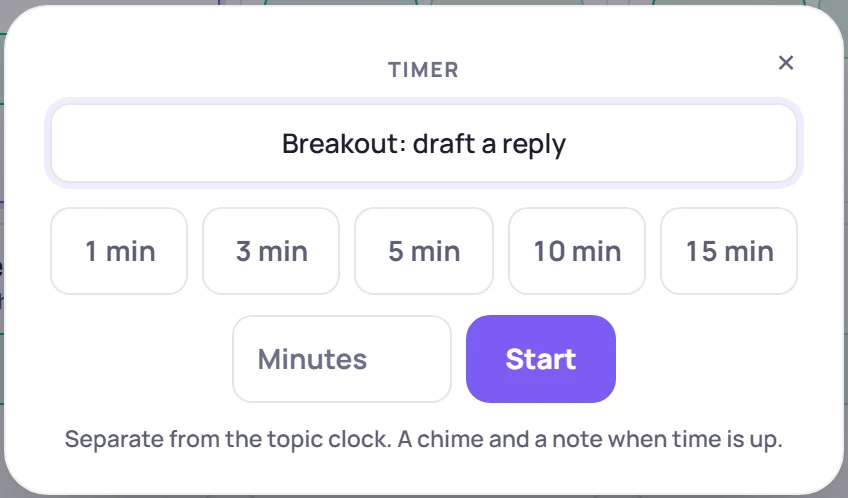
- Optionally, type what it's for, such as Breakout: draft a reply. The label can be up to 40 characters and is shown on the presenter window.
- Click a preset (1 min to 15 min), or type the minutes and click Start. A timer can run for up to 10 hours.
The timer is separate from the topic clock: the topic keeps its own time while the timer runs. The countdown replaces the Timer button in the top bar:

In the last minute it turns amber. When time is up, it turns red and says Time's up, Skovrum shows a message with the timer's label and plays a short chime (if your sound is on). Click the countdown to open the timer again:
| Button | What it does |
|---|---|
| Pause / Resume | Stop and restart the countdown |
| +1 min | Add a minute. After time is up, it gives a full minute from now. |
| Cancel | Stop the timer. It reads Dismiss once time is up. |
Like the topic clock, the timer is kept on this device and survives a reload.
Park a question
The Parking lot on the right is the class's list of open questions. Press Q (or click the box), type the question and press Enter.
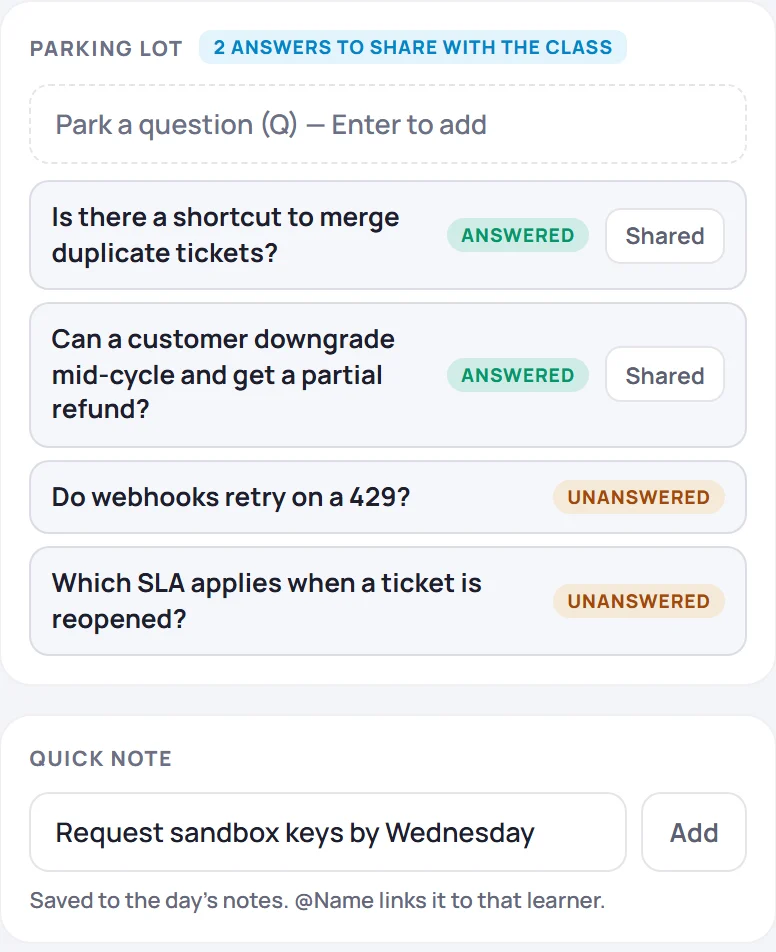
- If a similar question has been asked before, Already asked? suggests it as you type. Click one to read its answer.
- Each question shows its status. When an answered question has been passed on to the learners, click Shared.
Questions you park here go to the same parking lot as on the session screen and the class's Questions tab. See Use the parking lot.
Add a quick note
The Quick note box saves a line to today's notes without leaving live mode. Press N (or click the box), type, and press Enter or click Add. Skovrum confirms with Note added to … and the session's name.
Type @ followed by a learner's full name (or their preferred name) and the note is filed on their profile too, as an observation. There's no name list here, so type the name in full. For anything longer, such as an observation with a competency or an action item, leave live mode and use the note box. See Take notes during a session.
Add an unplanned topic
If the class needs a topic you didn't plan, add it to the agenda with + Add a topic. See Teach in live mode.
Common questions
Can learners see who was cold called? Only if they can see your screen. The presenter window never shows learners' names.
The chime didn't play. Check that your computer's sound is on and not muted for the browser. The timer still turns red and shows Time's up.
On a tablet, where are the parking lot and quick note? On a tablet in landscape, click Notes & questions in the top bar. In portrait, and on a phone, they're on the Questions tab.