Add learners
Add one learner, enroll someone who's already in your workspace, or paste a whole list, and decide what to do with names that are already on file.
Your words may differ. Each workspace can choose its own words: a class might be a cohort, program or group, a learner a participant, trainee or new hire, a session a module or lesson. These guides use the default words. The steps are the same whatever your workspace calls them. Change your workspace's words
You can add learners while you create a class, or at any time afterwards. This article covers adding them afterwards: one at a time, from people already in your workspace, or by pasting a list. Learners never sign in to Skovrum, so adding someone doesn't send them anything.
Open Add learner
There are three ways in:
- Learners in the sidebar, then Add learner at the top right.
- Add learner on a class's screen. The class is already chosen for you.
- Manage → Learners, then Add learner (Admins).
The dialog has three tabs: New, Existing and Bulk.
Add one new learner
On New, type the Full name. That's the only required field.
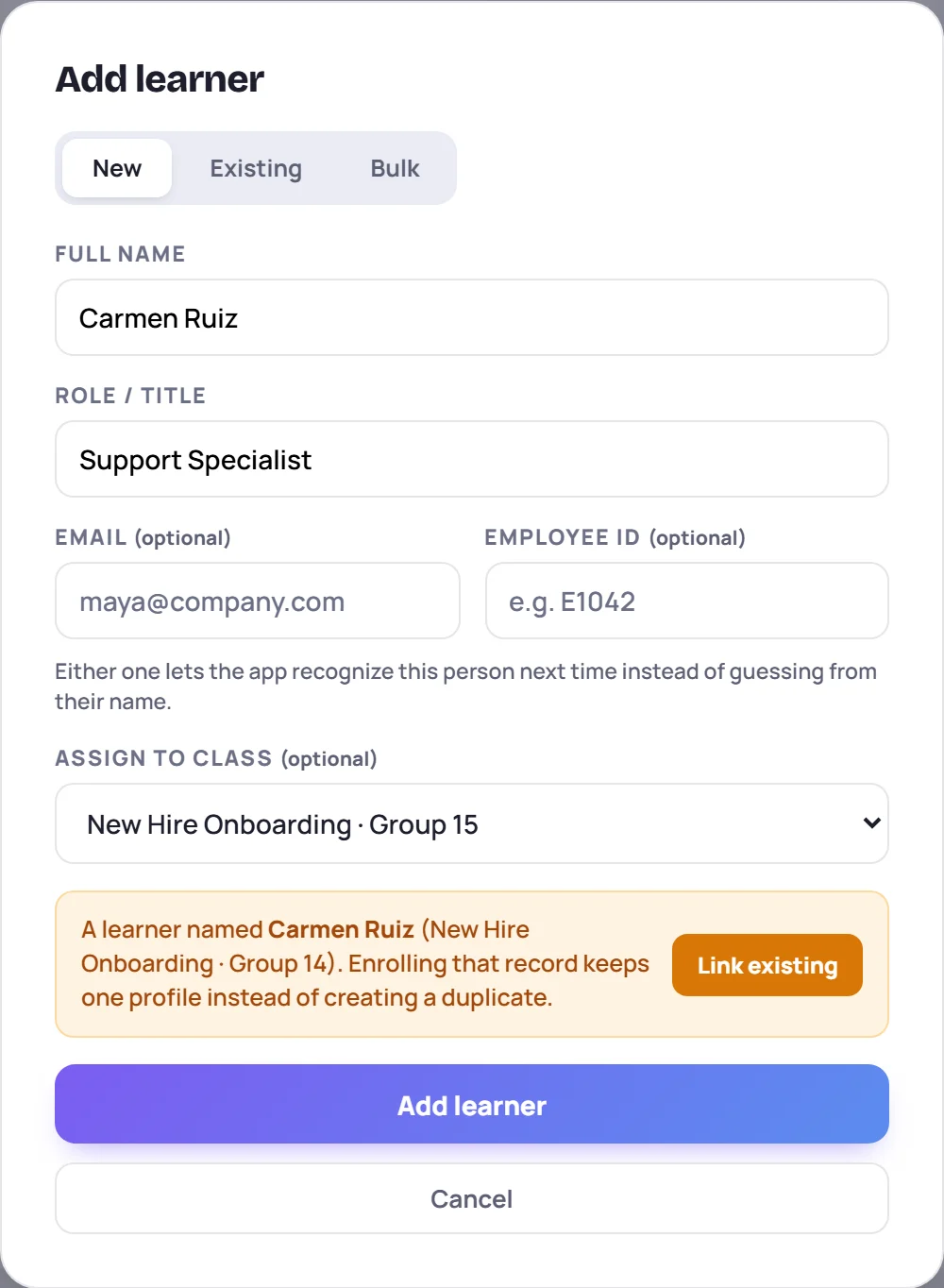
- Role / title is optional. If you leave it blank, the learner is added as New Hire.
- Email and Employee ID are optional, but either one lets Skovrum recognize this person exactly the next time they join a class, instead of guessing from their name.
- Assign to class is optional. Choose No class yet to add someone who isn't in a class at the moment. Trainers see only the classes they lead.
Click Add learner.
If the name is already on file
As you type, Skovrum checks the name, email and employee ID against everyone in your workspace. If it finds a match, an amber box tells you who and which class they're in:
- A learner named … means the same full name.
- That identifier already belongs to … means the email or employee ID matches.
- An existing learner looks like … means a similar name, and says why it matched.
Click Link existing to switch to the Existing tab with that person picked. Their history then stays on one profile. If it really is a different person, ignore the box and click Add learner.
Enroll someone who's already in your workspace
Use Existing for a returning learner, such as someone moving from onboarding to a workshop.
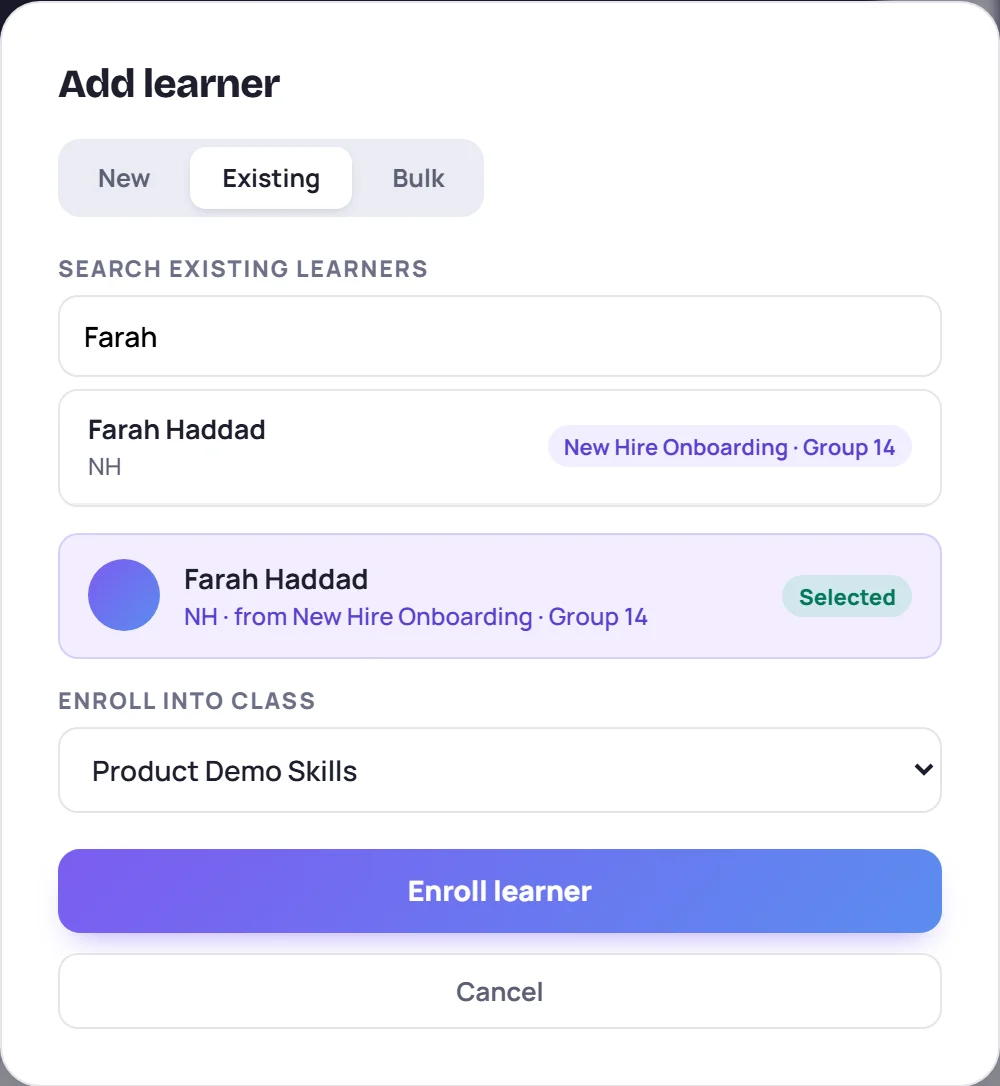
- Type part of their name in Search existing learners and click them in the results.
- Choose the class in Enroll into class. A class is required here.
- Click Enroll learner.
If they were once in that class and left, they're re-enrolled rather than added twice.
Paste a list
Use Bulk to add many people at once.
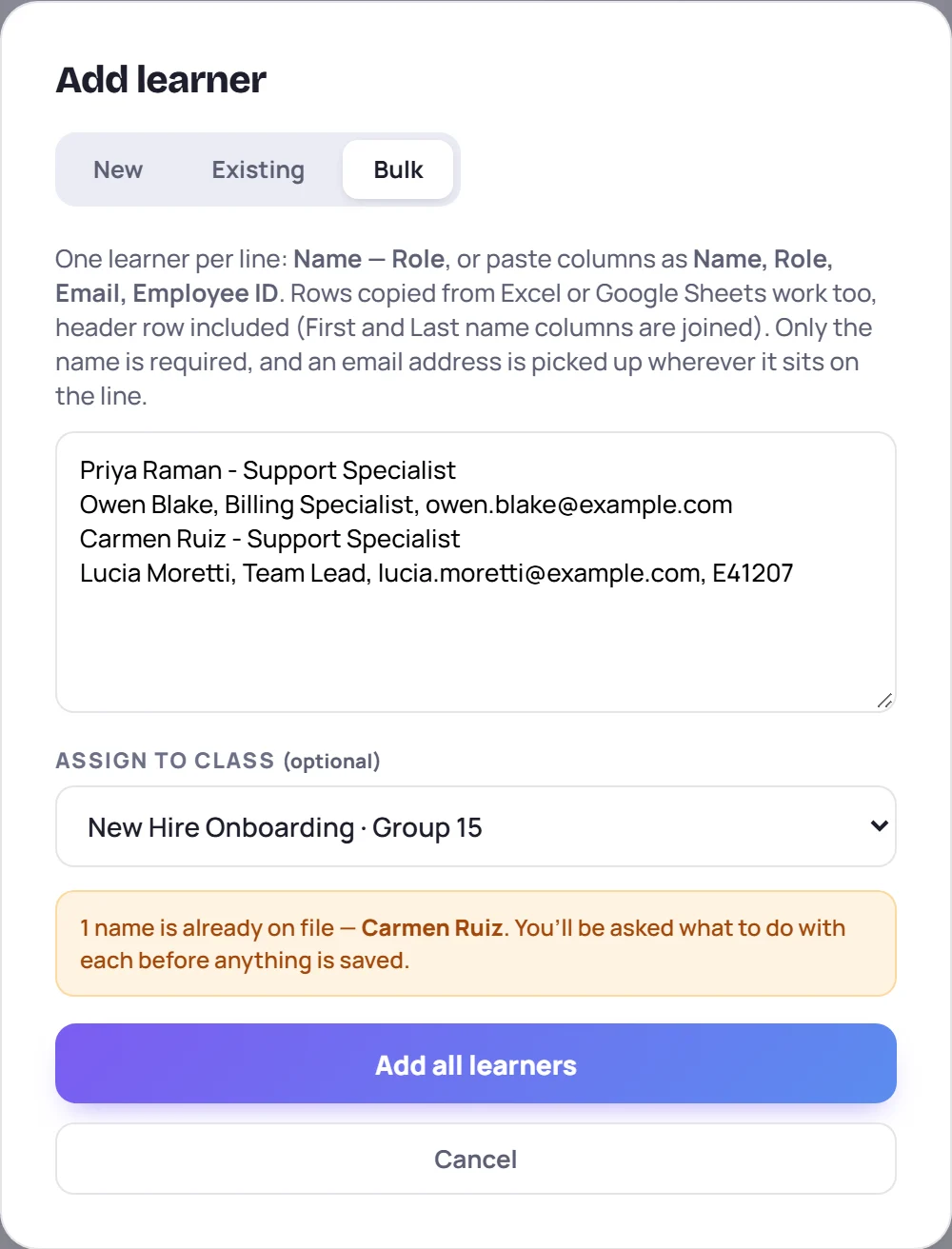
Put one learner on each line, in any of these forms:
- Name - Role, for example Priya Raman - Support Specialist.
- Columns separated by commas: Name, Role, Email, Employee ID.
- Rows copied straight from Excel or Google Sheets, header row included. First and Last name columns are joined.
Only the name is required, and an email address is picked up wherever it sits on the line. Choose a class in Assign to class if you want them enrolled, then click Add all learners.
If nothing needs checking, everyone is added in one go. A message confirms how many were added.
Decide about names that are already on file
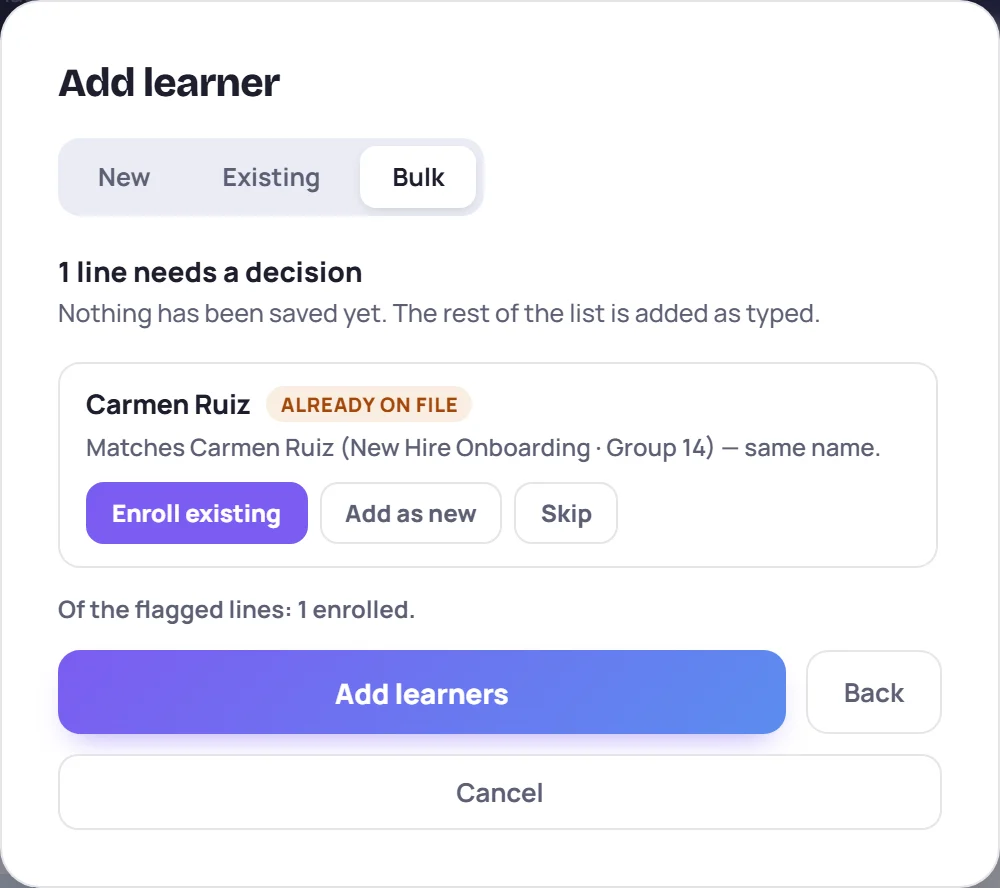
If any line matches someone in your workspace, or appears twice in your list, Skovrum stops before saving anything and asks about each one.
| Label | What it means | Picked for you |
|---|---|---|
| Already on file | The same full name, email or employee ID | Enroll existing |
| Possible match | A similar name. Check it's the same person. | Add as new |
| Repeated line | The name appears earlier in your list | Skip |
For each line, choose Enroll existing (add the class to the profile that's already there), Add as new (a separate profile for a different person) or Skip. When a line matches more than one person, pick the right one first. The line under the list sums up your choices, then click Add learners. Back returns to your list.
What happens next
New learners appear in Learners and, if you chose a class, on its roster, ready for attendance and notes. If two profiles do end up describing one person, an Admin can merge them.
Common questions
Why can't I see Add learner? Your role can't change rosters. Ask your Admin.
Why isn't the class I want in the list? Trainers can add learners only to classes they lead or co-lead.
Can I fix a name or email after adding someone? An Admin can, on the learner's profile. See Edit a learner's details.