Import from Planner and Lists
Bring a Microsoft Planner plan or a Microsoft List into Skovrum, choosing where each column goes, with a preview of what will be made.
Your words may differ. Each workspace can choose its own words: a class might be a cohort, program or group, a learner a participant, trainee or new hire, a session a module or lesson. These guides use the default words. The steps are the same whatever your workspace calls them. Change your workspace's words
If your team keeps its work in Microsoft Planner or a Microsoft List, you don't have to type it all again. Export it, then import the file on the Projects screen.
| From | Export | Comes in as |
|---|---|---|
| A Planner plan | Open the plan, click … and choose Export plan to Excel | One project. Each task becomes a task, and its buckets become sections. |
| A Microsoft List | Open the list and choose Export → Export to CSV | A project for each row, with the columns you choose |
Any other spreadsheet works too, saved as Excel (.xlsx) or CSV.
Import a file
- On the Projects screen, click ⋯ at the top right, then Import from Planner or Lists.
- Click the box and choose the file. It stays on your computer. Only what you import is saved.
- Check what each row is: A project, or A task in one project. A Planner export is recognized as tasks.
- For tasks, choose where they go: A new project (named after the plan) or A project you have.
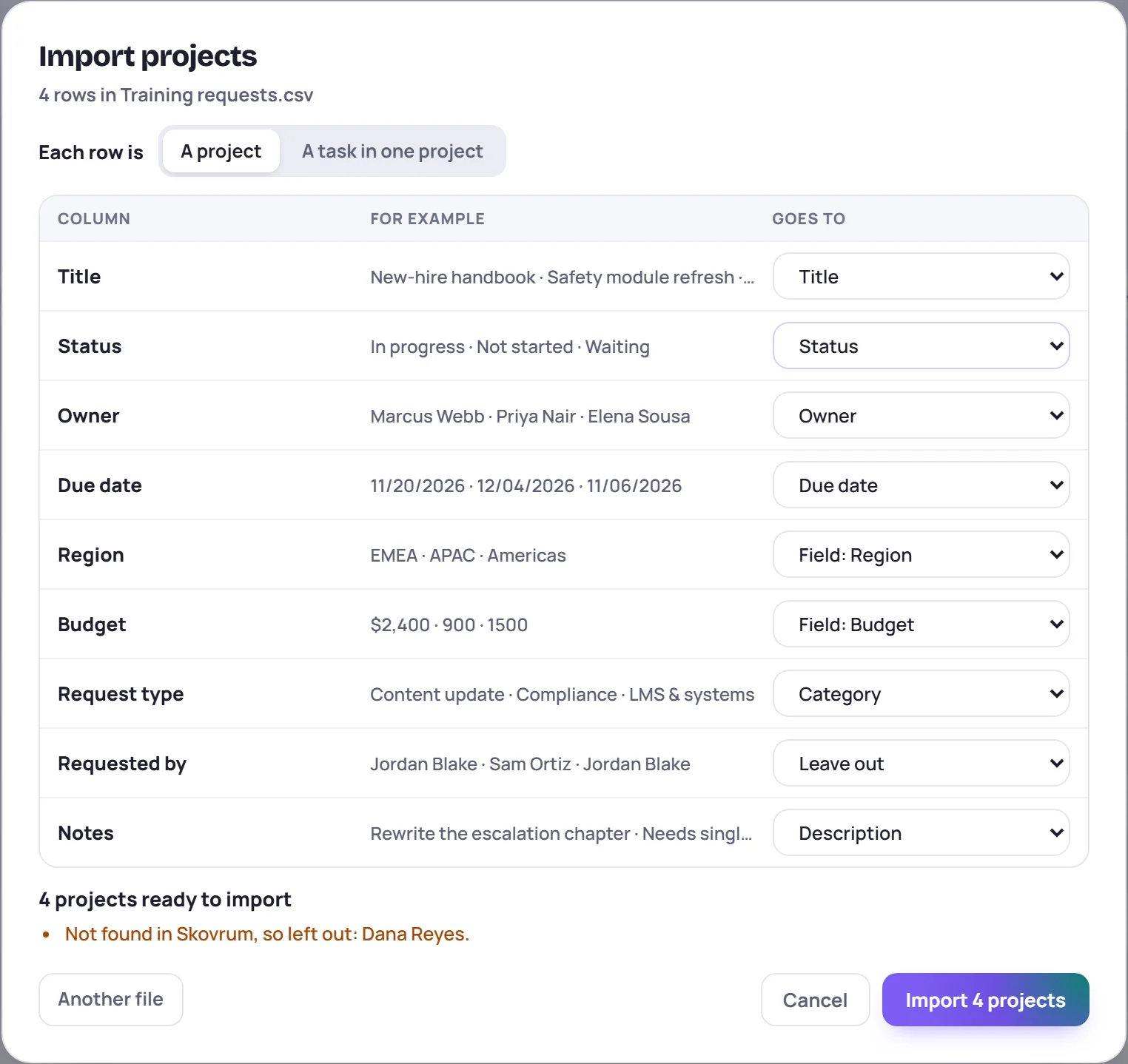
- Under Goes to, check what each column holds. Skovrum fills in what it recognizes. Choose Leave out for the columns you don't want.
- Read the summary and any warnings, then click Import.
What Skovrum understands
- Dates written as a spreadsheet writes them, such as 10/14/2026, 14 Oct 2026 or 2026-10-14. Dates like 04/10/2026 are read in your workspace's date format.
- Statuses in everyday words: Not started becomes Planned, In progress Active, Waiting Blocked, On hold Delayed, Completed Done, Canceled Cancelled, and a percentage counts too.
- People by their name or email address in Skovrum. Planner's Assigned To can name several.
- Priorities such as Planner's Urgent, Important, Medium and Low.
- Categories by name. A category Skovrum doesn't have yet is added.
- Checklists from Planner, ticked if the task is done.
What doesn't fit is left out, and the warnings say so before you import: a person who isn't in Skovrum, a status it doesn't know, a date it can't read, or a choice that isn't one of a field's options.
Columns that aren't in Skovrum
A List often has columns of its own, such as a budget or a vendor. To keep them, choose:
- Field: and the name of one of your custom fields, or
- A new field, named after the column. Skovrum looks at the column's values to choose its kind: number, date, choice, link, yes or no, or text. This takes the Manage catalog permission.
Who owns what comes in
You own the projects you import. With Manage projects, the Owner column gives each project to the person it names. Without it, a project whose owner is someone else comes in as yours, and the warnings say so.
Common questions
Can I import into a project I already have? Yes, for tasks. Choose A task in one project, then A project you have. The tasks come after the ones it has. New buckets are added as sections if you can change the project.
How much can I import at once? Up to 500 projects, or 3,000 tasks, from a file of up to 20 MB.
Does it import Planner's comments or attachments? No. Planner's export doesn't include them. Add links to the files under Links on the project.