Custom project fields
Add your own fields to projects, like a budget, a vendor or an LMS ID, show them as columns in the list, and limit them to some categories.
Your words may differ. Each workspace can choose its own words: a class might be a cohort, program or group, a learner a participant, trainee or new hire, a session a module or lesson. These guides use the default words. The steps are the same whatever your workspace calls them. Change your workspace's words
Every team tracks something about its projects that Skovrum doesn't ask for: a budget, a vendor, an LMS course ID, a region, a compliance code. Custom fields add those to every project, or to the projects of some categories.
Add a field
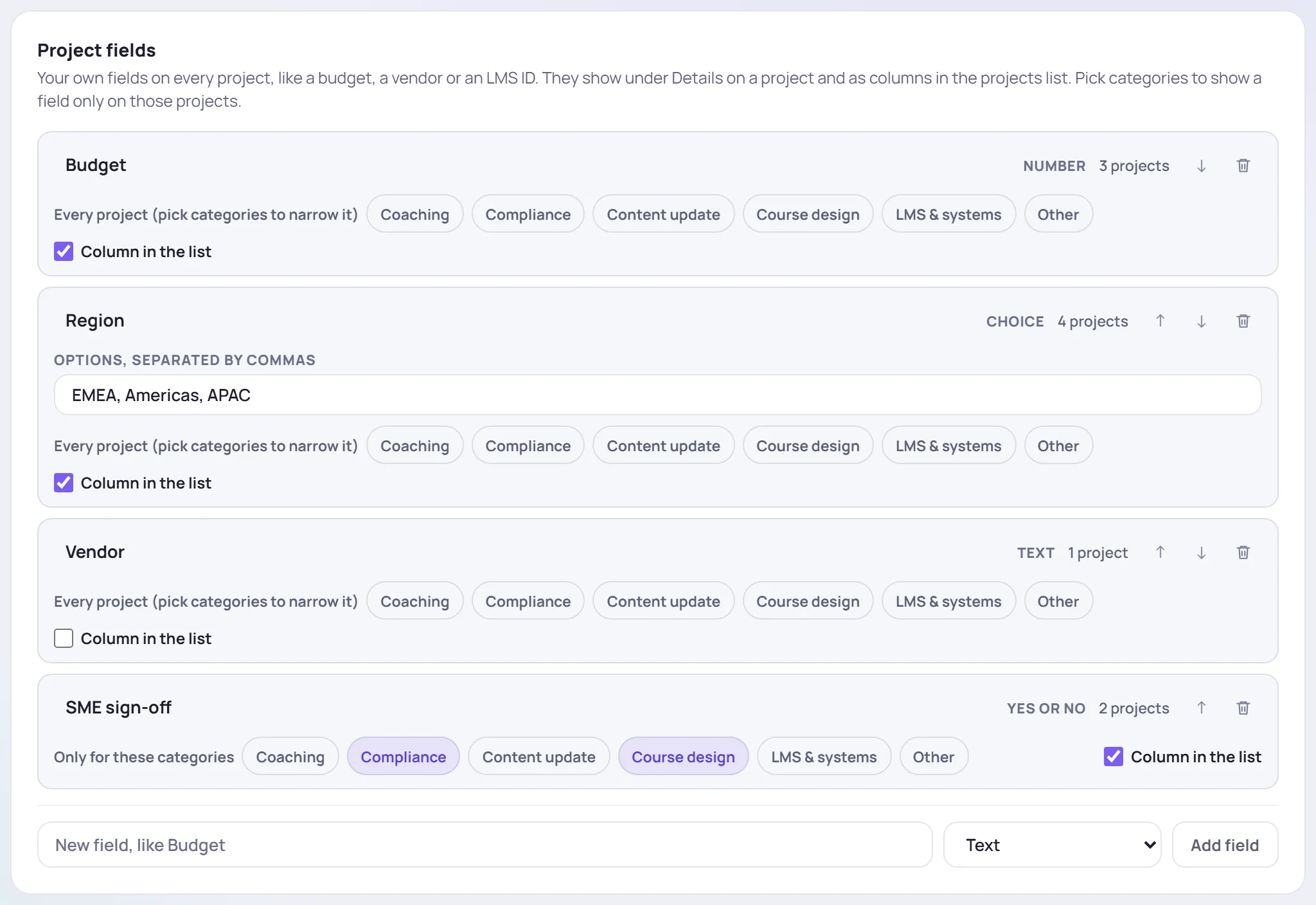
- Go to Manage → Data and find Project fields.
- Type the field's name, like Budget.
- Choose its kind (see the table below).
- For Choice and Several choices, type the options, separated by commas.
- Click Add field.
| Kind | Holds |
|---|---|
| Text | A line of text, such as a vendor or an LMS ID |
| Number | A number, such as a budget or a headcount |
| Date | A date, such as a go-live or a review date |
| Choice | One of a list, such as a region |
| Several choices | Any of a list, such as the tools used |
| Person | Someone in your workspace |
| Link | A web address, with an Open link beside it |
| Yes or no | A tick, such as SME sign-off |
A workspace can have up to 50 fields.
Change a field
- Rename it by clicking its name.
- Change its options in the options box. When you change an option's text in place, Skovrum treats it as a rename, and the projects that chose it keep it under the new name. Remove an option and the projects that chose it lose that value. Skovrum asks first.
- Limit it to some categories by clicking the categories it's for. With none picked, every project has it.
- Column in the list offers the field as a column in the project list.
- The arrows change the order fields appear in. The trash icon deletes a field and its values.
A field's kind can't change. To change it, add a new field.
Fill it in
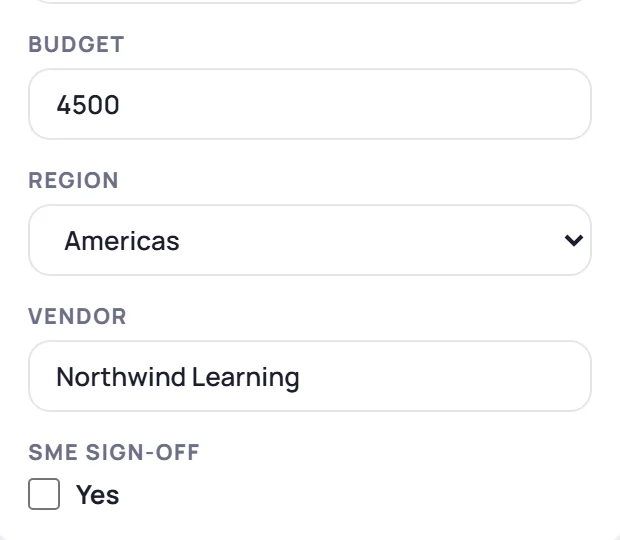
On a project, custom fields are under Details, after Formats. Type, pick or tick, and the value saves as you go. In the project list, add the field as a column and change it right in the cell.
When you import from a Microsoft List, a column can become a new field on the way in.