Where to write a note
Not sure where a note belongs? Skovrum asks what it's about and takes you to the right place, then tells you where it went.
Your words may differ. Each workspace can choose its own words: a class might be a cohort, program or group, a learner a participant, trainee or new hire, a session a module or lesson. These guides use the default words. The steps are the same whatever your workspace calls them. Change your workspace's words
Skovrum has a few places to write, and each is right for something different. You don't need to remember which is which: say what the note is about and Skovrum opens the right place for you.
Ask Skovrum where it goes
Press W on any screen (when you're not typing in a box). You can also:
- On Today, click Write a note in the top right.
- Open the command palette with Ctrl+K (⌘+K on a Mac) and choose Write a note….
- Click Not this? Choose where to write under an empty session, an empty learner profile or an empty My Notebook.
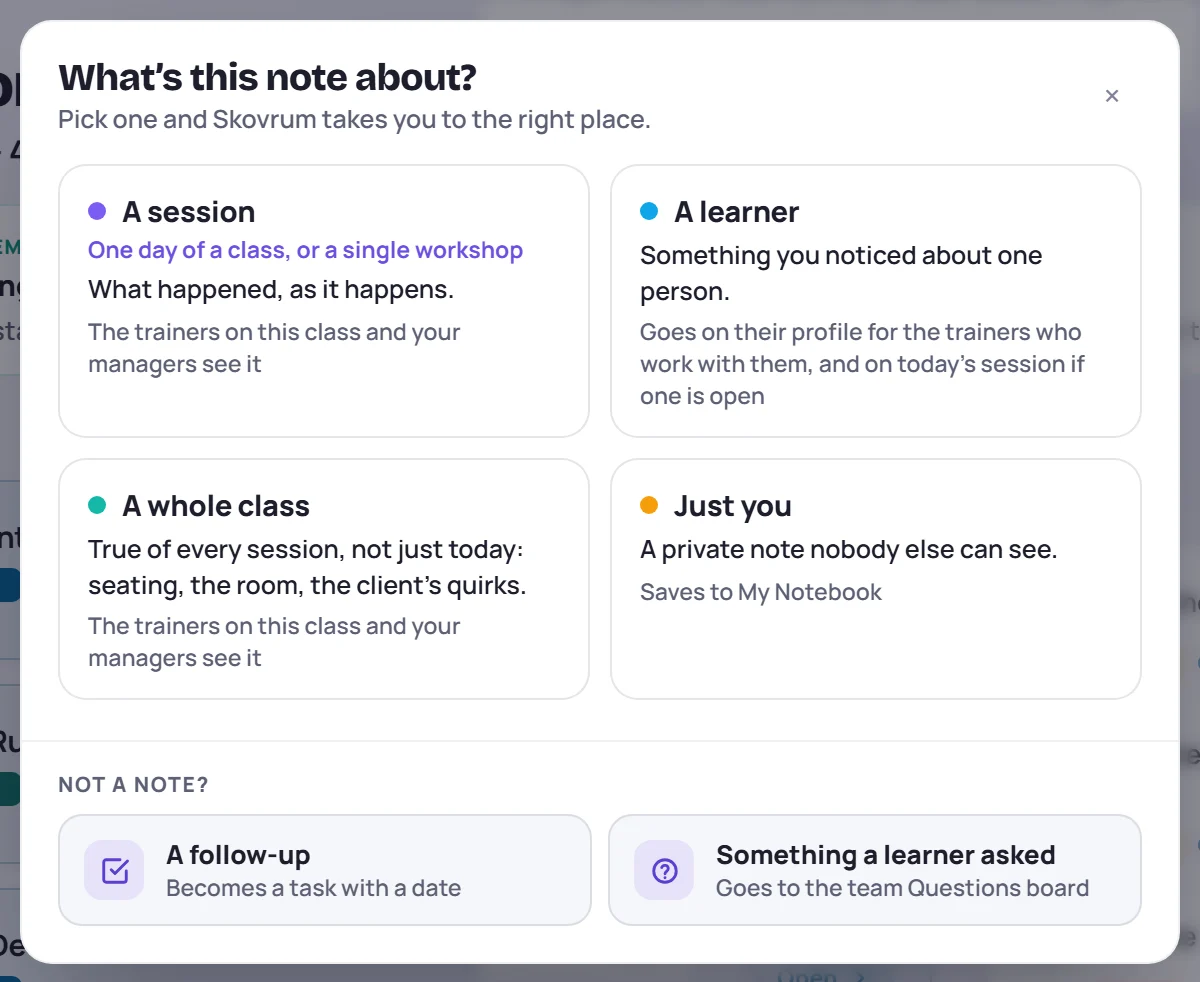
Pick the one that fits:
| Choose | For | Skovrum opens |
|---|---|---|
| A session (one day of a class, or a single workshop) | What happened, as it happens | Today's session, with the note box ready. If you have more than one, or none today, pick one from the list. |
| A learner | Something you noticed about one person | A list of learners. Pick one to open their profile. If they're in one of your sessions today, In today's session writes it there instead. |
| A whole class | True of every session: seating, the room, the client's quirks | A list of classes. Skovrum opens one of its sessions with The whole class chosen. |
| Just you | A private note nobody else can see | Quick capture, which saves to My Notebook |
Below them, Not a note? has two more: A follow-up opens a new task, and Something a learner asked parks a question in the class's parking lot, or on the team Questions board when you're not on a class or session.
See where each one ends up
What’s this note about?
A session
“The projector failed and we lost twenty minutes, so ticket triage moves to tomorrow.”
- Lands in: The session’s own notes (This session in the notes menu). If the session is rescheduled, its notes move with it.
- Who reads it: The trainers on the class and your managers.
Also turns up in
- The class report’s session notes
- Name a learner with @ and it lands on their profile too
Learners never sign in, so none of these notes is ever shown to a learner.
Skovrum tells you where it went
When you save a note after choosing a place here, a message says where it went, such as Saved to Today · Group 14 or Saved to Farah's profile. When the place is on another screen, click View to go there. You also get this message the first time you save a note in each place, however you got there.
Where does a note go? on Today
While you're new to writing in Skovrum, Today shows a Where does a note go? card with the same four choices. It appears once you have a session you can write in, and while an Admin's Set up your workspace list is open, that list comes first. The card goes away once you've saved ten notes in at least two different places. Click Hide to put it away sooner.
Write your first note, step by step
Click Walk me through it on that card, or open the help menu (? in the top bar) and choose Write your first note. Skovrum highlights one thing at a time and waits for you to do it:
- Open What's this note about? (click Write a note, or press W).
- Choose A session if you have one today, or Just you if you don't.
- Write one line and press Enter.
The walk ends when the note is saved, with the message that says where it went. It's a real note, so edit or delete it like any other. Click Not now to stop at any point.
Common questions
I wrote a session note in My Notebook by mistake. Can I move it? Not directly. Copy the text, open the session (or press W and choose A session), paste it there, then delete the notebook copy.
What about a note that's about a learner during a session? Write it in the session and type @ to name them. It lands on both the session and their profile. See Take notes during a session.