Board and timeline
See the team's projects as a board you drag between statuses, or as a timeline beside each trainer's teaching days, and lay a project's tasks out as a board.
Your words may differ. Each workspace can choose its own words: a class might be a cohort, program or group, a learner a participant, trainee or new hire, a session a module or lesson. These guides use the default words. The steps are the same whatever your workspace calls them. Change your workspace's words
The Projects screen shows the team's projects four ways. Switch with the buttons above the filters:
| View | Shows |
|---|---|
| List | A table of projects you can group, sort and change in place. See Work in the project list |
| Board | A column for each status. Drag a project to change its status |
| Timeline | Each project's dates as a bar, next to the days its owner teaches |
| My tasks | The project tasks assigned to you |
The search and Filters work the same way in the list, the board and the timeline. Skovrum keeps the view you last used on this device, and a saved view brings back a whole setup, board and timeline included.
The board
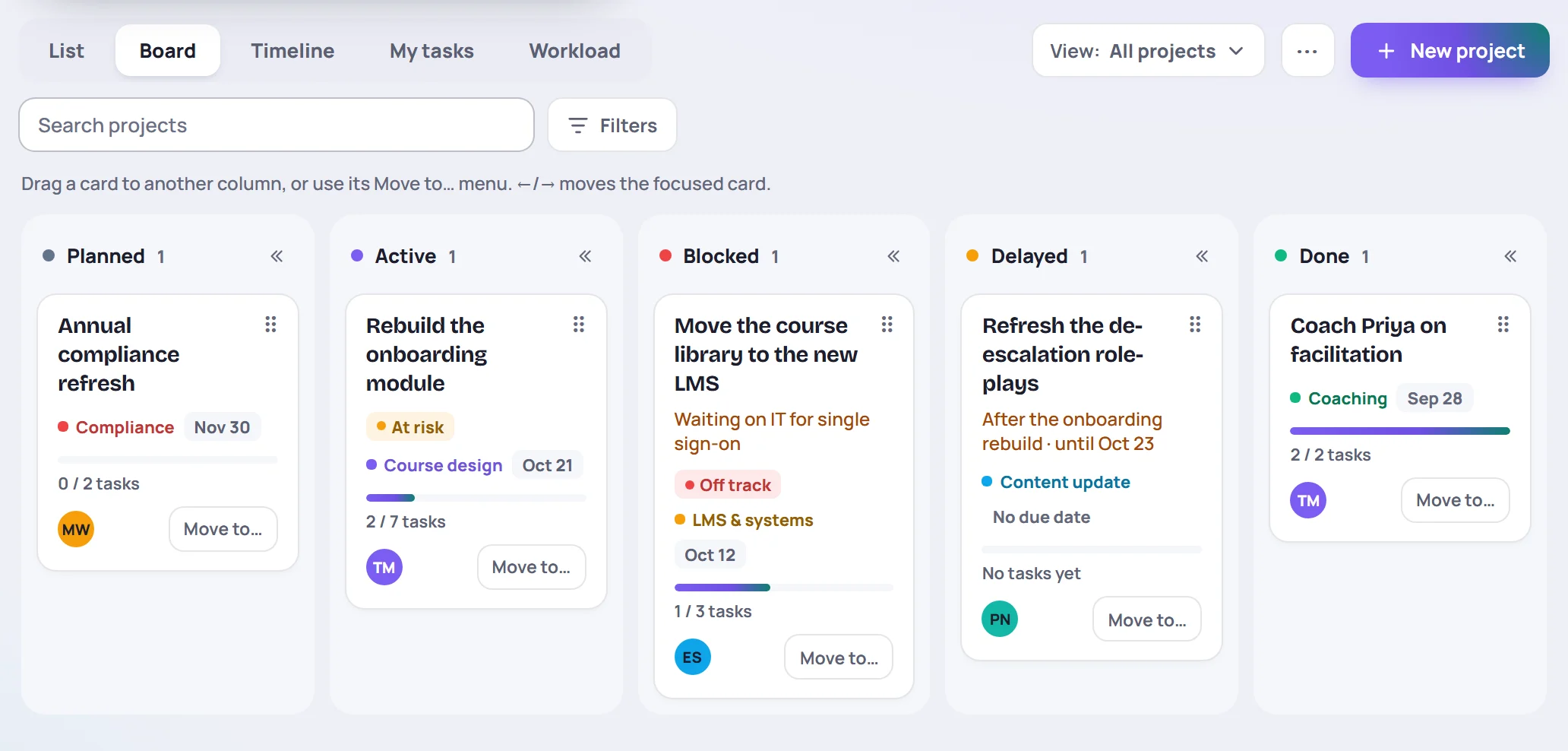
There is a column for Planned, Active, Blocked, Delayed and Done. Done shows the projects finished in the last 30 days. Cancelled projects aren't on the board. To find them, choose Cancelled under Status in the list.
Each card shows the project's title, what it's waiting on when it's blocked or delayed, how it's going at its last status update, its category, due date, progress and owner. Click a card to open the project.
Move a project
- Drag the card to another column. With a mouse, drag it from anywhere. On a touch screen, drag it by the grip (⠿) in its corner, so swiping still scrolls the board.
- Move to… on the card does the same, and also has Cancel project.
- From the keyboard, press Tab to reach the card, then → or ←.
Moving a project to Blocked or Delayed asks why, just as changing its status on the project page does. Moving it to Done offers to mark its open tasks done too. To put a card in a particular place in a column, drop it between two others. The order is the same for everyone.
Only the people who can change a project move it: its owner, the person who made it, and anyone with Manage projects. For everyone else, the cards have no grip and no Move to….
Fold a column
The columns share the width of the screen. To make room, click the double arrow at the top of a column to fold it into a slim strip with its name and count. Click the strip to open it again. A folded column still takes a card you drop on it. Skovrum remembers your folded columns on this device, on the board of projects and on a project's own board.
On a narrow screen, the board scrolls a column at a time. A soft edge and an arrow show there's more to one side.
The timeline
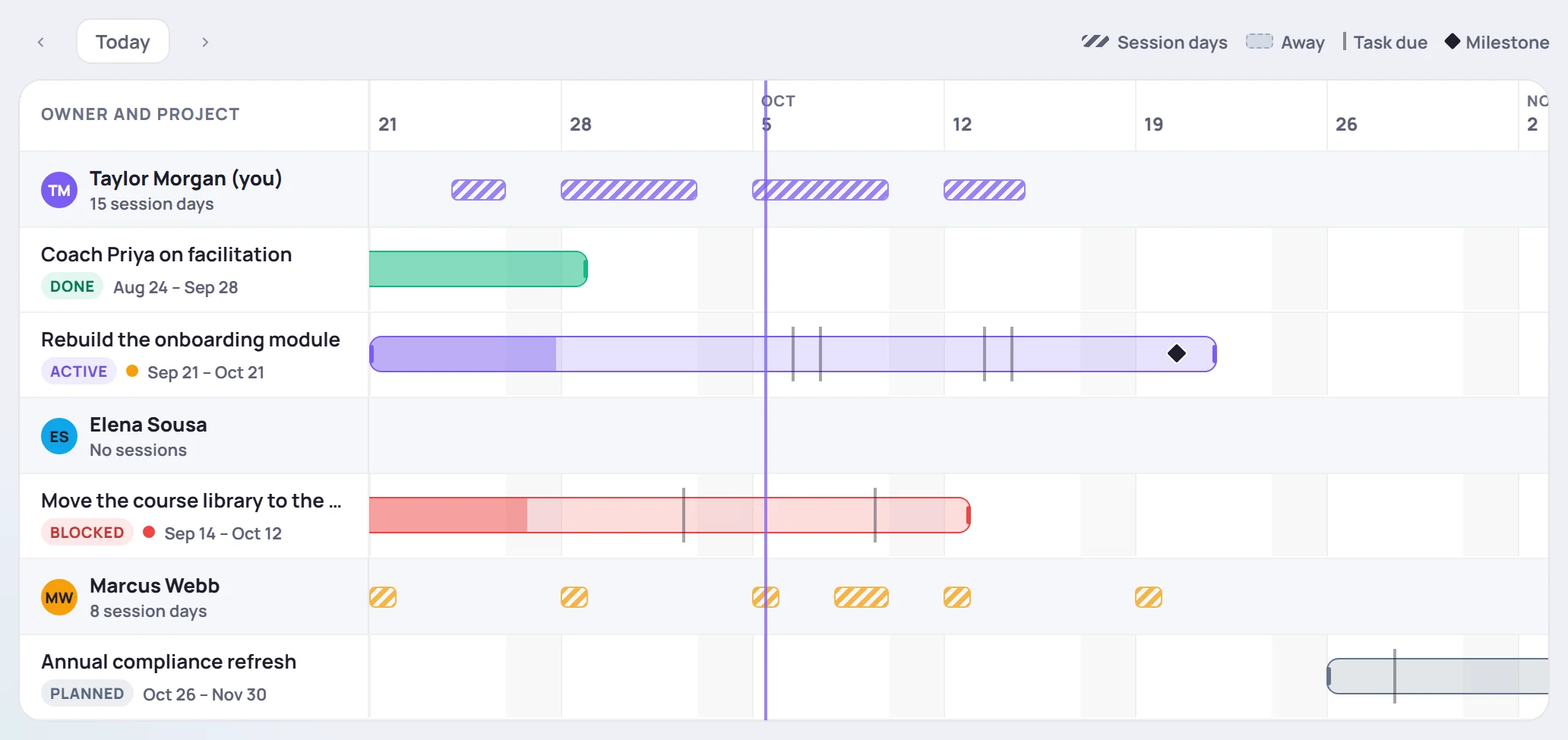
- Weeks run across the top, and a line marks today. Today brings this week back into view. The arrows move four weeks at a time.
- Each owner has a row of their own. The striped lane under their name marks the days they lead or co-lead a session, so a project due in a busy teaching week stands out.
- Each project is a bar from its start to its due date. A project with only one of the two is a diamond. The darker part of the bar is the share of its tasks that are done, and a red outline means it's overdue.
- On the bar, a thin line is a task's due date and a diamond is a milestone. Point at one to see which.
A project with no dates isn't on the timeline. A line under it says how many there are.
Change a project's dates
Drag either end of a bar to change the start or the due date. With a mouse, you can also drag the whole bar to move both. A label shows the new dates while you drag. Let go to save them, or press Esc to put the bar back.
You can also change the dates under Details on the project page. That's the way to do it from the keyboard.
On a phone
On a narrow screen, the timeline becomes a list by week: Overdue first, then This week, Next week and the weeks after, with the projects and milestones due in each.
A project's tasks as a board
On a project page, click Board above the tasks to lay them out in columns.
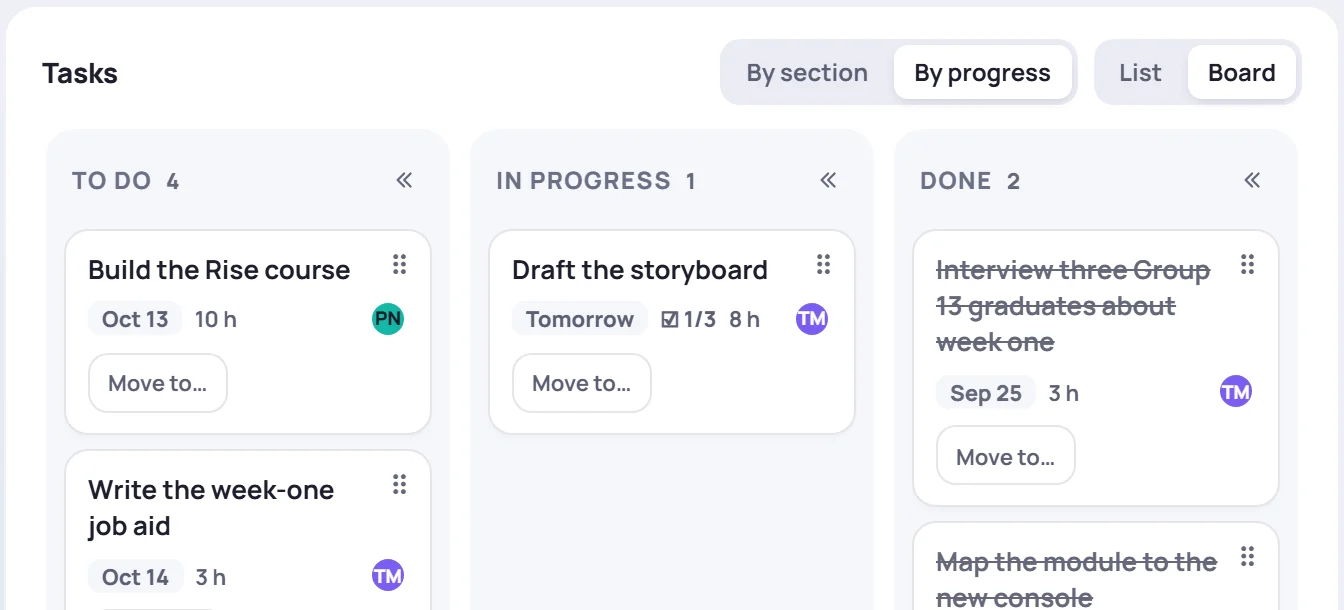
- By section gives each of the project's sections a column, plus No section.
- By progress gives a column each for To do, In progress and Done.
Move a task the same three ways as a project: drag it, use its Move to…, or press → or ←. Moving it to Done ticks it off. The people a task is assigned to can move it between To do, In progress and Done. Moving it to another section takes the right to change the task: the person who made it, the project's owner, or Manage projects.
Each column has its own box for adding a task. List goes back to the list. Skovrum keeps your choice on this device.
Common questions
Why can't I drag a project? You can move only the projects you can change. Ask the project's owner, or someone with Manage projects.
Does the timeline show the time of day of my sessions? No. It shades whole days. Open the calendar for times.
Can I see project due dates in Outlook or Google Calendar? Yes. Turn on Add my project due dates in your calendar feed.