Class notes
Write what's true of a whole class on its Notes tab, and read every session's notes in one place.
Your words may differ. Each workspace can choose its own words: a class might be a cohort, program or group, a learner a participant, trainee or new hire, a session a module or lesson. These guides use the default words. The steps are the same whatever your workspace calls them. Change your workspace's words
Some notes aren't about one day: the room, where people sit, the client's quirks. These are class notes. They belong to the whole class, have no date, and show on every session of the class.
Open a class's notes
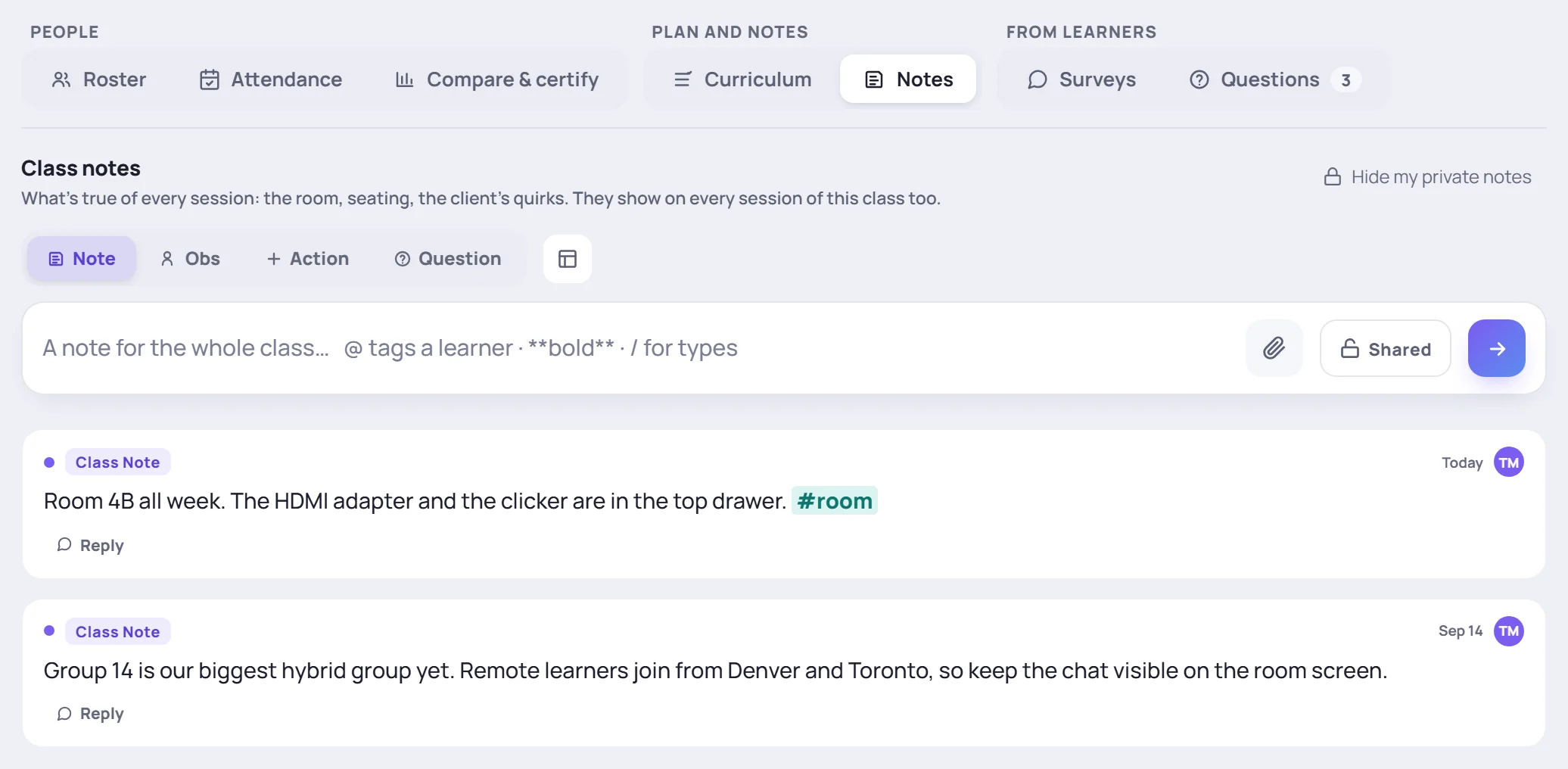
Open the class and click the Notes tab, in the Plan and notes group. You can also press W on any screen, choose A whole class and pick the class: Skovrum opens its Notes tab with the note box ready. See Where to write a note.
Write a class note
Type in the box at the top of the tab and press Enter. The note box is the same one you use in a session (see Take notes during a session):
- Type
@to name a learner or trainer. A note that names a learner lands on their profile too, under Class-wide. - Type
#to tag it. - Click the paper clip, or paste or drop a file, to attach an image or PDF.
- Click Shared to make it private before you save.
- Use the template button for a note template.
- Switch to Obs, Action or Question for an observation, an action item or a question for the class's parking lot.
Each note shows who wrote it and when. Point at your note to edit or delete it (on a touch screen the buttons are always there). Reply starts a conversation under it, and Edited opens its edit history.
Class notes on a session
It's the same set of notes everywhere. On a session, choose The whole class from the notes menu to read and write them there. A class note written on the class's Notes tab shows there, and one written on a session shows on the tab.
A class note written on the Notes tab isn't tied to any session, so a class that has no sessions yet can have class notes too.
Notes from the sessions
Below the class notes, From the sessions lists each session's day and topic notes, newest session first. Each session shows its first three notes. Click Show all for the rest.
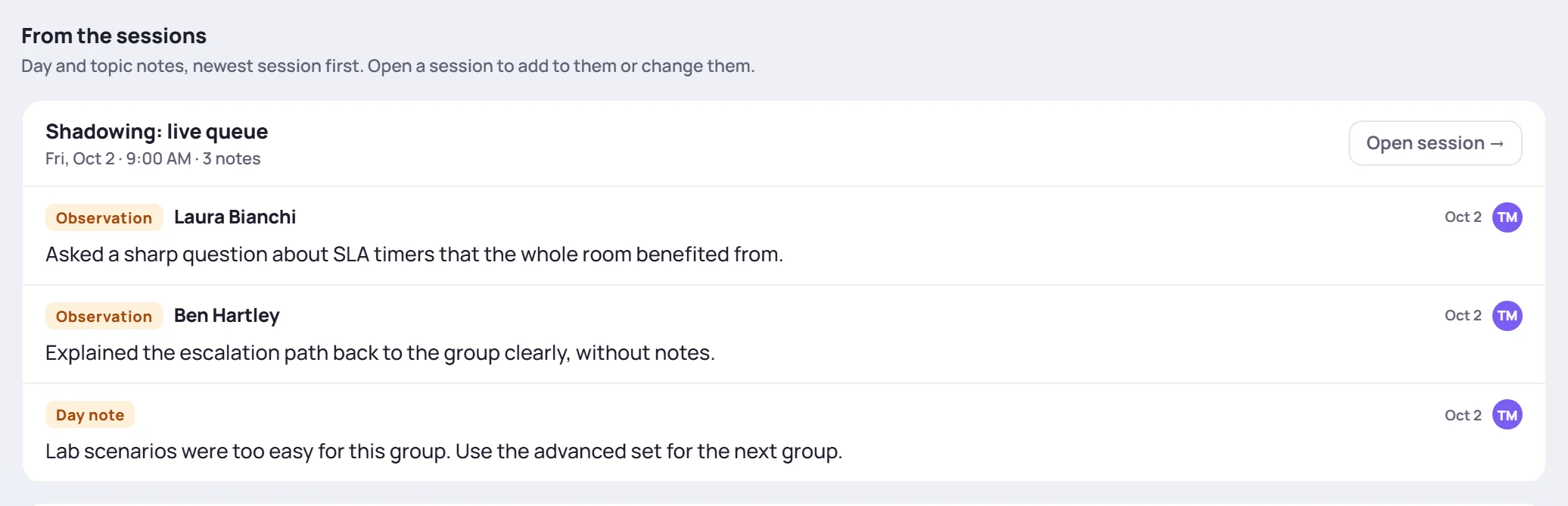
You read them here and write them on the session. Click Open session to go to it, or click a topic, such as #Ticket workflow, to open that topic's notes.
Common questions
Who sees a class note? The trainers on the class and your managers, like a session's notes. A private one is yours alone. To hide your private notes while you share your screen, click Hide my private notes.
Why can't I write here? You can read every class you can see, but you write only in the classes you lead or co-lead. Ask an Admin to add you as a trainer on the class.
Where are engagement taps? Not here: the notes from the sessions leave out engagement taps. You'll find them on each session's roster.