Templates
The four kinds of template, what each one makes, and the Templates screen where they all live.
Your words may differ. Each workspace can choose its own words: a class might be a cohort, program or group, a learner a participant, trainee or new hire, a session a module or lesson. These guides use the default words. The steps are the same whatever your workspace calls them. Change your workspace's words
A template is something you reuse to start a piece of work. Skovrum has four kinds, and each one makes something different. They all live on one screen: click More at the bottom of the sidebar, then Templates.
What do you want to reuse?
Note template
- Makes: A clean note, from a few short fields: headings, choices, checklists and follow-up tasks.
- Used in: The note box on a session: the template button next to Question, then Add to note.
Who and where
- Who can change it: Anyone who writes notes makes one and changes their own. Admins can change or retire anyone’s, and hide the built-in ones.
- Where it lives: Templates → Notes. Save a note you write often with Save as template.
| Kind | What it makes | More |
|---|---|---|
| Note template | A clean note from a few short fields, filled in during a session | Note templates |
| Curriculum template | What a class teaches, day by day | Build the curriculum |
| Survey template | The questions in a learner survey link | Build a survey template |
| Peer observation template | The form colleagues fill in when they observe a session | The peer observation template |
A course isn't a template. It's the thing you teach, and every class started from it stays linked to it. A course names a curriculum template, so its classes start with the topics in place.
The Templates screen
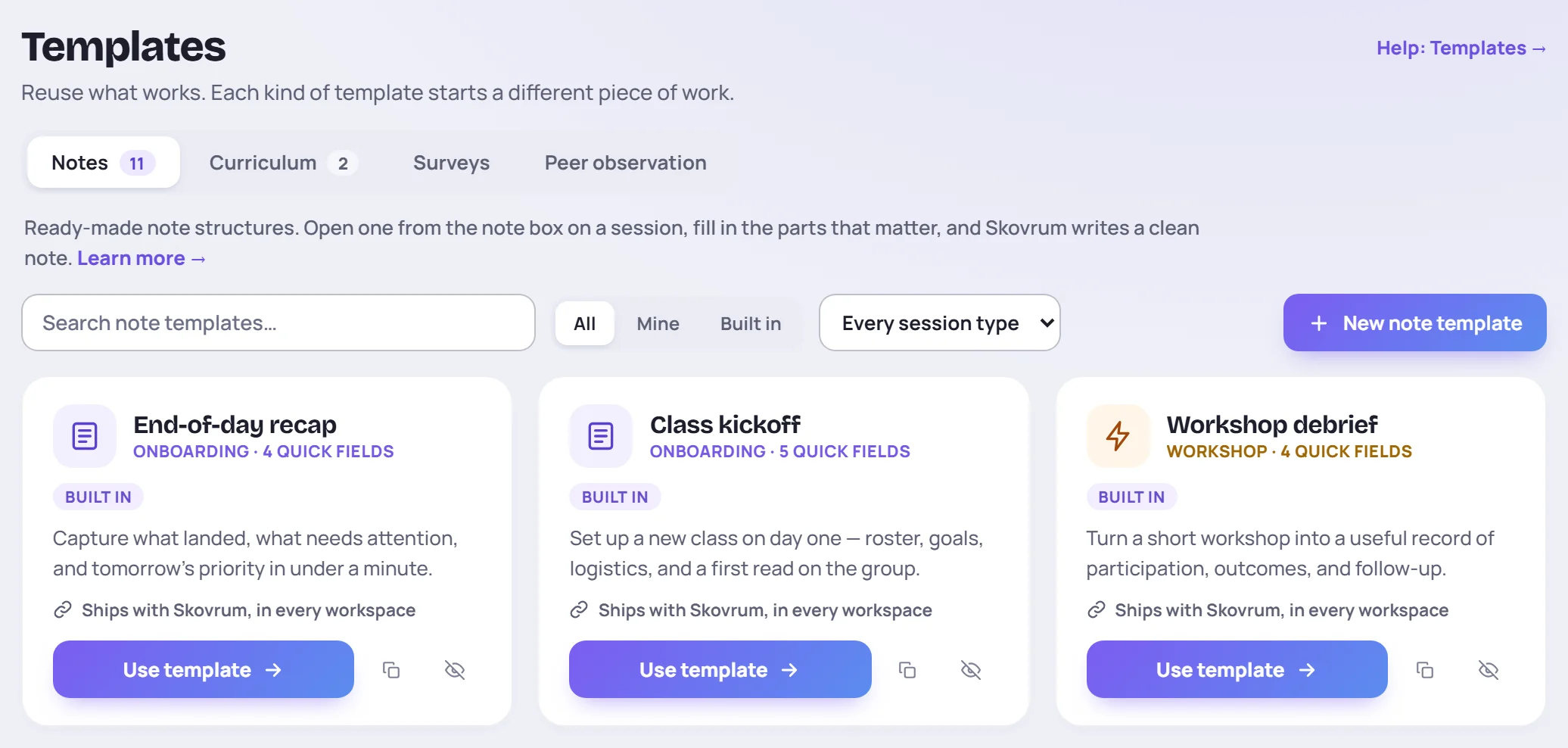
There's a tab for each kind. Peer observation shows only on the Team and Business plans. On each tab:
- Search finds a template by its name, its description or what's in it.
- All, Mine and Built in narrow the list. Archived appears once something is archived.
- The type list shows the templates for one class type, plus those for any type.
- The button at the top right starts a new one: New note template, New curriculum template or New survey template.
Every template is a card with the same parts:
- its kind's color and icon, its name, and what it's for and what it holds, such as Onboarding · 11 topics · 10 days;
- a preview of its first topics or questions;
- where it's used, such as Used by the course "New-hire onboarding" · started 4 classes, and who made it;
- the main button (Use template for a note template, Edit for the others), then smaller buttons to duplicate, archive or delete it.
Archive, duplicate, hide
- Archive takes a template out of the pickers but keeps it, and everything made from it, as it is. Find it again under Archived, and restore it there.
- Duplicate makes your own copy, so you can change a template someone else made.
- Hide for the team (on a built-in note template, for people with Manage templates) takes it out of everyone's picker. Show for the team under Hidden brings it back.
- Delete is for templates nothing uses. A curriculum template that a course uses can't be deleted until the course names another one.
Edit a curriculum template
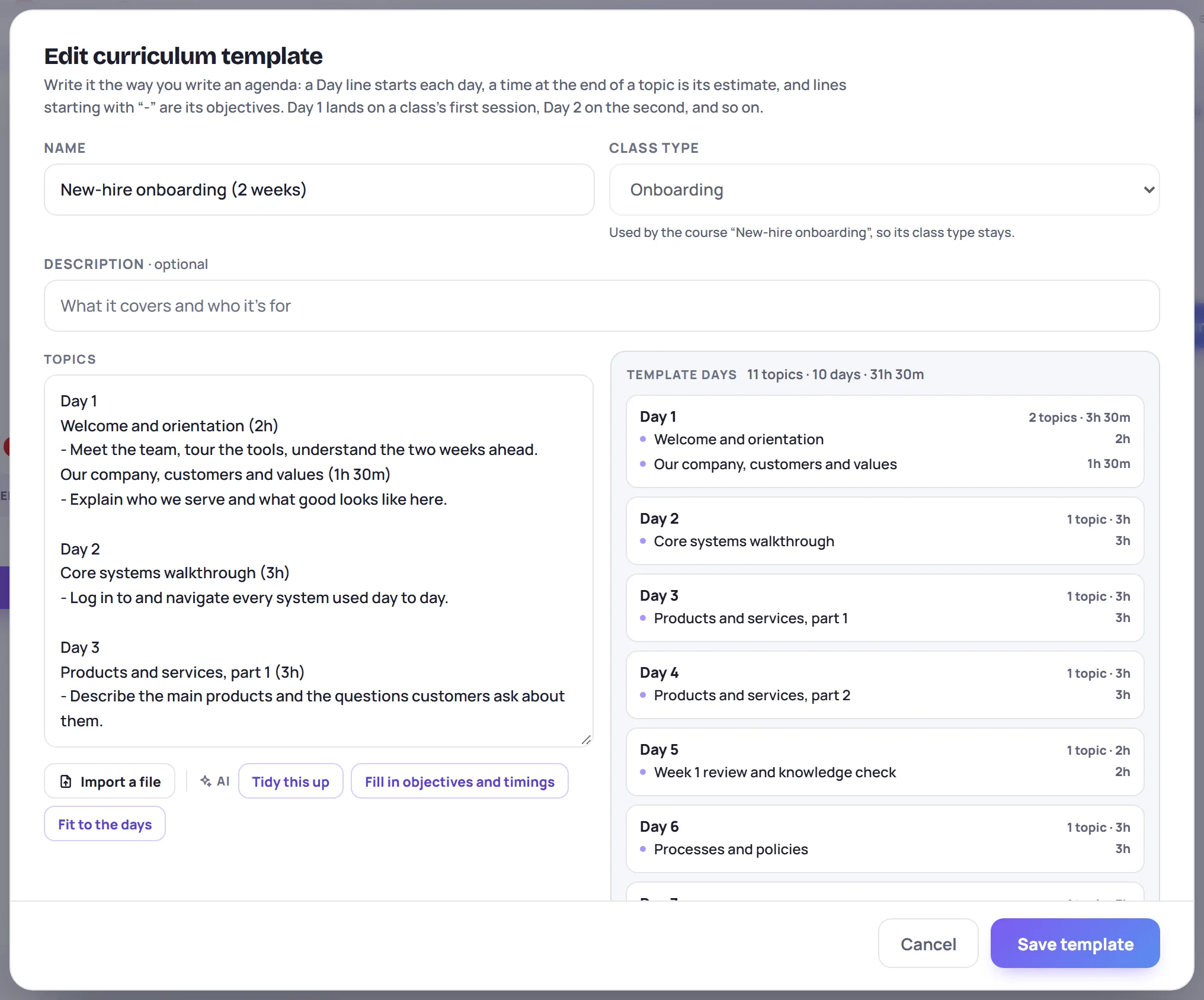
Click Edit on a curriculum template, or New curriculum template. You write it the way you'd write an agenda, in the same box as What is taught on the new-class form:
- A line with Day 1, Day 2 (or a weekday) starts a day. The first one is Day 1, whatever it says.
- A time at the end of a topic, such as
45mor1h 30m, is its estimate. - Lines starting with
-are the topic's objectives. - Topics under Unassigned have no day.
The template's days appear on the right as you type. You can also drop a Word, PowerPoint, PDF or Excel file on the box, or click Import a file, and the AI buttons can tidy it up or fill in objectives and timings (see Let AI tidy it). Click Save template.
When a class uses the template, Day 1 lands on its first session, Day 2 on its second, and so on. A day past the end of the class goes to its Unassigned topics.
Common questions
Where did survey templates go? They used to be in Manage → Data. They're on the Surveys tab here now, and work as before.
Why can't I change a template? Someone else made it. Click Duplicate to make your own copy, or ask someone whose role includes Manage templates.
Why can't I change a curriculum template's class type? A course uses it, and a course's curriculum template must be for the course's own type. Choose another curriculum for the course first.