Projects
Track the work outside the classroom, such as course builds, LMS moves and refreshes, with owners, dates, statuses and tasks of their own.
Your words may differ. Each workspace can choose its own words: a class might be a cohort, program or group, a learner a participant, trainee or new hire, a session a module or lesson. These guides use the default words. The steps are the same whatever your workspace calls them. Change your workspace's words
A project is work that happens outside the classroom: rebuilding a module, moving content to a new LMS, refreshing compliance material, coaching a new trainer. Each project has an owner, dates, a status and its own list of tasks, the steps that get it done.
Projects are separate from to-dos. A to-do is a quick follow-up from a class, like booking a room or sending slides. A project is a piece of work with a beginning, an end and several people's steps in between.
The Projects screen
Click Projects in the sidebar.
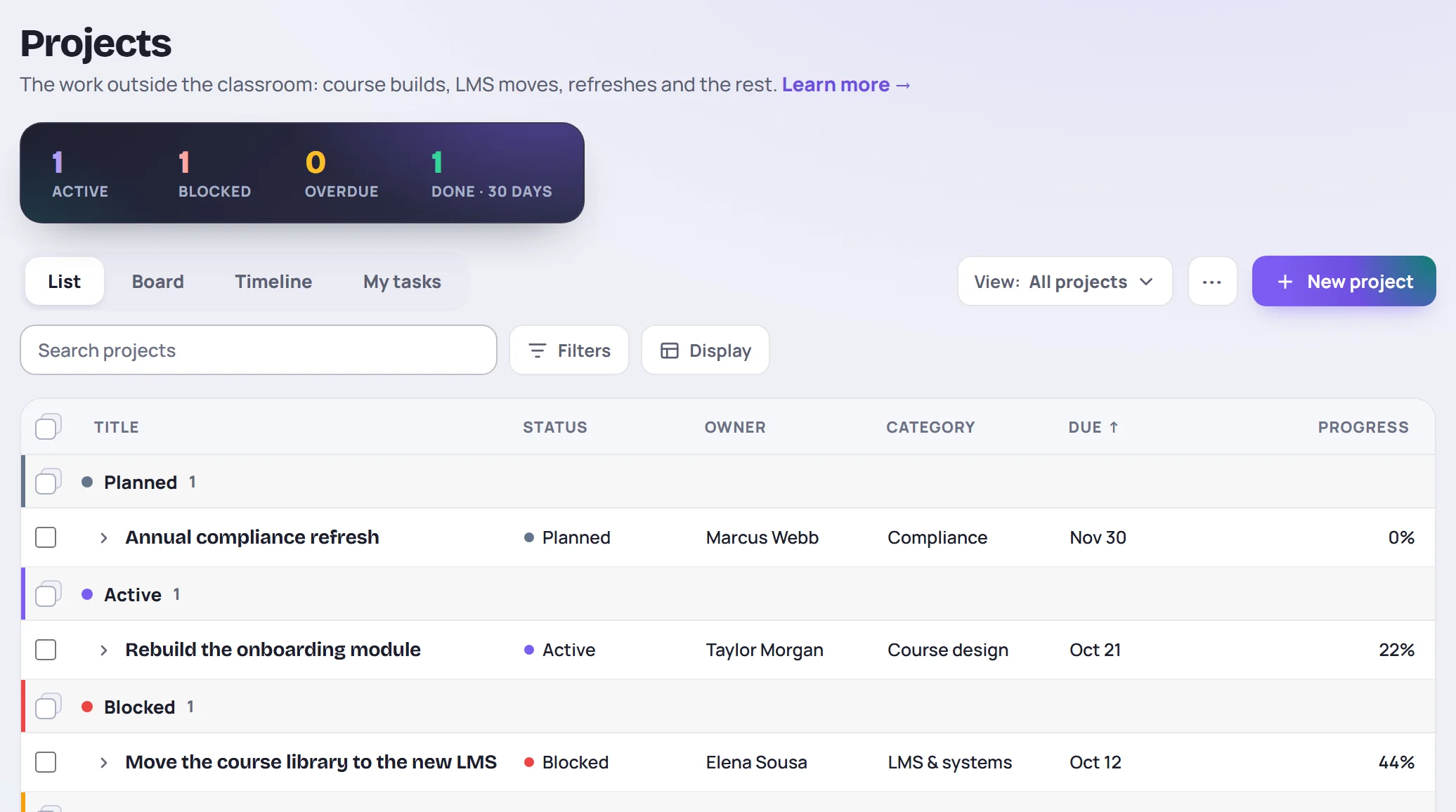
- The counts at the top show how many projects are Active, Blocked, Overdue, and Done in the last 30 days.
- List, Board, Timeline and My tasks switch views: the team's projects as a list, as columns you drag between statuses, as bars on a timeline, or the tasks assigned to you. See Work in the project list and Board and timeline.
- Saved views keep a setup of the screen to come back to, for you or the whole team. See Saved views.
- Search finds projects by their title, description or formats.
- Filters narrows the list. Everyone and Mine choose whose projects are listed: Mine means projects you own, are a member of, or have a task in. Status, Category and Owner narrow it further, and the button shows how many filters are on. By default the list shows open projects and the ones finished in the last 30 days. Cancelled and archived projects show only when you choose them under Status.
- ⋯ has Import from Planner or Lists (see Import from Planner and Lists) and Export to a spreadsheet, which downloads every project and its tasks.
On a computer the list is a table: choose its columns, group and sort it, and change projects right in it, one at a time or many at once. See Work in the project list. On a phone, projects are grouped by status, with Blocked first. Each one shows its owner, category, linked class, due date and progress: how many tasks are done, and the hours left when the tasks have estimates. Click a project to open it.
Start a project
- Click New project.
- Give it a Title.
- Choose its Status: Planned or Active.
- Optionally, pick a Category, a class it relates to, a Start and Due date, an Estimate in hours and a Description.
- Click Create project. The project opens, ready for its tasks.
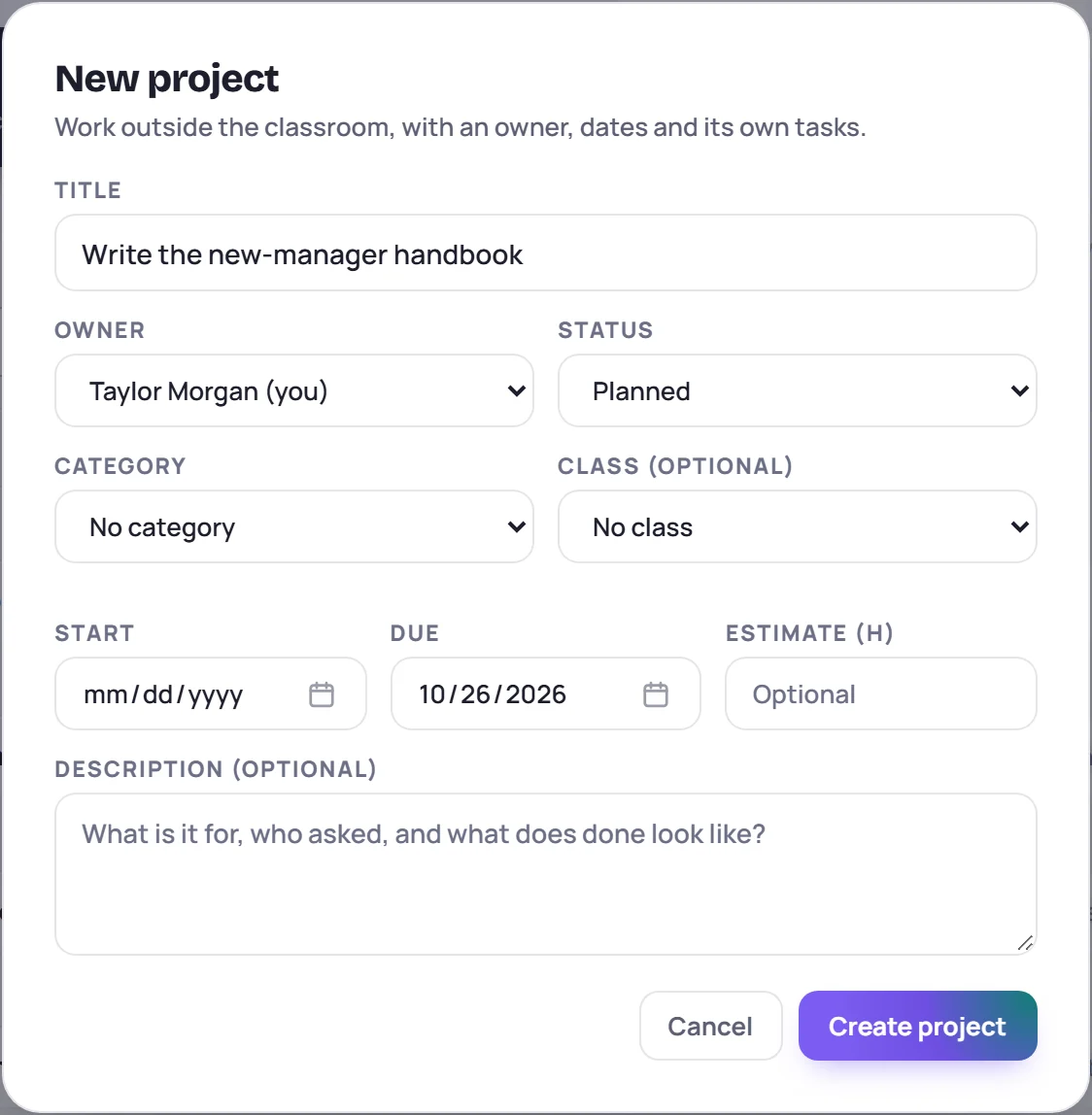
The project is yours. If you have Manage projects, you can pick another Owner to give it to them, and they get a notification.
Category is an open list, like tags: choose New category… at the bottom to add one. Admins tidy the list in Manage → Data. See The catalog.
The project page
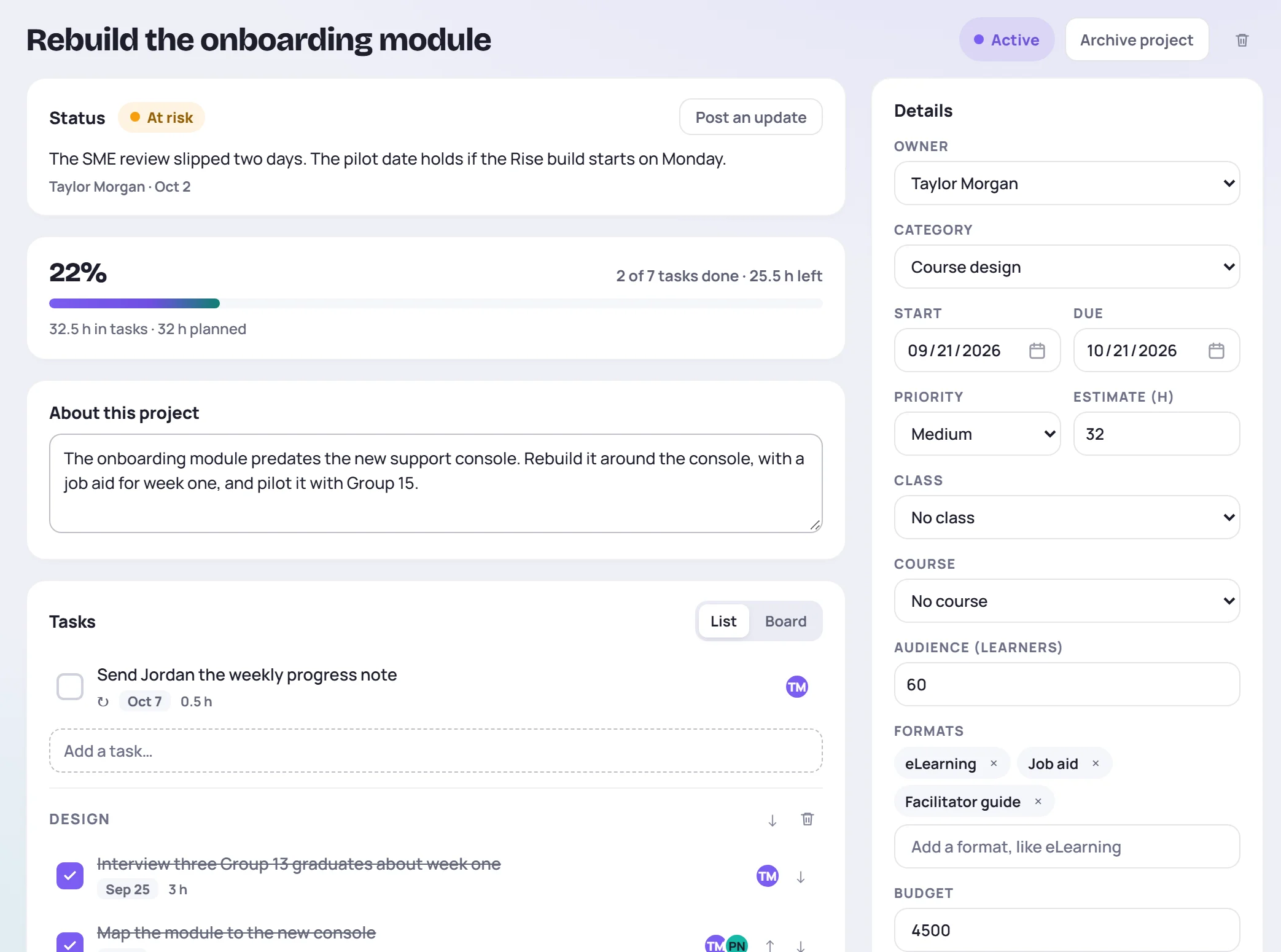
- Status shows how the project is going, as its owner last said: On track, At risk or Off track, with what they wrote. See Post a status update.
- Progress shows the share of tasks done (weighted by their estimates when every task has one), the hours left and how the task estimates compare with the project's own.
- About this project holds the description: what it's for, who asked and what done looks like.
- Tasks lists the steps, in sections if you add them, such as Design, Build and Pilot.
- Discussion is the project's thread. See Replies.
- Activity lists who created it, changed its status, owner or dates, and added or finished a task, newest first.
Beside them, Details holds the owner, category, start and due dates, priority, estimate, the class or course it relates to, how many learners it reaches and its formats, such as eLearning or Job aid. Your workspace's custom fields, such as a budget or a vendor, come after them. If you move the due date, a line shows how far it is from the first due date the project had. People lists the owner and the project's members, Stakeholders the people outside Skovrum who are involved, and Links the places the work lives, such as a shared folder.
Add tasks
Type in Add a task… and press Enter. To add several at once, paste a list, one per line. Bullets and numbers are dropped.
To group tasks, type a name under New section at the bottom and click Add section. Each section has its own Add a task… box. Rename a section by clicking its name, move it with the arrows, or remove it with the trash icon (its tasks stay in the project).
Use the arrows on a task to move it up or down in its section.
To see the tasks as columns instead, click Board above them. Group the columns By section or By progress, and drag tasks between them. See Board and timeline.
Work on a task
Click a task's name to open it.
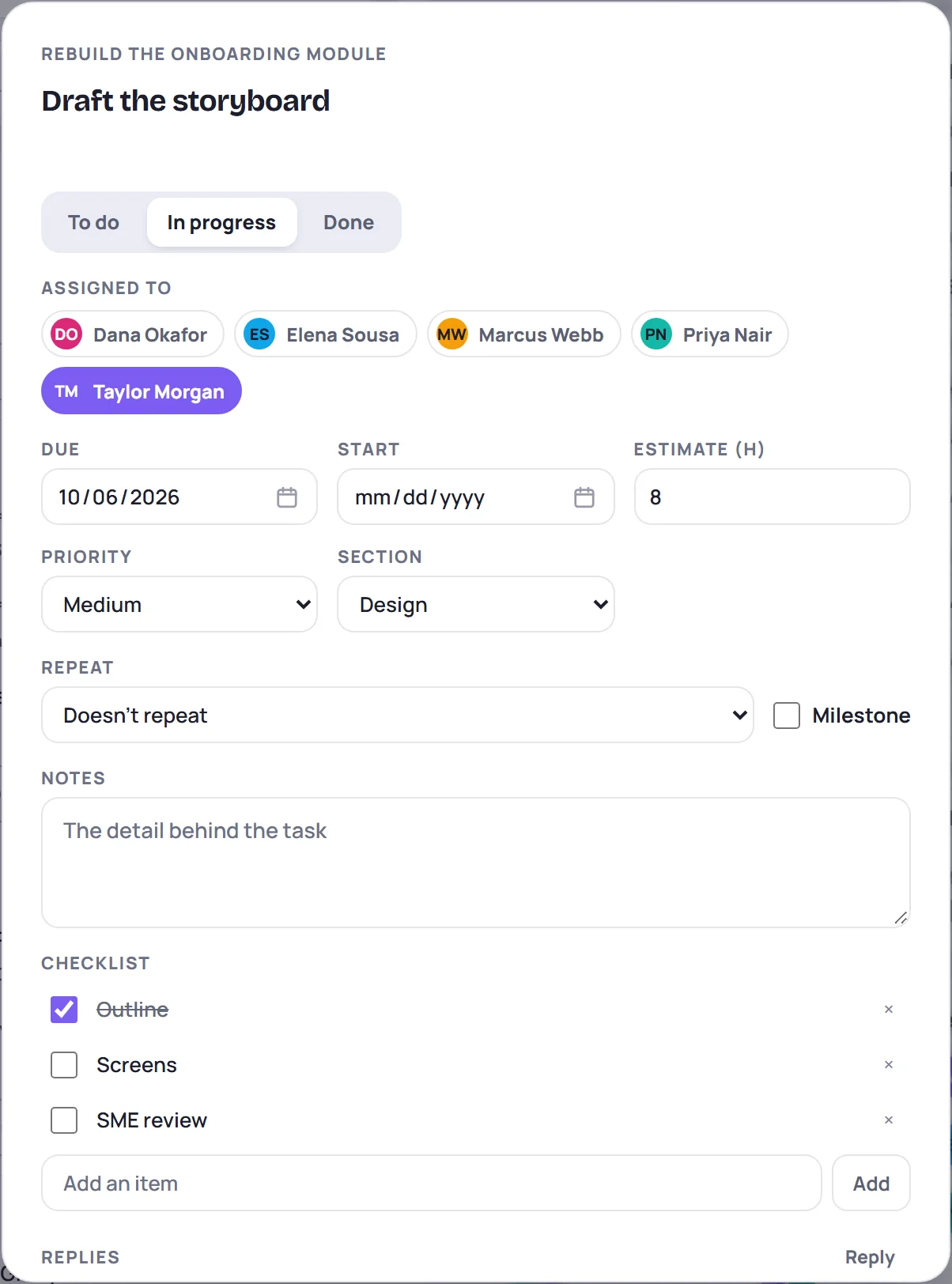
| To | Do this |
|---|---|
| Mark it started or done | Click To do, In progress or Done. The box next to it in the list also ticks it off. |
| Share it out | Click people under Assigned to. A task can have several. |
| Plan it | Set Due, Start, Estimate (h), Priority and Section. |
| Make it a milestone | Tick Milestone, for a go-live or a sign-off. It shows as a diamond on the timeline. |
| Repeat it | Choose how often under Repeat: every day, week, two weeks or month. When you tick it off, the next one appears with the next due date and the same people, estimate and checklist (unticked). |
| Note the detail | Type in Notes. It saves when you leave the box. |
| Break it down | Add items under Checklist and tick them off. |
| Discuss it | Click Reply. |
| Delete it | Click Delete. |
Statuses
Change the status with the colored button next to the title.
| Status | Means |
|---|---|
| Planned | Agreed, not started. |
| Active | In progress. |
| Blocked | Waiting on someone else. Skovrum asks what it's waiting on and shows it on the project. |
| Delayed | Put off on purpose. Skovrum asks why and, optionally, when it's back on. The owner gets a reminder that day. |
| Done | Finished. If tasks are still open, Skovrum offers to mark them done too. |
| Cancelled | Dropped. It leaves the list unless you choose Cancelled under Status. |
Post a status update
A status update says how the project is going, so nobody has to ask. The project's owner, the person who made it and anyone with Manage projects can post one.
- Under Status, click Post an update.
- Choose On track, At risk or Off track.
- Say what changed and what happens next.
- Click Post update.
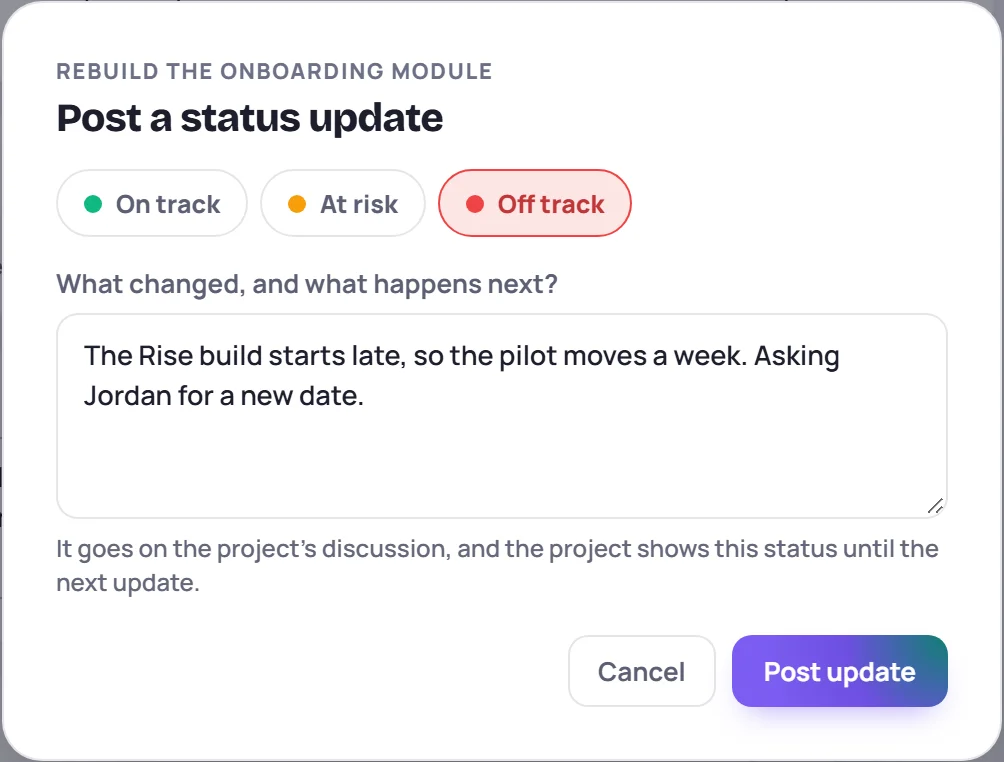
The update goes on the project's Discussion, marked with its status. The project then shows that status on its page, on its card on the board and in the list, until the next update. An Off track project of yours also shows in your daily email.
Archive project takes a project out of the lists without deleting it. Restore project brings it back.
My tasks
My tasks lists every project task assigned to you, grouped as Overdue, Due this week, Later and No due date. Tick tasks off there, or click one to open it. Show done adds the ones you've finished.
On Today and elsewhere
- Today: the My work card has a Projects switch. It lists your project tasks due within a week and your projects due this week.
- The bell reminds you of project tasks due within a week, projects of yours due within three days, a project someone gave you, and a delayed project whose date has come. See Notifications.
- The daily email lists your project tasks due today or overdue, and Your projects: the ones due within a week, overdue, blocked, off track or back from a delay. See Daily email.
- The calendar shows your project tasks and your projects' due dates in the week view. See The calendar. Your own calendar app can show them too: turn on Add my project due dates in your calendar feed.
- Search and the command palette (Cmd/Ctrl+K) find projects by name, and the palette has New project.
Who can change what
| Who | Can |
|---|---|
| Everyone who can write | See every project, start their own, and comment. |
| The owner and the person who made it | Change everything about the project, its tasks and its people. The owner can hand it to someone else. |
| Contributors, and anyone assigned a task in it | Add tasks. |
| The people a task is assigned to | Tick it off, mark it in progress, and change its notes and checklist. |
| The person who made a task | Change or delete it. |
| Manage projects | Do all of the above on any project, give projects to anyone, and delete any project. |
Only the person who made a project, or someone with Manage projects, can delete it. Its tasks and discussion go with it.
Under People you can also add followers. They don't add tasks, but replies on the project come to them in the daily email.
Common questions
What's the difference between a to-do and a project task? A to-do is a single follow-up, usually about a class. A project task is one step of a bigger piece of work, with its project's owner, dates and status around it.
Can a project be private? Not yet. Every project is visible to the whole team, so everyone can see who's busy with what.
Does deleting a class delete its projects? No. A project only mentions a class. If the class is deleted, the project and its tasks stay, without the link.