Work in the project list
Choose the list's columns, group and sort it, change projects right in the list, change many at once, and save the way you look at them as a view for yourself or the team.
Your words may differ. Each workspace can choose its own words: a class might be a cohort, program or group, a learner a participant, trainee or new hire, a session a module or lesson. These guides use the default words. The steps are the same whatever your workspace calls them. Change your workspace's words
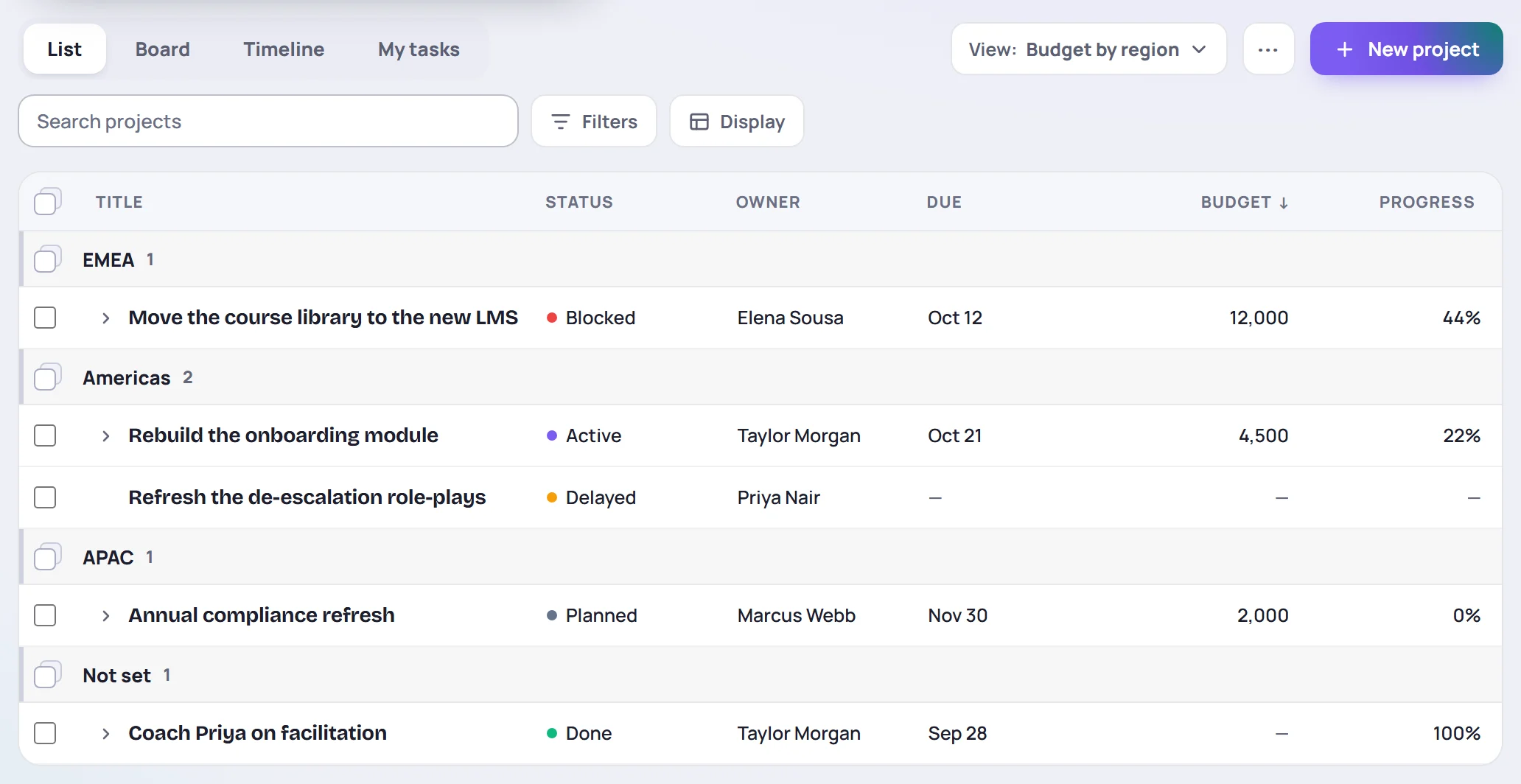
On a computer, the List view of the Projects screen is a table you can work in, much like a spreadsheet. On a phone it's a list of cards, grouped by status.
Columns, groups and sorting
Click Display above the list for its options:
- Columns chooses what the table shows. Tick a column to add it, and use the arrows to move it left or right. The title always comes first. Your workspace's custom fields are in the list too. Reset goes back to the standard set.
- Group by puts the projects under headings: Status, Owner, Category, Priority or Health, or a custom field with choices, a person or yes and no. No grouping gives one list.
- Show each project's tasks under it lists the tasks too (see below).
Click a column's name to sort by it, and again to sort the other way. An arrow shows which column the list is sorted by.
Skovrum keeps your columns, grouping and sort on this device.
See each project's tasks
Under Display, tick Show each project's tasks under it to list each project's tasks under it, indented, in the project's own order. A task's line shows its progress, who it's assigned to, its start and due dates, its estimate and its checklist, under the matching columns. Tick the box to mark it done, or click its name to open it.
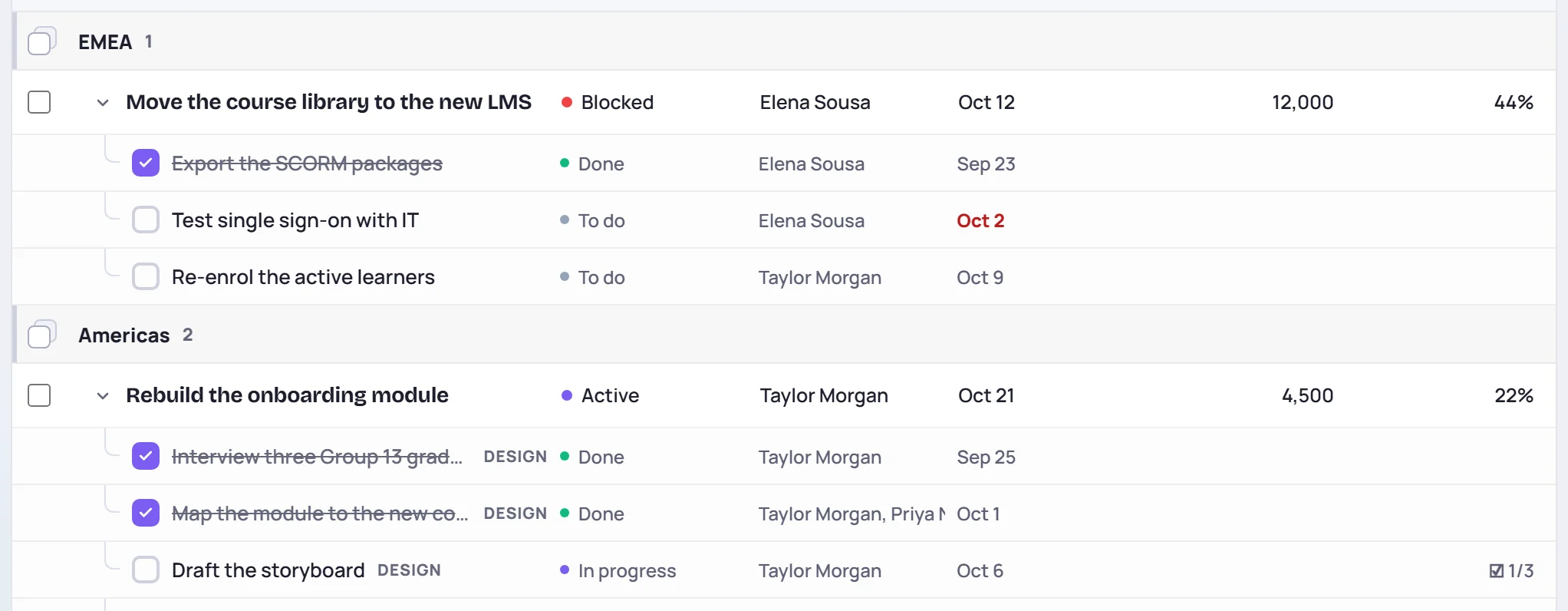
To open or close just one project, click the arrow before its title, whether or not the option is on.
Change a project in the list
Click a cell to change it: its status, owner, category, priority, dates, estimate, audience or a custom field. A list opens for a choice, and a box for a date or a number.
- A choice saves as soon as you pick it.
- A date, number or text saves when you press Enter or click away.
- Esc puts the cell back as it was.
Changing the status to Blocked, Delayed or Cancelled asks why, as it does on the project page. Click a project's title to open it.
You can change only the projects you can change on their own page: your own, the ones you made, or any project if you have Manage projects. The others show their values without the option to edit them.
Change many projects at once
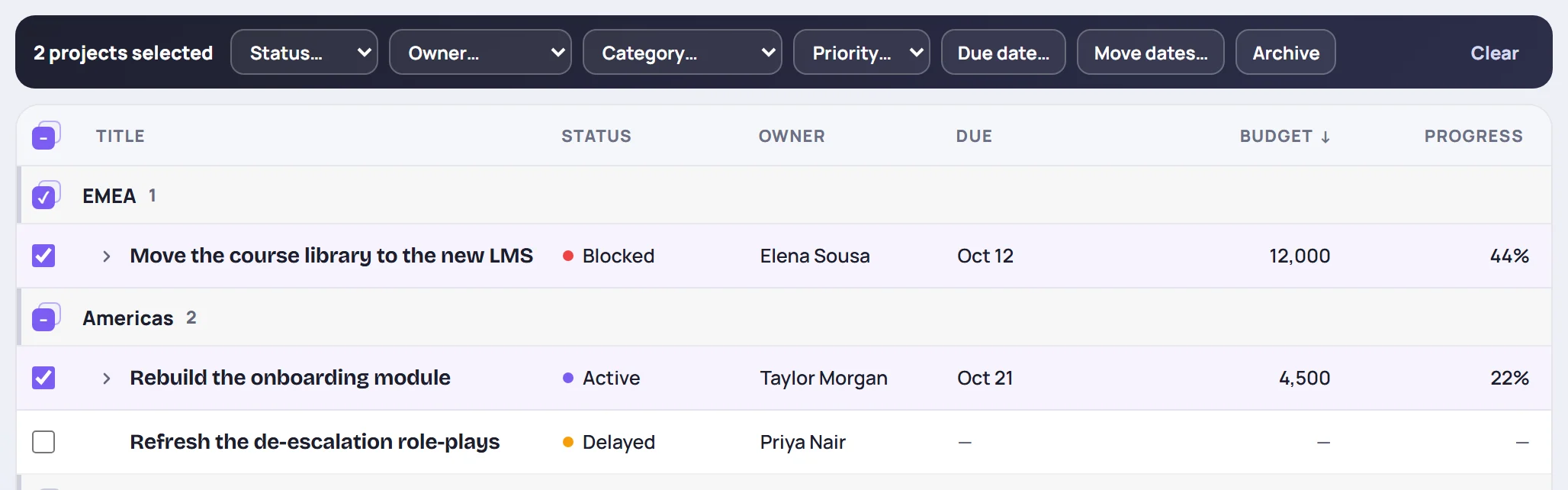
Tick the box at the start of each project you want. The stacked box beside a group's name selects the whole group, and the one at the top of the list selects every project shown. A stacked box shows a dash when only some of its projects are selected. A bar appears above the list:
| To | Do this |
|---|---|
| Give them a status | Choose it under Status…. Blocked, Delayed and Cancelled ask why once, for all of them. |
| Give them to someone | Choose a person under Owner… |
| File them | Choose under Category… or Priority… |
| Give them one due date | Click Due date… |
| Move their dates | Click Move dates… and enter a number of days. A negative number moves them earlier. Projects with no dates stay as they are. |
| Take them out of the lists | Click Archive |
The projects stay selected after each change, so you can make another one. Clear lets them go. If some can't change, for example projects you can't edit, Skovrum says how many were left as they were.
Marking projects Done this way leaves their open tasks open. To close the tasks too, change the status on each project's page.
Saved views
A view remembers how you look at the projects: List, Board or Timeline, the filters, the grouping, the sort and the columns. Use them for the lists you come back to, like My work this month, Compliance projects or Budget by region.
- Set up the screen the way you want it.
- Click View at the top right, then Save this as a view….
- Name it. Tick Share with the team if everyone should have it.
- Click Save view.
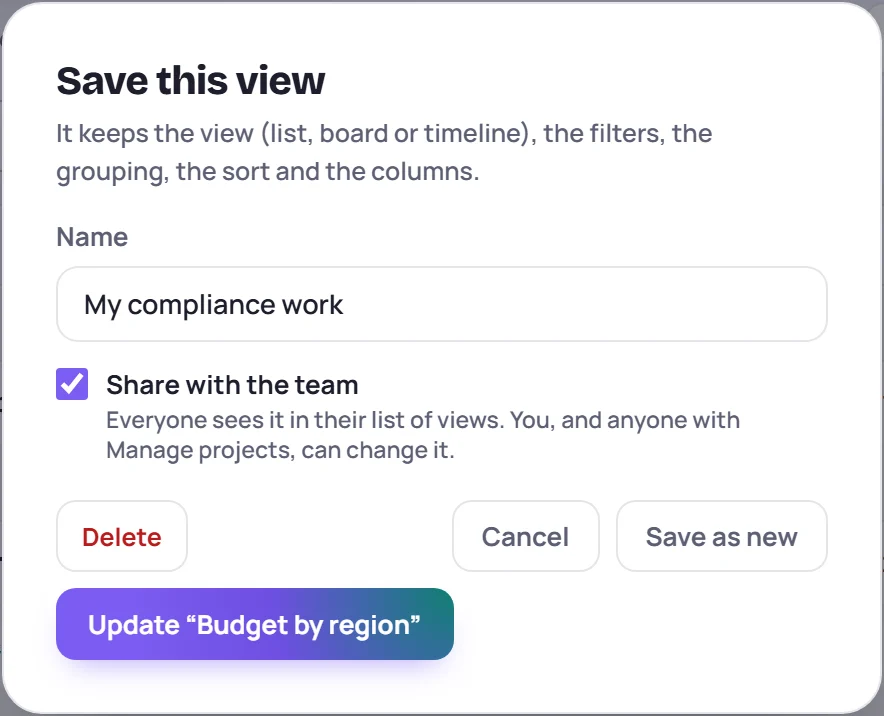
Pick a view from the View menu to bring it back. All projects clears the filters. If you change a view's setup, a dot appears beside its name. Choose Save changes to the view in the same menu to update it, or save the new setup as a view of its own.
Views you save for yourself are yours alone. A shared view shows in everyone's list. Only the person who saved it, or someone with Manage projects, can change or delete it.
Common questions
Why don't I see the table on my phone? A table that wide doesn't fit a phone, so the list shows cards there. Your columns and saved views are still there on a computer.
Can I edit the title in the list? No. Click the title to open the project and change it there.