Project templates
Save a project you run often as a template, start new projects from it with every task already dated, and let a course start its reviews from one.
Your words may differ. Each workspace can choose its own words: a class might be a cohort, program or group, a learner a participant, trainee or new hire, a session a module or lesson. These guides use the default words. The steps are the same whatever your workspace calls them. Change your workspace's words
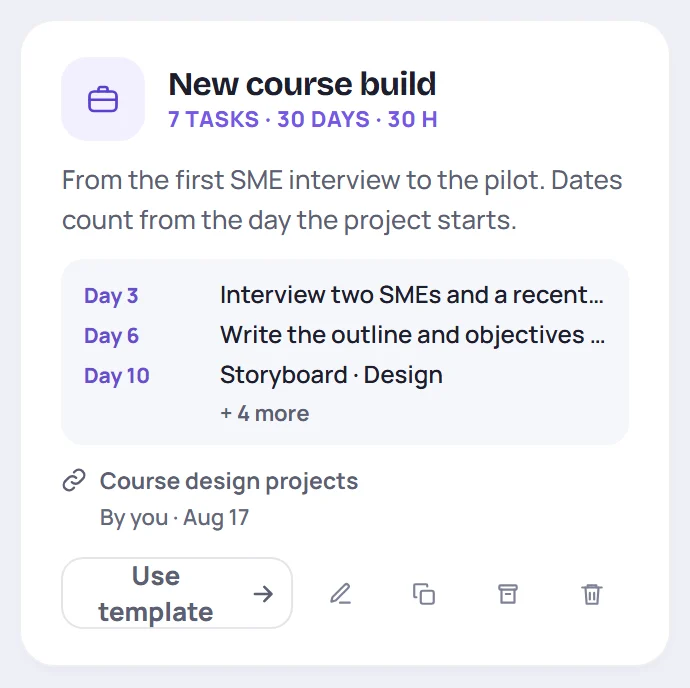
Some projects come around again and again: a new course build, an annual compliance refresh, onboarding a new trainer. A project template keeps the shape of one: its sections, and its tasks, each due a set number of days after the project starts, with its hours. Start the next one from it and every task is in place and dated.
Project templates live on the Projects tab of the Templates screen.
Save a project as a template
The quickest way to make one is from a project that went well:
- Open the project.
- Click Save as template at the top.
- It's saved, and opens so you can check it. Each task's due date has become a day of the project: if the project started on Monday the 1st, a task due on Wednesday the 3rd is due on day 3. Check the days, rename it if you like, and click Save template.
The template keeps the sections, the tasks and their order, their hours, milestones, notes and checklist items, the project's category, priority, estimate, description and formats, and its length (day 1 to its due date). It never keeps people, progress or what's done: a new project starts with every task open and nobody assigned.
Make or change one
On Templates → Projects, click New project template, or Edit template on a card.
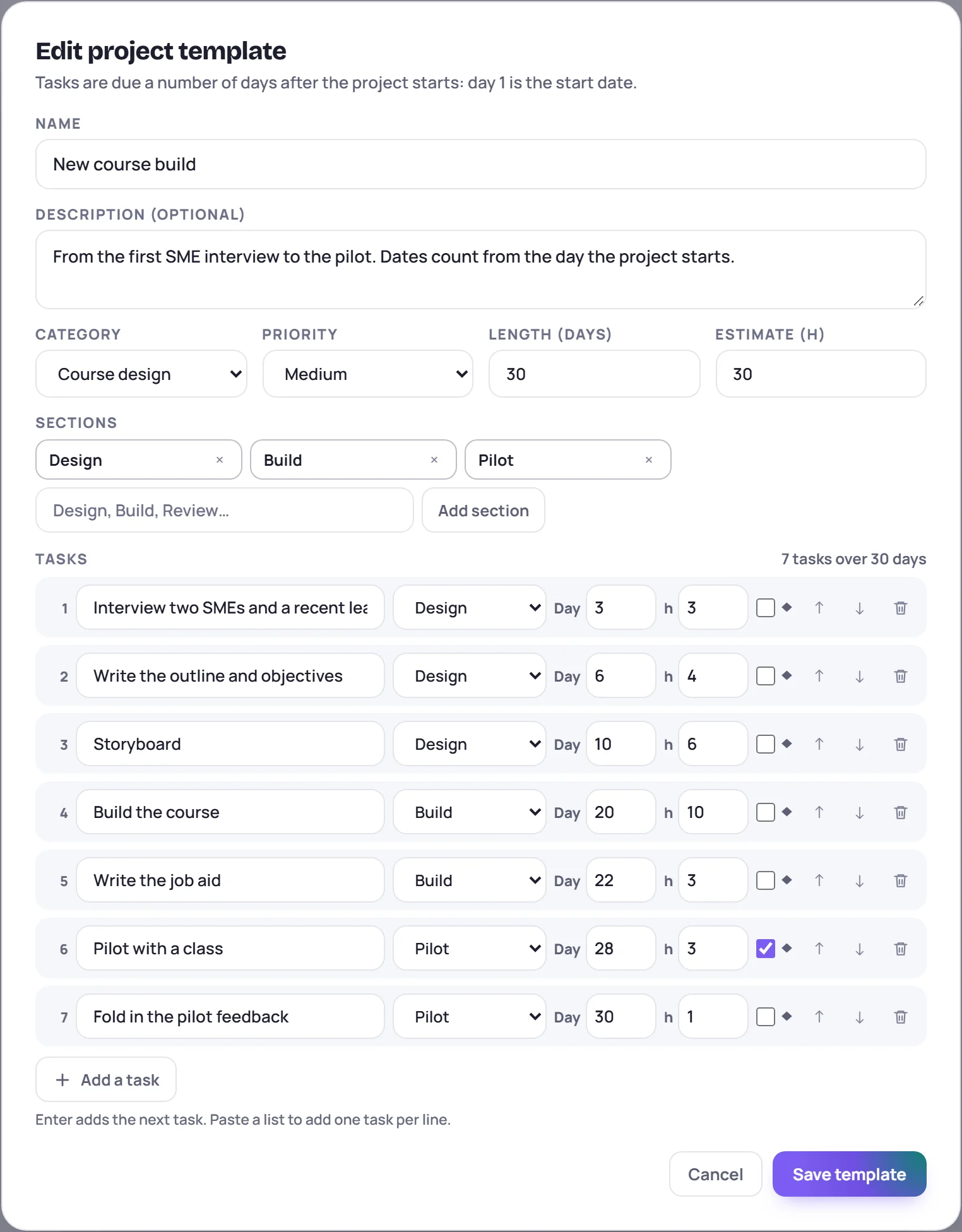
- Length (days) sets when a project made from it is due, counted from its start. Leave it empty and the project is due on its last task's day.
- Sections group the tasks, such as Design, Build and Pilot.
- Each task has its text, its section, the Day it's due (1 is the start date; leave it empty for no due date), its hours, and ◆ for a milestone.
- ↑ and ↓ reorder tasks. Enter in a task adds the next one under it, and pasting a list adds one task per line.
A template holds up to 200 tasks over up to 730 days.
Start a project from a template
Click Use template on the card, or New project on the Projects screen and choose the template under Start from.
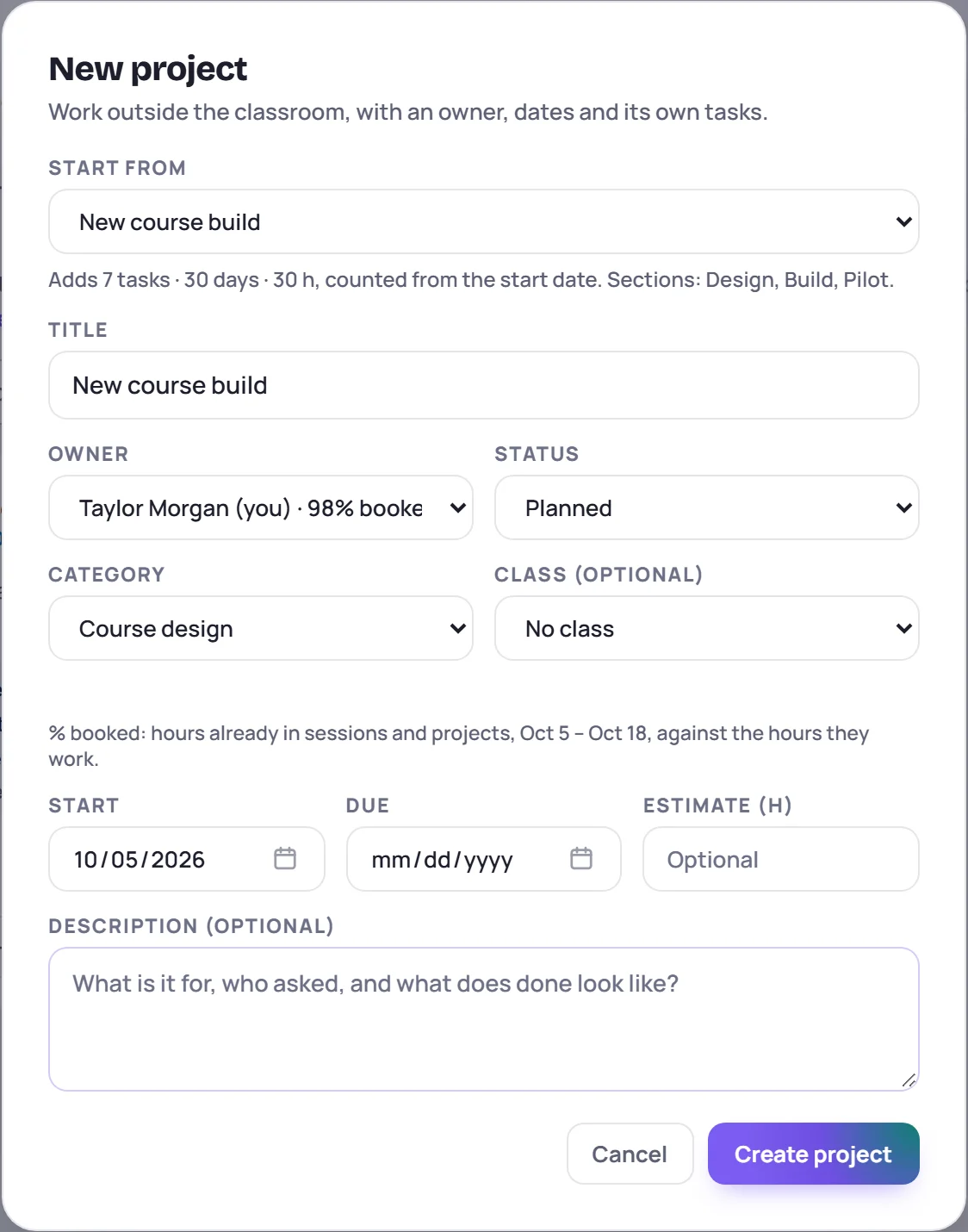
The title starts as the template's name, and the Start date as today. Change either: the tasks are dated from whatever start you choose. A line under Start from says what the template adds. Click Create project and the project opens with its sections and tasks. Its first due date is kept, so you can see later if it slips.
Reviews that start themselves
A course with a review cycle can name a project template under Review project from. When the course is due its review, the review project is made from that template, so the same checklist runs every time. See Review a course on a schedule.
Archive and delete
- Archive template takes it out of Start from but keeps it under Archived. A course that reviews from it still uses it. Restore template puts it back.
- Delete template removes it. Projects made from it keep their tasks. A template a course reviews from can't be deleted: choose another for the course first, or archive it.
- Duplicate template makes your own copy to change.
Common questions
Does changing a template change the projects made from it? No. A project copies the template when it's made. Later changes only reach new projects.
Can a template assign tasks to people? No. People differ from one run to the next, so assign the tasks once the project is made. Until then, Team workload counts unassigned tasks as the owner's.
Why are some of my tasks undated in the template? Their tasks had no due date in the project, so they have no day. Give them one in the editor if you want them dated.