Team workload
See each trainer's week as hours in class and on projects against how many hours they work, find who has room, and move work to them.
Your words may differ. Each workspace can choose its own words: a class might be a cohort, program or group, a learner a participant, trainee or new hire, a session a module or lesson. These guides use the default words. The steps are the same whatever your workspace calls them. Change your workspace's words
Skovrum knows when each trainer teaches and what project work they have. Workload puts the two together, week by week, against how many hours each person works. It answers "who can take this?" before you hand out the next project, and shows the weeks someone is booked solid.
| Who | Sees |
|---|---|
| People with Manage projects | Workload: everyone, side by side |
| Everyone else | My week: their own row |
Both are on the Projects screen, next to My tasks.
Read the view
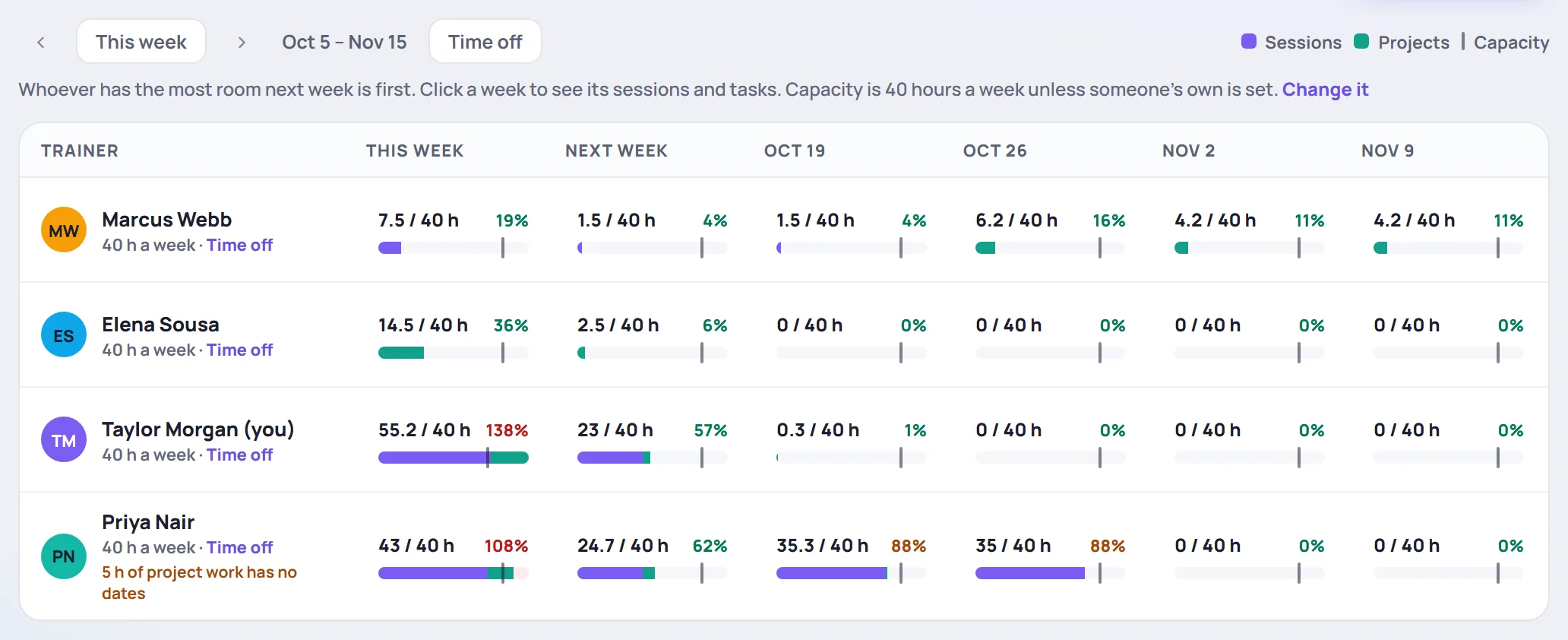
Each row is a trainer and each column a week: this week and the five after it. Use ‹ and › to move six weeks at a time, and This week to come back.
Each week shows:
- The hours, such as 32 / 40 h: the hours booked and the hours that person works that week.
- A bar: purple for sessions, green for project work, with a mark where their hours run out.
- The percentage, colored: green under 80%, amber from 80% to 100%, red when they're over.
- "Without an estimate" when tasks are due that week with no hours on them. The week isn't as free as it looks.
- "Away" when the person has time off that week, and in red, any session they lead while away.
Managers see whoever has the most room next week first. Under a name, a note says when some of their project work has no dates, or when a delayed project of theirs has no resume date. Neither is counted in any week.
See a week, and move work
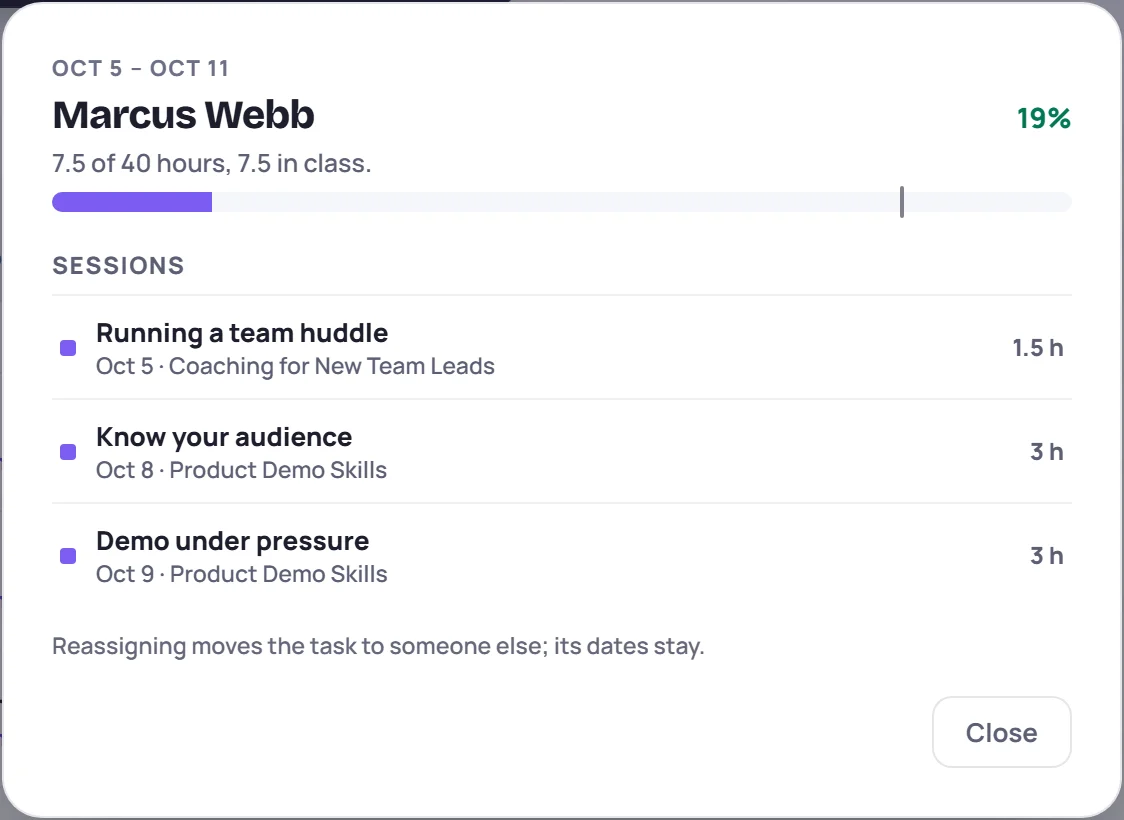
Click a week to see what's in it: its sessions, with their hours, and its project work, with each task's share of that week.
With Manage projects, a task has Reassign to…. Choose someone and the task moves to them with its dates. If the task had several people, only this person is swapped. The rest of a project's own estimate (see below) isn't a task, so open the project to give it to someone else.
Click a session or a task to open it.
Time off
Tell Skovrum when someone isn't working (vacation, leave, a conference) so their week isn't shown as free time:
- Click Time off above the weeks, or next to a name.
- With Manage projects or Manage users, choose Who. Everyone else adds their own.
- Choose the First day away and the Last day away, then click Add time off.
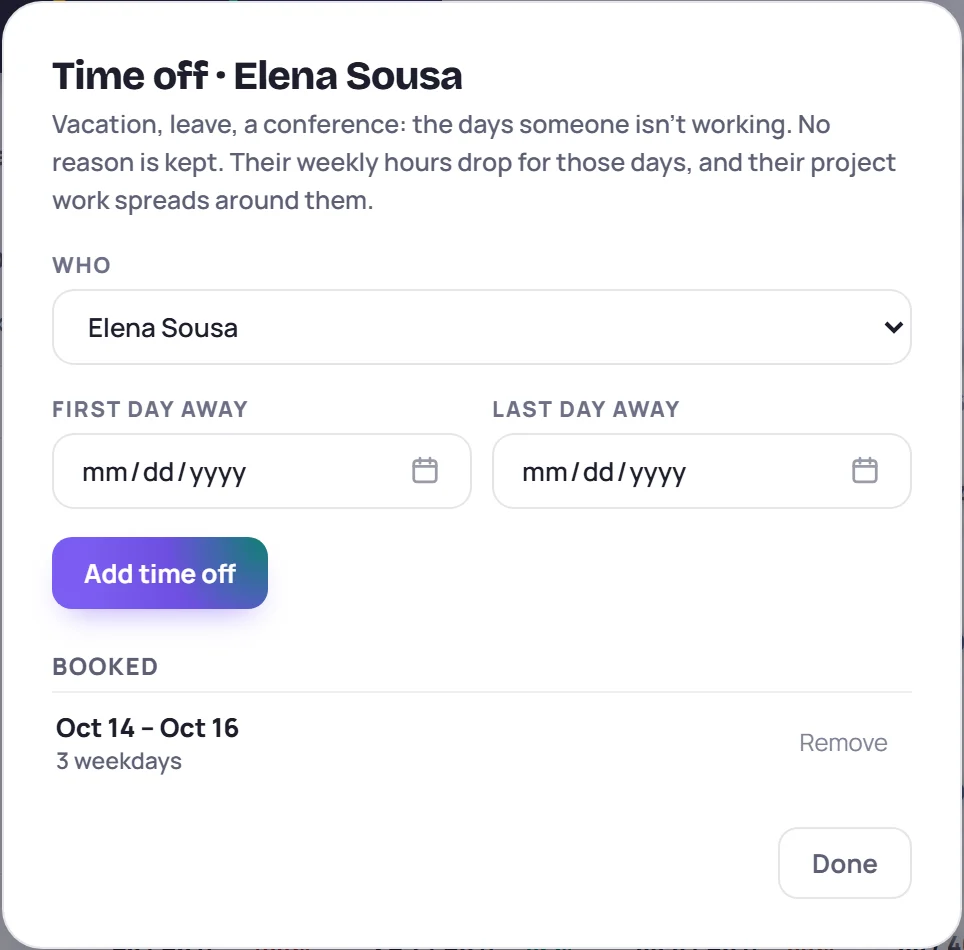
The days come off that week's hours: three days away in a 40-hour week leaves 16. Their project work spreads over the days they're in instead, and a week they're away entirely has no room. A session they lead on a day away still counts, and the week says so in red, so you can find cover. On the timeline, their lane shows the days away.
No reason is kept, only the dates. Remove takes time off back out. Time off someone else enters or removes is kept in the audit log. Your own is also under Workload on your development profile.
How booked people are, where you assign
With Manage projects, every place you choose who does the work shows how booked each person already is over the days the work falls in:
- Owner when you start a project, and under Details on the project page.
- Assigned to in a task, as 36% booked beside each name.
- Reassign to… in a week of the workload view.
The days run from today (or the work's start) to its due date, or the next two weeks when it has none. The line under the picker says which days. Away means they're off for all of them.
How the hours are counted
Workload never asks anyone to log time. It works from what's already in Skovrum:
- Sessions count from their start time to their end time, for the person leading them and the person co-leading. A session with no end time counts 2 hours. Cancelled sessions don't count.
- Project tasks count their estimate, spread evenly over the weekdays from today (or the task's start date) to its due date. A task with several people is split between them. A task with nobody on it counts for the project's owner.
- A task with no due date uses its project's dates.
- Overdue work lands today.
- The rest of a project's estimate, the part its tasks' estimates don't cover, goes to the project's owner the same way, up to the project's due date.
- Blocked projects still count: the work is waiting, not gone. Delayed projects count from their resume date. Done and cancelled projects don't count ahead.
- Finished work counts in past weeks, spread over the weekdays it was under way.
- Weekends never count, and nor do days away.
Nearly full: 34 of 40 hours this week.
Teaching: 3 days × 8 h = 24 h. The task: 12 h ÷ 6 weekdays = 2 h a day, and 5 of those days are this week: 10 h.
Under 80% of capacity is green, 80% to 100% amber, over 100% red. It's Monday morning here; a session without an end time counts 2 hours.
Estimates are guesses, and so is the picture they make. Workload doesn't count preparation time.
Set the hours people work
- For everyone: in Manage → Workspace, under Team workload, set Hours a week. It starts at 40. See Workspace settings.
- For one person: in Manage → Users, click Edit login and fill in Weekly hours. Leave it empty to use the workspace's. Their own hours then show next to their name. See Invite and manage users.
Both take the Manage users permission, and a change to someone's hours is kept in the audit log.
Workload elsewhere
- Analytics → Workload looks back over the date range you pick: the team's utilization, hours in sessions and on projects, the weeks people were over, projects finished and how many were on time, and project hours by category. It uses the Trainer filter. See Analytics.
- A trainer's development profile shows their next six weeks and the last 90 days. They see their own; so do people with Manage projects or View analytics. See My development.
- Team development shows each trainer's current week on their card. See Team development.
Common questions
Why is someone at 0% when I know they're busy? Their work has no estimates, or no dates. Look for "without an estimate" in the week and for the notes under their name. Add estimates and due dates to the tasks.
Why does this week show less than 40 hours of room for a part-time trainer? It uses their own Weekly hours if set. A week cut short by the date range in Analytics counts only its weekdays in range.
Can I log the hours someone actually spent? No. Workload uses estimates and session times only.